Remove checkout fields in WooCommerce: code, blocks, and CheckoutWC
To remove checkout fields in WooCommerce, you have three routes. On the classic checkout, unset the fields in the woocommerce_checkout_fields filter. On the block checkout, switch off Company, Address line 2, and Phone under Address Fields in the editor (anything else needs a plugin or code). With CheckoutWC, you clear fields from settings screens, with no code, and it works on either checkout. Fewer fields means a shorter form, which matters most on phones, and you only collect the data you use.
Which fields are safe to remove
Think about what your business needs before you remove anything:
- Company name: unless you sell mostly to businesses, it often goes unused.
- Address line 2: customers can put an apartment number in the main address box.
- Phone number: many customers prefer not to give one. Keep it if your courier needs it for deliveries, or make it optional.
- Order notes (Additional information): remove it unless you take delivery instructions.
Some fields do real work. Payment gateways and tax rates often read the billing address, especially postcode, country, and state, so test a real payment and a taxed order after you remove any of them. WooCommerce’s country and state handling also produces errors when only one of the two is removed; the fix is in our guide to making WooCommerce checkout fields required or optional. To remove the shipping step itself, see removing shipping from the WooCommerce checkout.
Remove checkout fields with code on the classic checkout
This works when your checkout page uses the [woocommerce_checkout] shortcode. A field removed from the list isn’t shown and isn’t validated when the order is placed. Add it to your child theme’s functions.php or a code snippets plugin:
add_filter( 'woocommerce_checkout_fields', function ( $fields ) {
	unset(
		$fields['billing']['billing_company'],
		$fields['billing']['billing_address_2'],
		$fields['billing']['billing_phone'],
		$fields['shipping']['shipping_company'],
		$fields['shipping']['shipping_address_2']
	);

	return $fields;
}, 100 );
Edit the list to match the fields you want gone. To remove the order notes box (the “Additional information” heading), use this instead:
add_filter( 'woocommerce_enable_order_notes_field', '__return_false' );The catch: it only affects the classic checkout, you have no visual interface, and you maintain it as WooCommerce changes. Kestrel’s guide to adding custom code to WooCommerce safely shows where to put snippets.
Remove checkout fields on the block checkout
The block checkout ignores classic snippets. WooCommerce lets you hide company, address line 2, and phone, or make them optional or required, from the editor: open Pages, edit your Checkout page, select the Checkout block, and open the Address Fields panel in its settings. Each field has a toggle, and an Optional or Required choice while it’s on. You can also delete blocks you don’t need, such as the order note. Beyond that, a field editor plugin built for blocks or custom code is the only route, and the block checkout’s extensibility is limited, so it suits only minor changes.
Remove fields with CheckoutWC
CheckoutWC replaces the checkout page with its own, so these settings work whether your page uses the shortcode or the checkout block. They are WooCommerce’s own field settings where WooCommerce has them, so a change here applies in WooCommerce, too.
- Company and address line 2: go to CheckoutWC » Checkout Editor, open Addresses and set Company Field and Address 2 Field to Hidden. The change applies to both billing and shipping addresses.
- Phone: go to CheckoutWC » Pages, open the Checkout tab and set Phone Field to Hidden under Field Options (the Checkout Editor’s Addresses section has the same setting).
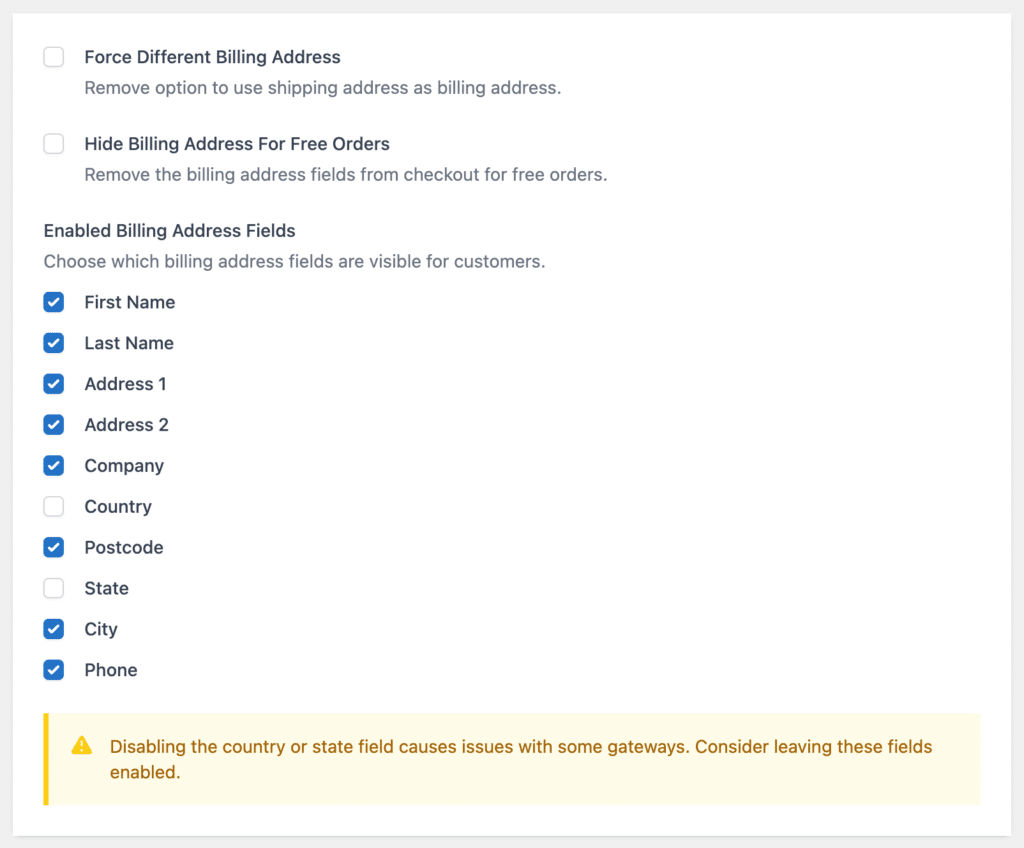
- Billing fields: under Enabled Billing Address Fields (CheckoutWC » Pages, Checkout tab, Address Options), clear any field you don’t need. Cleared fields aren’t shown or validated. The screen warns you before you remove country or state, which can cause gateway issues.
- Free orders: turn on Hide Billing Address For Free Orders so customers aren’t asked for a billing address when the total is zero.
- One name field: Enable Full Name Field replaces first and last name with one field.
- Order notes: Enable Order Notes Field is off by default; leave it off and the notes box doesn’t show.
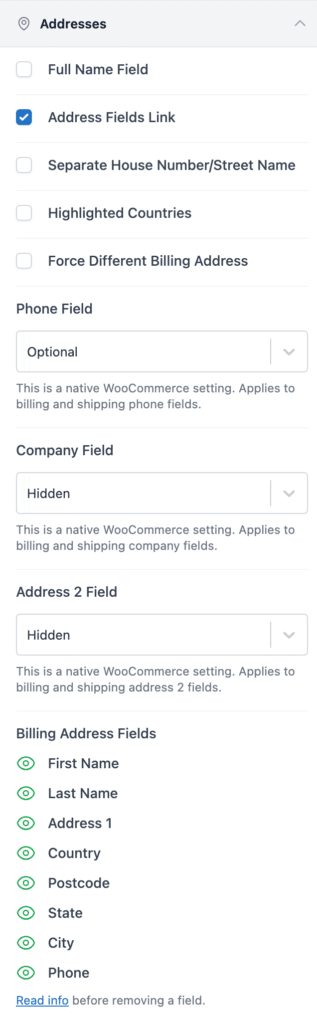
Optional fields that stay, such as company or address line 2 when set to Optional, are hidden behind “Add Company (optional)” and “Add Address Line 2 (optional)” links by default, which keeps the form short. See the guides for removing address line 2 and the company name, and billing address options for the full list. After you save, preview your checkout to confirm the fields are gone, and place a test order.
Remove fields without losing the data you need
Collect only what you’ll use, but don’t remove a field a gateway or your shipping carrier needs. If you need something WooCommerce doesn’t ask for, such as a gift message, CheckoutWC can add it: custom fields (text, text area, dropdown, radio, and checkbox) go into any checkout slot from the Checkout Editor (new in 11.4.0; see the release announcement). Collecting fewer fields also fits data minimization rules such as GDPR, though it doesn’t replace a privacy review.
CheckoutWC is one plan with every feature, from $249 a year for one site. See the plans to manage checkout fields from a settings screen instead of snippets.

The simplicity of Shopify with the power of WooCommerce. Replace your WooCommerce checkout page with CheckoutWC to boost sales and reduce cart abandonment.