Caching and optimization plugins speed up your store by saving pages and combining, delaying or rewriting scripts. On the checkout, that can leave the form blank, show another customer’s cart, or break the place order button. This page covers what to exclude, the plugins CheckoutWC adjusts for itself, and hosting plugins that cause problems.
When you’d use this
- The checkout shows the header, order summary and breadcrumb, but the form never appears.
- The checkout works when you’re logged in but not in a private window, or the other way round.
- The side cart shows an old or empty cart on some pages.
- Images are missing on the checkout, order pay or thank you page.
- Problems started after you turned on a caching or optimization plugin, or changed hosts.
Check whether optimization is the cause
- Add
?bypass-cfw=trueto your checkout URL, for examplehttps://yourstore.com/checkout/?bypass-cfw=true. This shows WooCommerce’s own checkout for that page load only. It applies just to you and changes no settings. - If WooCommerce’s checkout works and CheckoutWC’s doesn’t, turn off your optimization plugin’s JavaScript and CSS options, purge its cache, and load the checkout in a private window.
- If that fixes it, turn the options back on one at a time to find the one that breaks the checkout, then exclude CheckoutWC from it as described below.
If WooCommerce’s checkout is broken too, see Troubleshoot CheckoutWC.
What to exclude from caching and optimization
Pages that must never be cached
Don’t cache these pages, or requests to them, for any visitor:
- The cart, checkout and My Account pages. Order pay and the thank you page are part of the checkout URL.
- WooCommerce’s AJAX requests, which contain
?wc-ajax=in the URL. The checkout uses them to update totals and place the order.
Most caching plugins and hosts exclude WooCommerce’s pages automatically. If yours doesn’t, add them to its exclusion list. Don’t serve a cached page to visitors who have these cookies: woocommerce_cart_hash, woocommerce_items_in_cart and wp_woocommerce_session_*.
With the default template loader, CheckoutWC also sends headers that tell browsers and caches not to store its checkout, order pay and thank you pages.
The side cart can show on cached pages. It sets a cfw_cart_hash cookie, and when that doesn’t match the cart, it reloads the cart contents after the page loads.
Scripts and stylesheets to leave alone
If a plugin combines, delays, defers or minifies scripts, exclude CheckoutWC’s files from those options:
- the folder
/wp-content/plugins/checkout-for-woocommerce/assets/dist/ - the scripts
cfw_front,woocommerce,wc-checkoutandselectWoo, and jQuery
On its pages, CheckoutWC replaces WooCommerce’s woocommerce, wc-checkout and selectWoo scripts with its own versions under the same names. A plugin that saves optimized copies by script name can then serve the version from another page on the checkout. The page loads without an error, but the form never appears.
Optimization plugins CheckoutWC handles
WP Rocket
CheckoutWC adds its stylesheets and the CSS classes it adds while customers shop (the side cart rewards bar and confetti) to WP Rocket’s Remove Unused CSS safelist. It also clears WP Rocket’s cached cart fragments when you save side cart settings.
For WP Rocket’s Delay JavaScript execution, use Enable WP Rocket Delay JS Execution compatibility mode under CheckoutWC » Integrations, in the Themes and Plugins section. It only appears while WP Rocket is active.
- Enabled: CheckoutWC’s scripts and the scripts they need aren’t delayed. Check this if the checkout or side cart breaks with Delay JavaScript execution on.
- Disabled: CheckoutWC’s scripts can be delayed with the rest, which can be faster if everything still works.
It’s disabled on new installs.
SiteGround Speed Optimizer
From CheckoutWC 11.4.0, CheckoutWC excludes its own scripts and stylesheets from Speed Optimizer’s minify, combine and async options automatically. There’s nothing to set. After updating, purge the SiteGround cache so it drops any copies saved before the update.
On older versions, the checkout can load the header, order summary and breadcrumb but not the form. Update CheckoutWC. If you can’t update yet:
- Go to Speed Optimizer » Frontend » JavaScript.
- Click the edit icon beside Minify JavaScript Files and add CheckoutWC’s scripts (listed above). Do the same for each JavaScript option you’ve turned on, since each option has its own list.
- Save, purge the SiteGround cache, and load the checkout in a private window.
Turning off JavaScript minification also works.
Other plugins CheckoutWC adjusts for
CheckoutWC also adjusts for the Nexcess MU plugin’s cart fragments setting, and stops Optimole replacing image addresses on its pages.
LiteSpeed Cache and other optimization plugins
LiteSpeed Cache
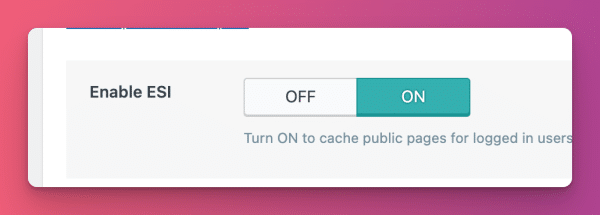
Turn off LiteSpeed Cache’s ESI feature. If the checkout still breaks, exclude CheckoutWC’s scripts from LiteSpeed’s JavaScript and CSS optimization options, as described in Scripts and stylesheets to leave alone.
Other optimization plugins
CheckoutWC doesn’t have specific handling for Autoptimize, Perfmatters, NitroPack, Cloudflare Rocket Loader or similar tools. If one breaks the checkout, exclude CheckoutWC’s folder and scripts from its JavaScript options, and the checkout pages from its page cache. Then purge its cache and test in a private window.
Hosting plugins
The Bluehost Plugin
The Bluehost plugin 3.8.0 to 3.9.2 swapped the billing and shipping checkout fields when WooCommerce’s shipping destination was set to the customer’s shipping address, which could hide the billing email and phone fields. Bluehost fixed this in version 3.9.3 (2024), so if you run 3.9.3 or newer, including the current Bluehost plugin, you need no action and can keep the plugin active. If you are on 3.9.2 or older, update The Bluehost Plugin to the latest version; if you can’t update it, deactivate it. CheckoutWC still shows its “Incompatible Plugin” notice whenever the Bluehost plugin is active, whatever its version; on 3.9.3 or newer the notice no longer applies.
If your host adds its own caching, ask them to exclude the cart, checkout and My Account pages and the ?wc-ajax= requests, as described in Pages that must never be cached.
Missing images and lazy loading
If images are missing on the checkout, order pay or thank you page, your theme’s lazy loading is usually the cause. CheckoutWC doesn’t load scripts from your theme’s folder on these pages, so a theme’s lazy loading script never runs and its images never appear.
To fix it, turn off your theme’s lazy loading. WordPress lazy loads images and iframes itself, without any script, and that works on CheckoutWC’s pages. CheckoutWC already turns off lazy loading for Avada and Woodmart.
If you need a lazy loading plugin, a standalone one works, because CheckoutWC only leaves out scripts from your theme’s folder.
Common issues
The checkout shows the header and order summary but the form never appears
A script optimization or caching plugin is usually serving the wrong copy of a script. Follow Check whether optimization is the cause, then Scripts and stylesheets to leave alone.
The checkout works when I’m logged in but not in a private window
The checkout page is probably being cached for visitors. See Pages that must never be cached.
The side cart shows an old or empty cart
Cached pages can show a stale cart until the side cart reloads it. Make sure the cart cookies and ?wc-ajax= requests aren’t cached, as described in Pages that must never be cached.
Images are missing on the checkout, order pay or thank you page
See Missing images and lazy loading.