• Pricing
  • Features
  • Get started
  • Support
  • Docs
  • Account
  • Blog
  • Updates

CheckoutWC

  • Pricing
  • Features
  • Get started

WooCommerce coupons: how to create codes and use them to sell more

February 7, 2022 by Clifton Griffin in WooCommerce Checkout
(Updated: November 16, 2026)

Coupon Strategies with WooCommerce

Table of Contents

  • How to create a WooCommerce coupon
  • Limit how a coupon is used
  • Coupons vs automatic discounts
  • Coupon ideas that work for WooCommerce stores
  • Make the coupon field easy to use at checkout
  • Use coupons in abandoned cart emails
  • Track what your coupons do
  • Add offers that don't need a code

To create a WooCommerce coupon, go to Marketing » Coupons » Add coupon, enter a code, choose a discount type and amount, and set any limits on spend, products, or uses. Publish it, then test it at checkout. Coupons work best when each has a clear goal, a deadline, and a limit, and when customers can find the coupon field without hunting for it.

How to create a WooCommerce coupon

  1. Go to Marketing » Coupons and click Add coupon.
  2. Enter the Coupon code customers will type, for example WELCOME10. Add a description for your own reference.
  3. On the General tab, choose the Discount type: Percentage discount, Fixed cart discount, or Fixed product discount. Enter the Coupon amount.
  4. Select Allow free shipping if the coupon should unlock a free shipping method, and set a Coupon expiry date if it should end.
  5. Click Publish, then try the code in a private browser window.
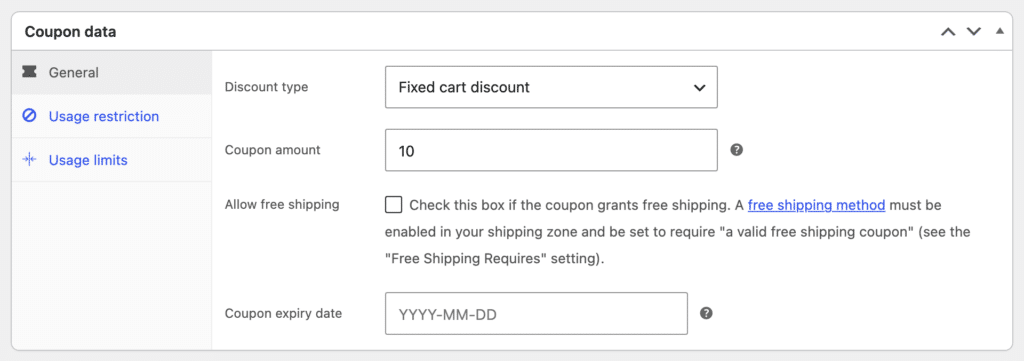
WooCommerce coupon data box on the General tab with Discount type set to Fixed cart discount and a coupon amount of 10

Limit how a coupon is used

Two tabs in the coupon editor stop a code from costing more than you planned.

  • Usage restriction: set a minimum or maximum spend, make the coupon individual use only, exclude sale items, and limit it to certain products, categories, or customer emails.
  • Usage limits: cap the total number of uses for the coupon and the number of uses per customer.

Expiry dates and usage limits also reduce coupon abuse from code-sharing sites. If a code leaks, a limit caps the damage.

Coupons vs automatic discounts

A coupon asks the customer to enter a code. An automatic discount applies without one, such as a sale price or a rule like 10 percent off orders over a set amount. Use coupons when you want to control who gets the offer: a newsletter subscriber, a returning customer, a partner’s audience. Use automatic discounts when you want everyone to see the offer. For rule-based discounts, see how to create automatic WooCommerce cart discounts.

Coupon ideas that work for WooCommerce stores

  • Welcome offer: a one-use code for new subscribers.
  • Spend tiers: a bigger discount at a higher cart total, using a minimum spend, to raise order value.
  • Free shipping: a code with Allow free shipping and a minimum spend.
  • Seasonal and time-limited: an expiry date adds urgency without changing your regular prices.
  • Win-back and abandoned cart: a code sent only to people who left without buying.
  • Segments: a code for a group such as members, students, or staff, limited by customer email.

Set a goal for each coupon, such as new customers or higher order value, and check your margin before launching. Frequent, large codes can teach shoppers to wait for a discount, so keep them targeted and time-limited.

Make the coupon field easy to use at checkout

A coupon only works if the customer can apply it. A prominent code box can also send shoppers off to search for codes, so many stores keep it behind a link. CheckoutWC gives you both options:

  • In the Checkout Editor, the Coupon Code Link setting in the Cart Summary section controls how the coupon field shows in the checkout summary.
  • In CheckoutWC » Side Cart, Enable Coupons lets customers apply a code in the side cart, and Hide Coupon Code Field Behind Link keeps the field hidden until they click “Have a coupon code?”.

The side cart docs and the Checkout Editor guide show where each setting lives.
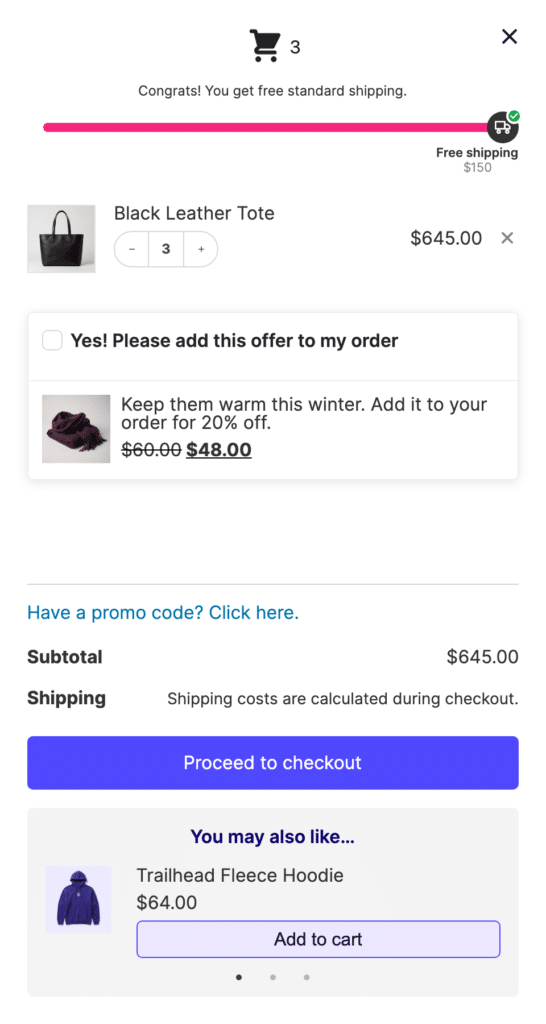
CheckoutWC side cart with a Have a promo code? Click here link above the subtotal

Use coupons in abandoned cart emails

CheckoutWC’s abandoned cart recovery emails (see WooCommerce cart abandonment for the wider picture) can include a coupon that only people with an abandoned cart can use. Create the coupon in Marketing » Coupons, then under Usage restriction select CheckoutWC ACR only, and paste the code into the recovery email text. It’s the same code for everyone who gets that email, and CheckoutWC doesn’t generate a separate code per email. A time-limited code is a gentle nudge for shoppers who left at the last step.

Track what your coupons do

WooCommerce shows each coupon’s usage count in the coupon list, and the Orders screen lists the coupon on each order. Compare orders that used a code with those that didn’t: average order value, repeat purchases, and refunds. A coupon that attracts one-off bargain hunters isn’t worth repeating.

Add offers that don’t need a code

Coupons are one tool. Order bumps put a relevant add-on, with its own discount, in front of the shopper at checkout, no code needed; see our WooCommerce order bump guide. CheckoutWC includes the side cart, order bumps, and abandoned cart recovery in every plan. See pricing: $249 a year for one site, or $899 once.

The simplicity of Shopify with the power of WooCommerce. Replace your WooCommerce checkout page with CheckoutWC to boost sales and reduce cart abandonment.


Get Started
Previous Article

CheckoutWC 6.2.3 Released

Next Article

CheckoutWC 7.0 Released

Clifton Griffin

WooCommerce is my patronus. Husband of Jennifer. Father of three. Believer.

Share this Post

Table of Contents

  • How to create a WooCommerce coupon
  • Limit how a coupon is used
  • Coupons vs automatic discounts
  • Coupon ideas that work for WooCommerce stores
  • Make the coupon field easy to use at checkout
  • Use coupons in abandoned cart emails
  • Track what your coupons do
  • Add offers that don't need a code

The simplicity of Shopify with the power of WooCommerce. Replace your WooCommerce checkout page with CheckoutWC to boost sales and reduce cart abandonment.

Get Started

Supercharge your WooCommerce checkout

Stop losing sales at the final step. CheckoutWC is a drop-in upgrade that reduces abandoned checkouts and keeps customers happy.
Start Selling More
You won't regret it. We pinky swear.

Account

  • Account
  • Log In
  • Affiliate Program
  • Affiliate Agreement
  • Terms and Conditions and Refund Policy

Product

  • Features
  • Best WooCommerce checkout plugins compared
  • Flux Checkout vs CheckoutWC
  • CartFlows vs CheckoutWC
  • FunnelKit vs CheckoutWC
  • CheckoutWC Demos
  • Testimonials
  • Leave a Review

Support

  • Home
  • Documentation
  • Support
  • Contact
  • Need a Developer?

Our Good Friends

  • WP Sent Mail
  • Advanced Content Templates

Making the world a better place one WooCommerce checkout at a time and one support request at a time.

Made with by KestrelWP Icon Kestrel

Subscribe & Discount

Stay up to date and never miss a promotion, freebie, or update! Get a 10% OFF DISCOUNT for any premium plan for your first subscription year.

Copyright © 2026 CheckoutWC, All rights reserved.
CheckoutWC
Manage Consent

We use technologies like cookies to access or store device information. Consenting to these technologies will allow us to process data such as browsing behavior or unique IDs on this site. Not consenting may adversely affect certain features and functions.

Functional Always active
The technical storage or access is strictly necessary for the legitimate purpose of enabling the use of a specific service explicitly requested by the subscriber or user, or for the sole purpose of carrying out the transmission of a communication over an electronic communications network.
Preferences
The technical storage or access is necessary for the legitimate purpose of storing preferences that are not requested by the subscriber or user.
Statistics
The technical storage or access that is used exclusively for statistical purposes. The technical storage or access that is used exclusively for anonymous statistical purposes. Without a subpoena, voluntary compliance on the part of your Internet Service Provider, or additional records from a third party, information stored or retrieved for this purpose alone cannot usually be used to identify you.
Marketing
The technical storage or access is required to create user profiles to send advertising, or to track the user on a website or across several websites for similar marketing purposes.
  • Manage options
  • Manage services
  • Manage {vendor_count} vendors
  • Read more about these purposes
View preferences
  • {title}
  • {title}
  • {title}
CheckoutWC
Manage Consent
To provide the best experiences, we use technologies like cookies to store and/or access device information. Consenting to these technologies will allow us to process data such as browsing behavior or unique IDs on this site. Not consenting or withdrawing consent, may adversely affect certain features and functions.
Functional Always active
The technical storage or access is strictly necessary for the legitimate purpose of enabling the use of a specific service explicitly requested by the subscriber or user, or for the sole purpose of carrying out the transmission of a communication over an electronic communications network.
Preferences
The technical storage or access is necessary for the legitimate purpose of storing preferences that are not requested by the subscriber or user.
Statistics
The technical storage or access that is used exclusively for statistical purposes. The technical storage or access that is used exclusively for anonymous statistical purposes. Without a subpoena, voluntary compliance on the part of your Internet Service Provider, or additional records from a third party, information stored or retrieved for this purpose alone cannot usually be used to identify you.
Marketing
The technical storage or access is required to create user profiles to send advertising, or to track the user on a website or across several websites for similar marketing purposes.
  • Manage options
  • Manage services
  • Manage {vendor_count} vendors
  • Read more about these purposes
View preferences
  • {title}
  • {title}
  • {title}