Customize your WooCommerce checkout page without code
Table of Contents
- TL;DR
- Why the default WooCommerce checkout needs improvement
- Methods to customize your WooCommerce checkout
- Customizing the default checkout page template
- Overriding the default checkout page template
- Transform your checkout without coding using CheckoutWC
- Start with the visual checkout editor
- Design and UX customization
- Sales-boosting features
- Optimized performance
- The snippet way vs the no-code way
- Frequently asked questions
- Do I need a developer to customize the WooCommerce checkout?
- Will these changes break when I update WooCommerce or my theme?
- Which parts need a paid plan?
- Start improving your checkout conversion rate today
Most checkout tweaks you’ll find online come as functions.php snippets to paste into your theme. They work, right up until a WooCommerce or theme update renames a hook or shifts the checkout markup, and the change quietly breaks, often unnoticed until a customer can’t complete an order. There’s a more durable way to get the same results: your checkout plugin’s settings and visual editor, no code required.
If you’re running a WooCommerce store, then you already know the default checkout page isn’t exactly winning any awards for User Experience (UX).
Research from Baymard Institute shows that 22% of customers abandon their carts due to complicated checkout processes, so if you’ve been sticking to the default WooCommerce checkout page without any modification, you’ve most likely turned away customers without even realizing it. But before you start Googling “how to code a better checkout” (and immediately regret it), we’ve got good news.
You can create a more effective checkout page without writing a single line of code. WooCommerce plugins and other tools let you streamline form fields, enable express payment options, and add security badges that build trust. Plus, with features like automatic account matching, you can prevent duplicate accounts while keeping checkout quick and simple.
With more customers shopping on mobile devices than ever before, your checkout needs to work flawlessly on every screen size. The right customizations will help you create a smooth experience across all devices while boosting sales through strategic upsells and trust indicators.
In this guide, we’ll show you how to customize your WooCommerce checkout for better conversions. You’ll learn which changes make the biggest impact, how to implement them without code, and why a settings-based approach won’t break every time WooCommerce updates.
TL;DR
- Default WooCommerce checkout has limitations that hurt sales (unnecessary fields, lack of address validation, no dynamic shipping updates).
- Editing the checkout with
functions.phpsnippets is fragile: hook and markup changes on updates break them silently. A visual editor and settings sit behind a maintained interface, so they’re far less likely to break. - CheckoutWC offers a complete checkout replacement with conversion-optimized templates and a visual editor, customizable without coding, including flexible layouts, brand customization, and mobile optimization.
- Boost order value with built-in features like express payments, order bumps, and trust badges, all while maintaining fast performance across all devices.
Why the default WooCommerce checkout needs improvement
The default WooCommerce checkout has come a long way, but it still has limitations that could be affecting your sales.
The legacy checkout presents customers with a single, lengthy page of fields, including several they might not even need. Take the “Company Name” field that appears for every purchase, even when you’re running a B2C store. Fields like these are a perfect recipe for cart abandonment.
The block checkout tried to fix these issues, but still falls short in important areas:
- Without built-in address validation, you risk shipping errors.
- There’s no automatic email matching for users with pre-existing accounts.
- The shipping calculations don’t update dynamically as customers type their address, forcing them to click buttons or refresh the page to see accurate rates.
- Upsell capabilities are limited, making it harder to increase order value.
Both the legacy and block versions make it challenging to adapt to different selling scenarios, too. For instance, let’s say you wanted to create a one-page checkout for simple products but use a multi-step process for complex ones. That’s not easy with the default options. Adding a simple order review step or customizing the checkout flow also requires significant development work or additional plugins.
Most importantly, both versions lack crucial conversion-focused features like smart field validation and automated email matching. These features are essential for preventing cart abandonment and keeping customers moving through checkout.
And while most of the advice out there focuses on adding new features to improve checkout, sometimes less is more. The most significant conversion gains often come from removing unnecessary fields and distractions that the default checkout includes.
Methods to customize your WooCommerce checkout
You have two main options to improve your WooCommerce checkout: modify the default checkout or replace it entirely. Modification lets you tweak specific elements, while replacement gives you a fresh start with pre-optimized templates and features designed for conversion.
Let’s explore both approaches so you can choose the right one for your store.
Customizing the default checkout page template
Each customization method offers different capabilities for enhancing the default WooCommerce checkout:
- Checkout plugins add specific functionality like field management or express payments, but may conflict with other extensions or slow page load. These plugins often require careful testing with your existing extensions to ensure compatibility and maintain site performance.
- Checkout blocks provide visual editing through the WordPress editor for basic layout changes, though functionality remains limited compared to dedicated solutions. While convenient for simple modifications, blocks won’t help with advanced features like dynamic shipping calculations or smart field validation.
- Shortcodes allow you to quickly add elements like custom fields or payment buttons, but lack sophisticated styling options. They’re useful for small tweaks but can become difficult to manage when implementing multiple changes.
- Custom code through hooks and filters allows complete control over checkout behavior and appearance, requiring significant development expertise and ongoing maintenance. Each WooCommerce update potentially means revisiting and testing your customizations, and a renamed hook or restructured template can break a snippet without warning.
- Theme styling with CSS can improve visual presentation but won’t enhance core functionality or add new features. While you might achieve a better-looking checkout, the underlying conversion issues often remain unsolved.
Overriding the default checkout page template
Rather than modifying individual elements, replacing the entire checkout template often provides better results. This approach allows you to implement proven conversion optimization techniques like simplified layouts, express payment options, and mobile-optimized designs without wrestling with WooCommerce’s default structure.
CheckoutWC takes this approach by providing a complete replacement system with conversion-optimized templates. Here’s what Tobias from benevi discovered:
“We managed to design high quality product pages. Implemented custom content and discounted our prices… It turned out that the major problem was the native woocommerce checkout. CheckoutWC is by far the best checkout solution for WooCommerce – design and codewise. Using express and single page checkout our ads campaigns conversion improved by the day.”
Transform your checkout without coding using CheckoutWC
Ready to give your WooCommerce checkout a makeover? CheckoutWC replaces your default checkout with a modern, conversion-focused design that customers actually enjoy using. You’ll keep all the flexibility of WooCommerce while giving your customers the streamlined checkout experience they expect from top ecommerce stores.
Start with the visual checkout editor
Most of the changes in this guide happen in one place: CheckoutWC’s visual checkout editor. It opens with a live preview of your actual checkout in the center and a rail of panels down the left (Template, Logo, Typography, Colors, Steps, Fields, Addresses, Express Checkout, Cart Summary, Slots, Badges, Footer, Advanced). Device toggles across the top let you flip between desktop, tablet, and mobile as you work, and every change shows up in the preview immediately.
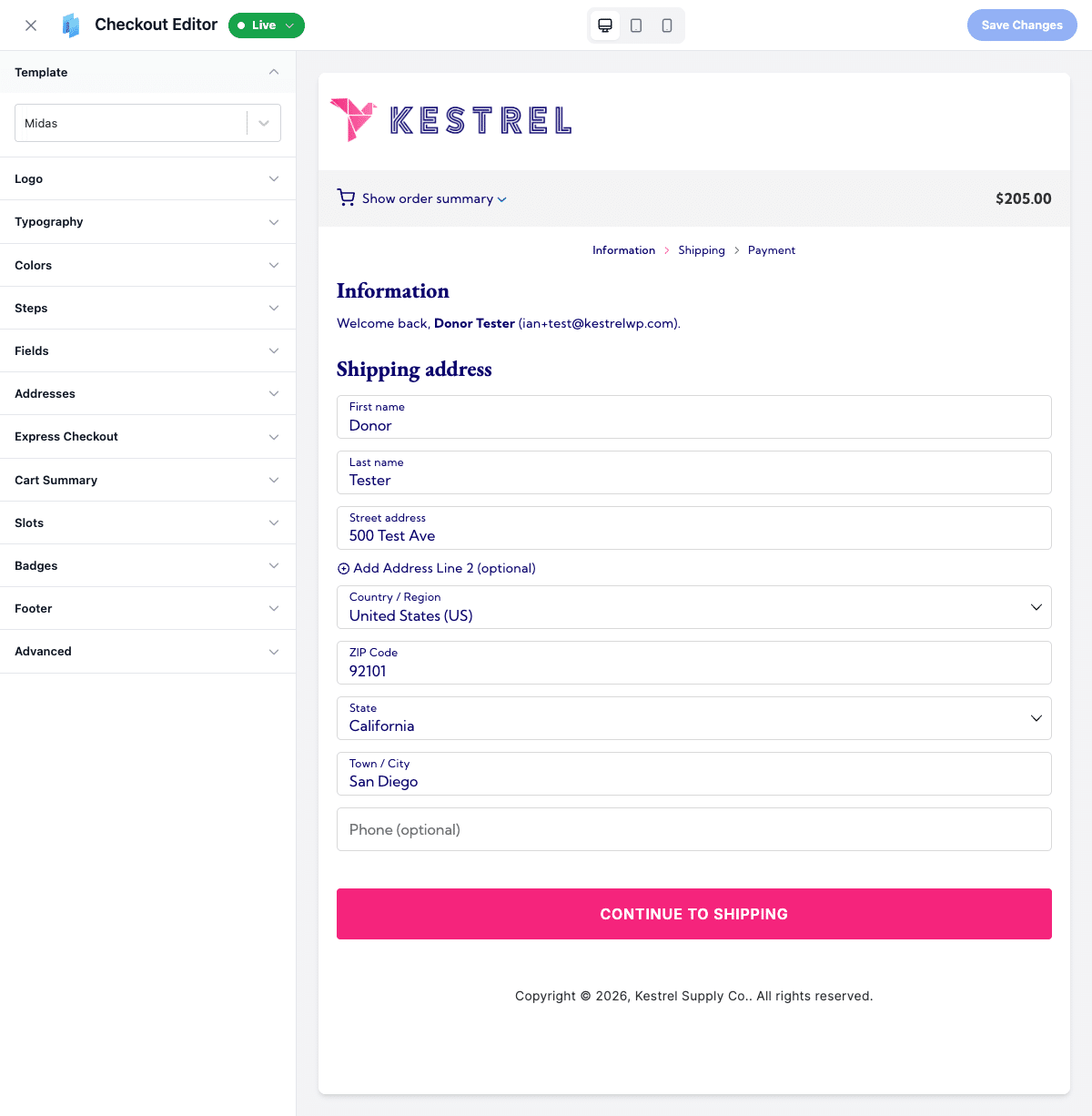
One thing worth being clear about: this is a visual customizer sitting on top of settings and templates, not a drag-and-drop field builder. You won’t grab a field and drag it around the page the way you would in a page builder. What you get instead is a structured set of controls, organized visually, that change real settings behind the scenes, so you’re not guessing at option names in a settings tab. And because those changes are settings rather than snippets wired into WooCommerce’s hooks, they don’t break the next time WooCommerce or your theme updates.
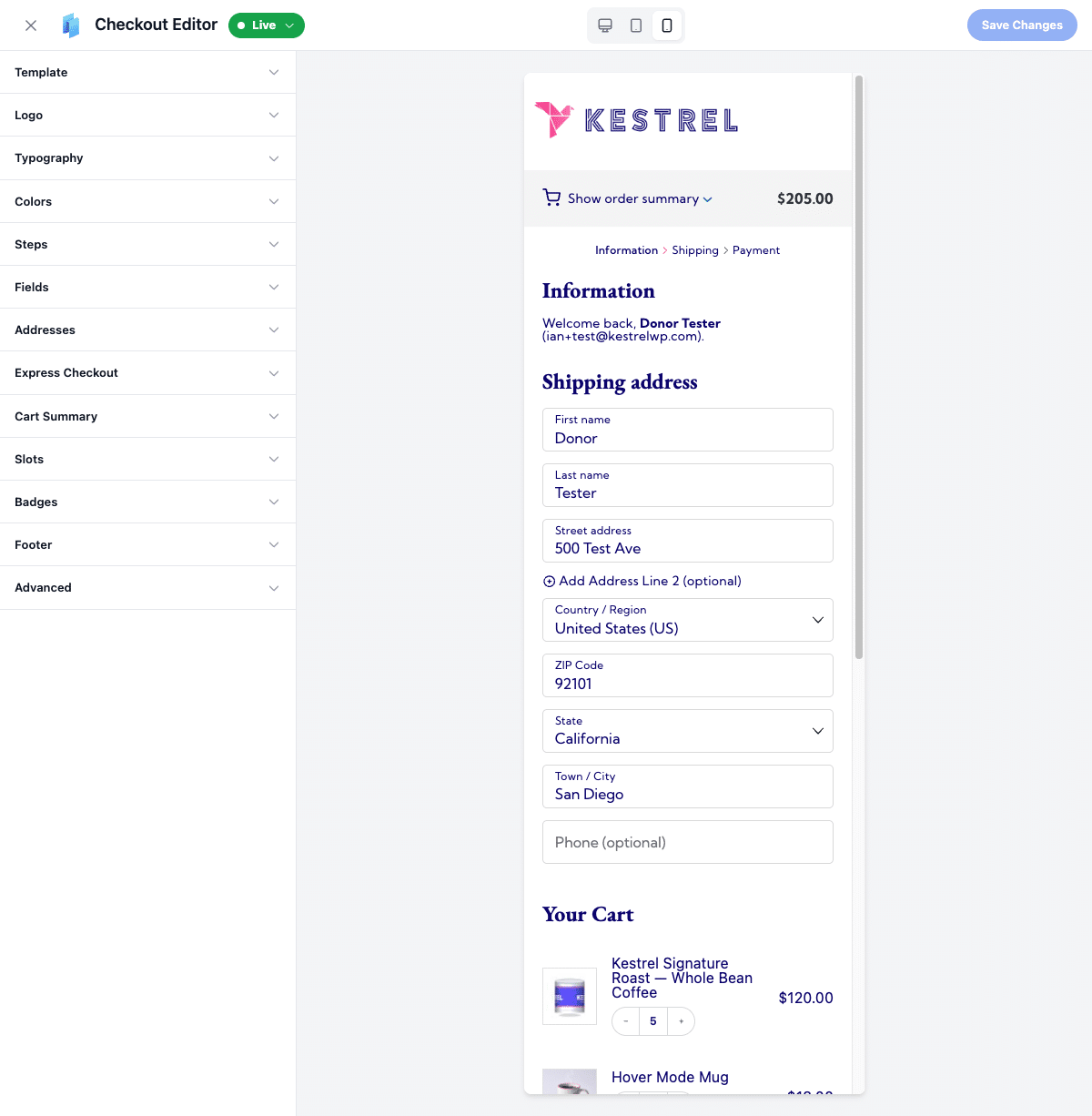
The mobile toggle is worth using as you go, since most checkouts actually happen on a phone. You can confirm the mobile view looks right rather than customizing on desktop and hoping.
Design and UX customization
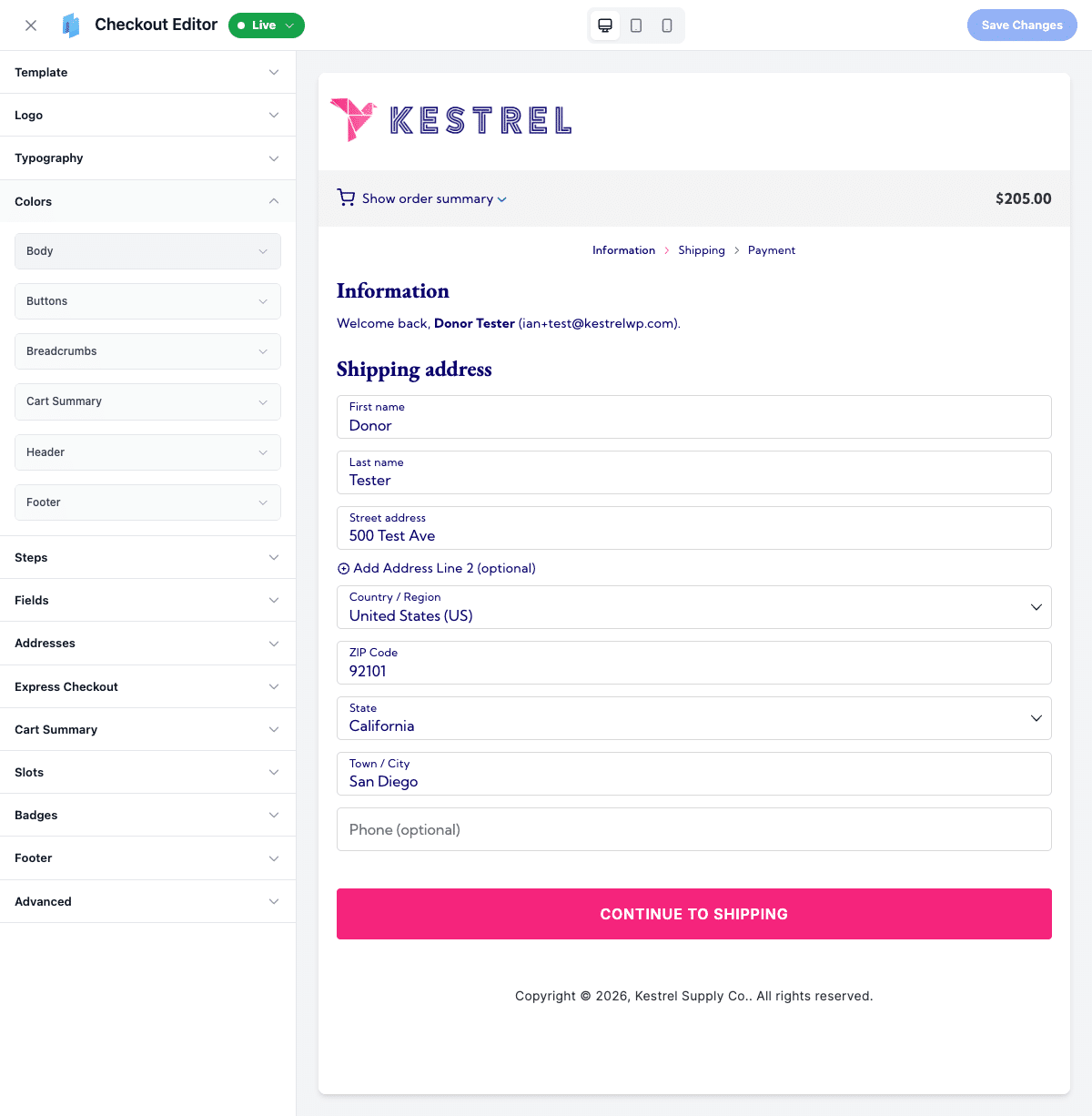
First impressions matter, and your checkout page is no exception. CheckoutWC offers modern, conversion-optimized templates that look great right out of the box. Want to match your brand? Easy. Customize your colors, fonts, and logo with a few clicks, watching the live preview update as you go.
Plus, depending on your store’s needs, you can choose between a one-page checkout for simplicity or a multi-step flow for more complex purchases. This flexibility ensures a smoother customer journey by automatically adapting the checkout process to show only relevant fields and steps, such as shipping information or order review.
The Fields panel handles the fields WooCommerce already has, no code: combine first and last into a single Full Name field, show or hide Order Notes, set the phone field to required or optional, switch between floating and standard labels, and pin the countries you ship to most at the top of the list.
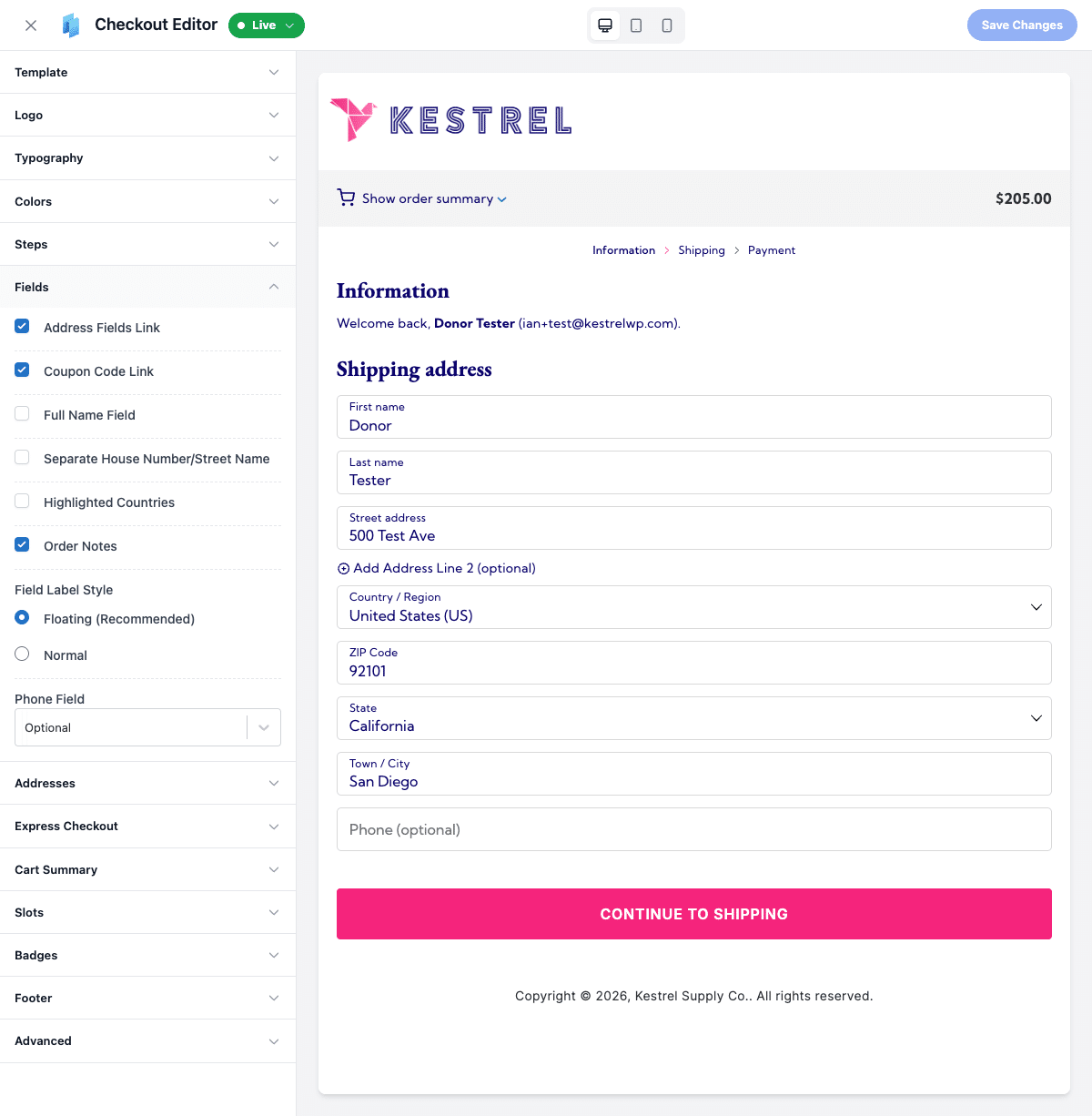
Reordering fields or adding a brand-new one, like a gift message box, is the one thing the editor doesn’t do. For that you’d pair CheckoutWC with a dedicated checkout field-editor plugin, which it’s built to work alongside, and you’re still not writing code. The editor handles the existing fields; a field-editor plugin handles fields you want to invent from scratch.
- Enable guest checkout while still connecting orders to existing accounts, thanks to CheckoutWC’s user matching feature.
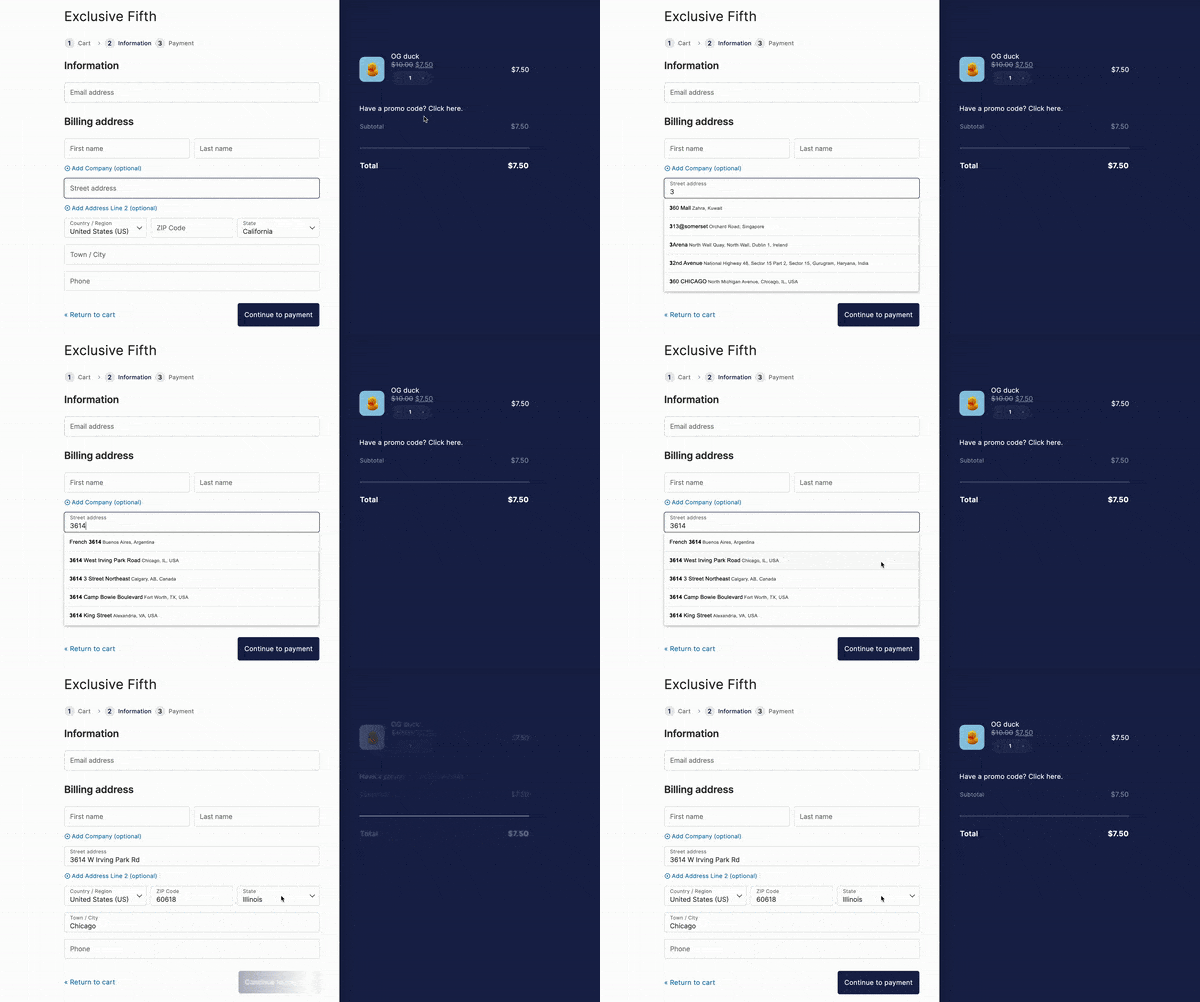
- Validate addresses automatically with Google Maps or Fetchify integration to reduce errors and speed up the checkout process.
Sales-boosting features
CheckoutWC includes several features designed to increase sales and average order value:
- The product upsell carousel within the side cart suggests related items, encouraging customers to add more to their cart. These recommendations are positioned to capture attention without disrupting the checkout flow.
- Order bumps are one-click add-ons shown during checkout, a relevant accessory or upgrade a customer can add without leaving the page or re-entering payment details. You set the rules for which products trigger which bump.
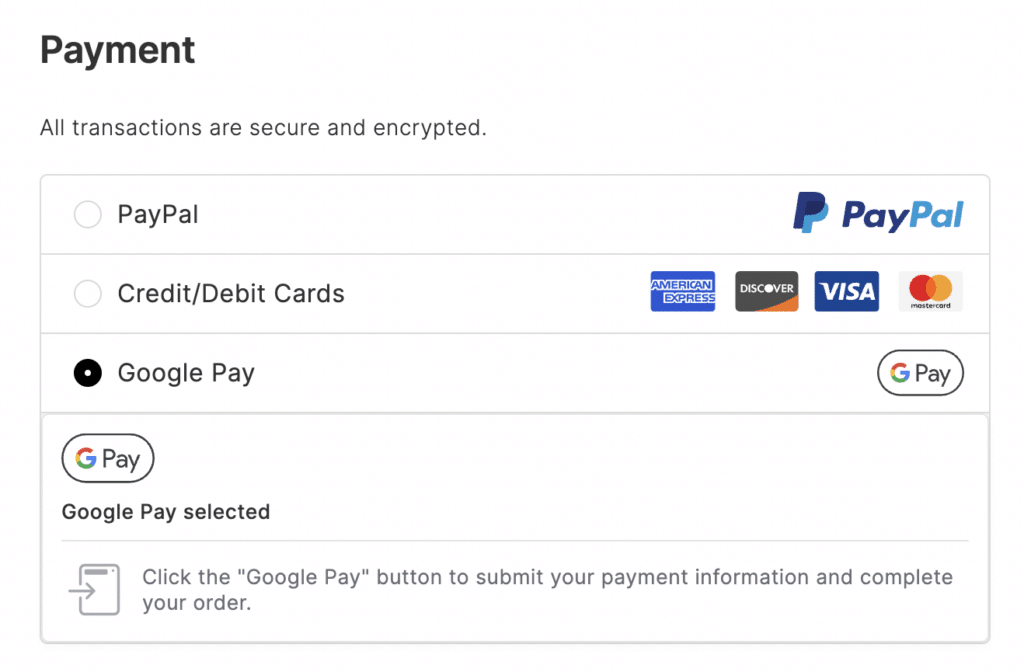
- Express payment options like Apple Pay, Google Pay, and PayPal can be integrated to speed up the checkout process. By offering these popular payment methods, you remove another potential barrier to purchase completion.
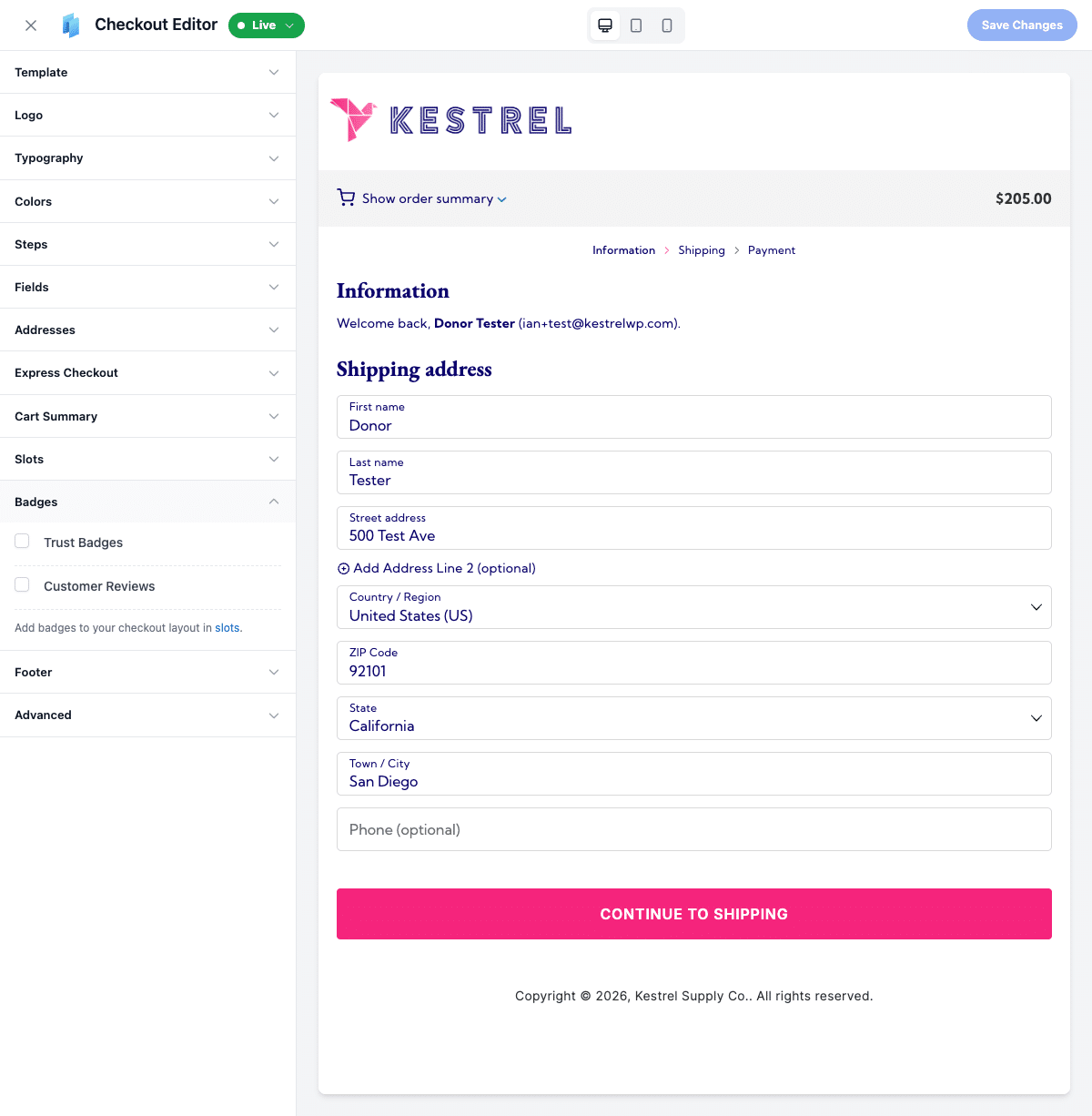
- You can use trust badges to display security certificates and guarantees, reinforcing customer confidence during the purchase.
- Show your terms and privacy policy in a popup modal instead of a plain link. A link sends customers away from checkout to read a policy, and now they have to find their way back. A modal keeps them on the page.
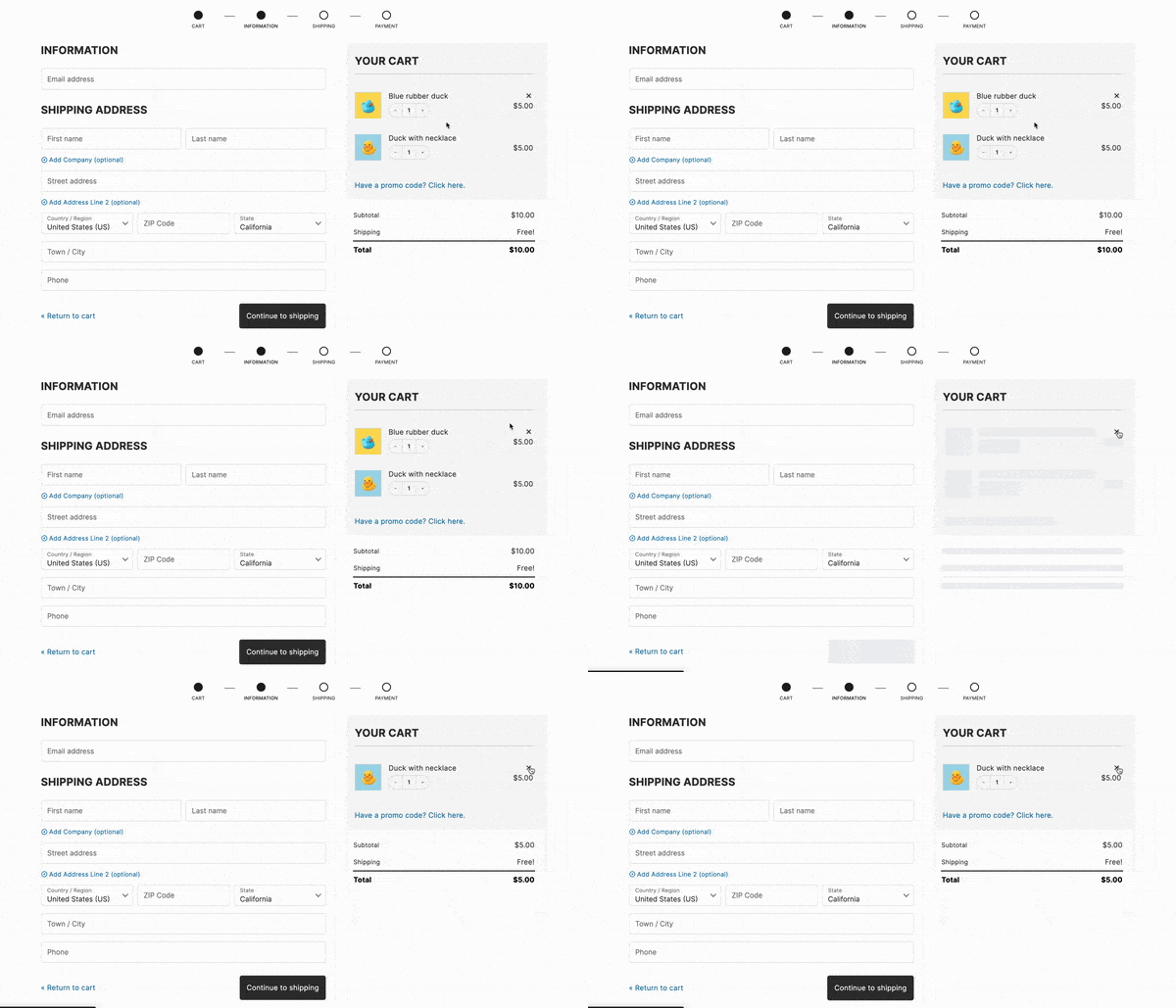
- Customers can also edit cart items directly from the checkout page, minimizing disruptions and maintaining engagement. This keeps customers focused on completing their purchase rather than navigating back and forth between pages.
Optimized performance
Speed matters, and CheckoutWC delivers. It’s built for performance and loads only what’s needed, when it’s needed. Your checkout stays quick and responsive across all devices – from the latest iPhone to that tablet your customer got three Christmases ago.
Mobile shoppers also get a smooth experience, with every feature optimized for tap-and-swipe. Using modern development practices and efficient resource loading, CheckoutWC keeps your store running at peak performance without weighing down your site.
The snippet way vs the no-code way
Here’s the same set of common customizations done the old way (a snippet or template edit) versus in CheckoutWC’s settings. “Survives updates” means the change sits behind a maintained interface rather than being wired into hooks and markup that can shift, so it’s far less likely to break, though no approach is completely immune to a major update.
| Task | functions.php snippet | CheckoutWC (no code) |
|---|---|---|
| Change checkout colors and logo | Custom CSS override | Colors + Logo panels |
| Toggle Order Notes or Full Name field | Hook into the checkout fields filter | Fields panel toggle |
| Switch to a one-page layout | Rewrite the checkout template | Template panel setting |
| Add Apple Pay / Google Pay | Custom gateway integration | Express Checkout panel |
| Add an order bump | Custom hook + manual cart logic | Order bumps setting |
| Show a policy in a popup, not a link | Custom modal script | Built-in policy modal |
| Add a brand-new custom field | Custom field snippet | Field-editor plugin (pairs with CheckoutWC) |
Frequently asked questions
Do I need a developer to customize the WooCommerce checkout?
No. Every panel in CheckoutWC’s editor is a visual control, toggle switches, color pickers, dropdowns, with a live preview. The only case where you’d add a second tool is a genuinely custom field built from scratch, which pairs with a checkout field-editor plugin, still without code.
Will these changes break when I update WooCommerce or my theme?
Settings-based changes are far less likely to break than a functions.php snippet, because they don’t depend on hook names or markup staying exactly where a tutorial found them. It’s not an ironclad guarantee against every future change, but it removes the most common failure mode.
Which parts need a paid plan?
Express checkout buttons (Apple Pay, Google Pay, PayPal) and the policy modal work on the free Lite tier. Trust badges and the one-page layout need Basic or above. The side cart, order bumps, the free-shipping bar, and cart recovery emails need Plus or above.
Start improving your checkout conversion rate today
Optimizing your WooCommerce checkout is important, but you shouldn’t need to juggle multiple plugins or dive into code to make it happen, and you shouldn’t have to re-fix your checkout every time WooCommerce updates.
CheckoutWC delivers everything in one package: a complete checkout replacement with a visual editor, express payments, order bumps, and trust signals built in. Your customers get a clean, friction-free path to purchase, and you get changes that live in settings instead of fragile snippets.
Ready to transform your store’s checkout experience? Get started with CheckoutWC today!

The simplicity of Shopify with the power of WooCommerce. Replace your WooCommerce checkout page with CheckoutWC to boost sales and reduce cart abandonment.