CheckoutWC 11.1.0 – Introducing the new Checkout Editor

Table of Contents
- Introducing the Checkout Editor
- Customize your checkout in real time
- Templates
- Logo
- Typography
- Colors
- Steps
- Fields & addresses
- Express checkout
- Cart summary
- Trust & review badges
- Footer
- How the Checkout Editor works
- Live mode vs Preview mode
- Why we built the Checkout Editor
- Important note
- More to come!
- Give it a try
- 11.1.0 changelog
We’ve just released CheckoutWC 11.1.0, introducing a brand-new full-screen Checkout Editor with live preview, streamlined customization tools, and a much faster way to design your checkout experience.
This release also includes several improvements and fixes across the plugin.
Introducing the Checkout Editor
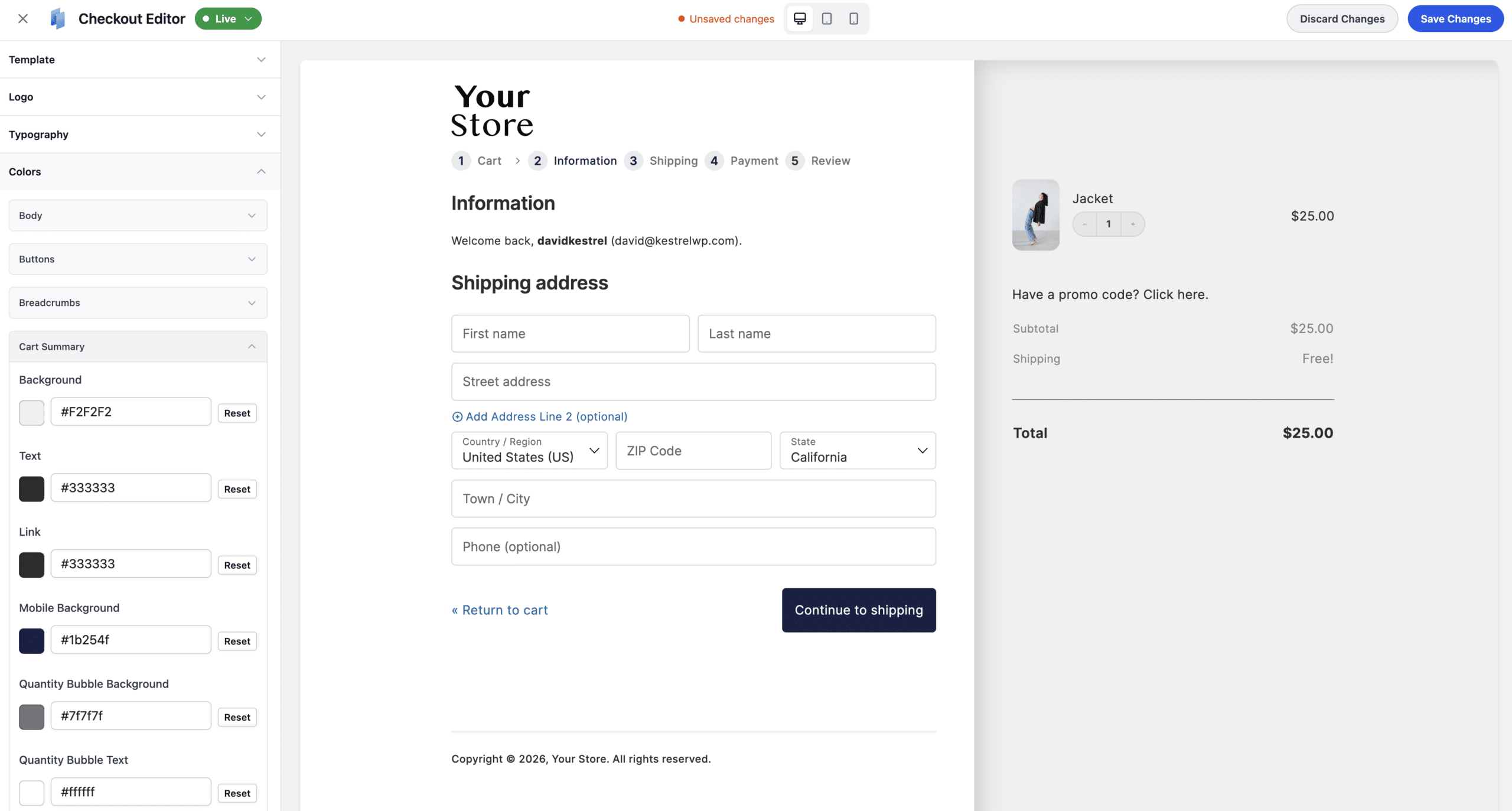
The new Checkout Editor is a live visual editor that lets you customize and preview your entire checkout page in real time.
No more publishing changes blindly, switching tabs, or constantly refreshing the checkout page to see updates. Every change you make – from adjusting colors to hiding checkout steps – updates instantly inside the editor, so you can see exactly what your customers will experience before saving.
The Checkout Editor brings together the most commonly used customization options into a single unified interface.
Customize your checkout in real time
Templates
Switch between checkout templates and instantly preview the full layout change.
Logo
Upload your store logo to see how it looks with your checkout template and color scheme.
Typography
Choose fonts and font sizes that match your brand, with live previews across headings, labels, and body text.
Colors
Fine-tune your checkout color scheme – including backgrounds, buttons, and accents – using visual color pickers with instant feedback.
Steps
Configure your multi-step checkout flow by enabling or disabling steps while seeing the navigation update live.
Fields & addresses
Customize checkout fields and address layouts with immediate visual updates.
Express checkout
Enable express checkout buttons directly within the editor.
Cart summary
Control the contents and appearance of the order summary panel.
Trust & review badges
Manage trust badges and review elements to help increase customer confidence.
Footer
Edit your checkout footer content and styling in real time.
How the Checkout Editor works
The Checkout Editor opens as a dedicated full-screen experience, separate from the standard WordPress admin interface, allowing you to focus entirely on your checkout without distractions.
The editor is divided into two main areas:
- Settings Sidebar – Located on the left, containing all customization controls.
- Live Preview Panel – Located on the right, showing your checkout updating instantly as changes are made.
The sidebar is organized into expandable accordion sections, including:
- Templates
- Logo
- Typography
- Colors
- Express Checkout
- Steps
- Fields
- Addresses
- Cart Summary
- Badges
- Footer
As you adjust settings, the preview updates automatically in real time. Nothing is published until you click Save Changes.
You can also switch between Desktop, Tablet, and Mobile views using the responsive preview controls in the header bar, making it easy to optimize your checkout experience across all devices.
Live mode vs Preview mode
In most cases, your checkout will be running in Live Mode, indicated by a green status indicator in the editor header.
When CheckoutWC is in Live Mode, saving changes immediately updates the checkout your customers see.
If you see Preview Mode instead, CheckoutWC is not currently active for customers, and shoppers will continue seeing the default WooCommerce checkout. In this mode, only site administrators can view the CheckoutWC checkout experience.
When you’re ready to launch your customized checkout, simply switch to Live Mode and save your changes.
Why we built the Checkout Editor
CheckoutWC already includes a large number of powerful customization options. However, many of those settings are spread across multiple admin pages and tabs within WordPress.
For example, changing something as simple as a footer text color previously required navigating through several settings pages, saving changes, opening the checkout in another tab, and refreshing repeatedly just to preview the result.
That workflow became increasingly frustrating when making multiple design changes at once.
We wanted checkout customization to feel significantly faster, more visual, and far more intuitive.
The Checkout Editor solves that problem by bringing the most frequently used settings into a single live editing experience.
Important note
All existing CheckoutWC settings remain exactly where they are and continue to work as before.
The Checkout Editor is an additional experience built to simplify and speed up customization.
More to come!
The new Checkout Editor lays the foundation for much more powerful checkout customization features in future releases.
For this first release, we focused on the settings merchants use most often. Some of the more advanced or complex configuration options are not yet included in the editor, but support for those will continue expanding over time.
We’re also exploring entirely new editor-based features, including easier ways to add custom content directly into checkout locations – without requiring code snippets or manual hooks.
Our goal is to make customizing your checkout as fast, flexible, and intuitive as possible.
Give it a try
You’ll find the Checkout Editor in the CheckoutWC menu, or Step 2 on our “Start Here” page.
If you already use CheckoutWC, update to version 11.1.0 today and start customizing your checkout with the new Checkout Editor.
New to CheckoutWC? You can get started here.
As always, we’d love to hear your feedback!
11.1.0 changelog
Here’s the complete breakdown of everything included in the 11.1.0 release:
- New – Checkout Editor – New full-screen visual editor accessible from the WordPress admin menu, with a live preview, sidebar settings panels, save/publish indicator, template switching, and discard changes support
- Improved – Color pickers – Replaced the always-expanded color picker throughout CheckoutWC admin with a compact swatch button that opens a popover with the full picker + a hex input field
- Improved – Start Here page – Streamlined setup wizard: collapsed the 5-step flow into 3 steps by replacing “Pick a Template” + “Customize Logo and Colors” + “Review Checkout” with a single “Customize Checkout” step that links to the Checkout Editor
- Improved – Abandoned Cart Recovery – Editor preview AJAX requests are excluded from ACR tracking
- Fix – Admin Media Upload Button – Fixed image preview not persisting when switching sections inside the editor, added hideLabel prop, improved handling of cleared values and default URLs
- Fix – Copify template – Fixed footer text color not being applied via CSS variable
- Fix – Groove template – Fixed summary text and corrected missing defaults
- Fix – Side Cart – Fixed PHP 8.4 deprecation notices by adding nullable type hints (?array) to three Side Cart free-shipping methods that accept optional array parameters
- Fix – Fixed order bump cart total quantity rule incorrectly including the bump’s own product quantity in the count
- Fix – Fixed order bump cart emptying when “Use as Upsell” and “Match Offer Product Quantity” were both enabled simultaneously