CheckoutWC replaces your theme’s checkout, order pay and thank you pages with its own templates, so most themes work without any changes. A few themes have a setting that gets in the way, or a feature that clashes with the side cart. This page covers what CheckoutWC does with your theme and the fixes for specific themes.
If CheckoutWC shows a “Configure … to Work With CheckoutWC” notice in your admin, the link takes you to that theme’s section below.
How CheckoutWC handles your theme
With the default template loader, Distraction Free Portal (Recommended), CheckoutWC uses its own templates instead of your theme’s. On the checkout, order pay and thank you pages:
- Removed: stylesheets and scripts that your theme loads from its own folder,
wp-content/themes/(parent and child theme). - Kept: your theme’s PHP still runs, so anything your theme adds to WooCommerce’s checkout hooks can still appear.
- Kept: stylesheets and scripts from plugins, files your theme generates in
wp-content/uploads/, and CSS or JavaScript your theme prints straight into the page.
That’s why some themes still need a setting changed: their combined or generated CSS and JavaScript live in uploads/, so CheckoutWC doesn’t remove them. CheckoutWC also adjusts 42 themes automatically, by removing the theme’s checkout additions that would clash with its templates. See Themes CheckoutWC adjusts automatically.
The checkout page always shows the WooCommerce checkout, so a checkout page designed in a page builder is replaced by CheckoutWC’s template.
The other loader, WordPress Theme, renders CheckoutWC inside your theme’s page and loads all of its styles and scripts. It’s unsupported and often causes layout problems. See Template Loader.
Check whether your theme is the cause
- Add
?bypass-cfw=trueto your checkout URL, or click Bypass CheckoutWC Template in the admin bar. You’ll see WooCommerce’s own checkout for that page load. This affects only you, and it changes no settings. - If the problem is gone with CheckoutWC bypassed, switch to a default WordPress theme, such as Twenty Twenty-Five, on a staging site and look at the CheckoutWC checkout again.
- If the problem goes away with the default theme, it’s a theme conflict. Check your theme’s section below, then contact support if it isn’t covered.
For other problems, see Troubleshoot CheckoutWC.
Theme settings to change
These themes have a setting that interferes with the checkout. The setting names come from each theme, so they can differ in your theme’s version.
Avada
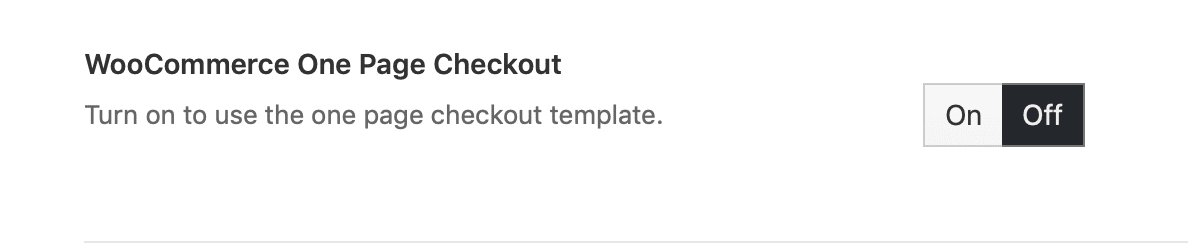
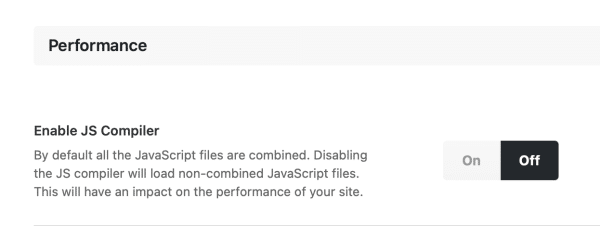
Avada’s compiled CSS and JavaScript can break the checkout layout. CheckoutWC already turns off Avada’s CSS compiling, its dynamic CSS and its image lazy loading on checkout pages, and removes Avada’s own checkout layout. In Avada » Options, use the settings search to find these:
- Turn WooCommerce One Page Checkout off.
- Turn Enable JS Compiler off.
- If the layout is still wrong, set CSS Compiling Method to Disabled.
- Save your settings, and clear any cache.
Astra and Astra Pro
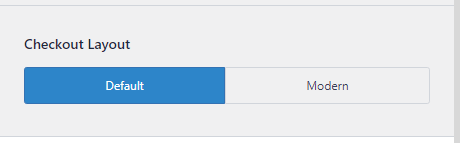
CheckoutWC removes Astra Pro’s two-step checkout wrapper. If the checkout layout still looks wrong with Astra Pro, set Checkout Layout to Default under Appearance » Customize » WooCommerce » Checkout.
To show Astra’s header and footer on the checkout, turn on Enable Astra Support (Beta) under CheckoutWC » Integrations, in the Themes and Plugins section. With it on, Astra’s styles and scripts load on the checkout too. With it off, they’re left out for a minimal layout. It only works with the Distraction Free Portal loader.
Divi
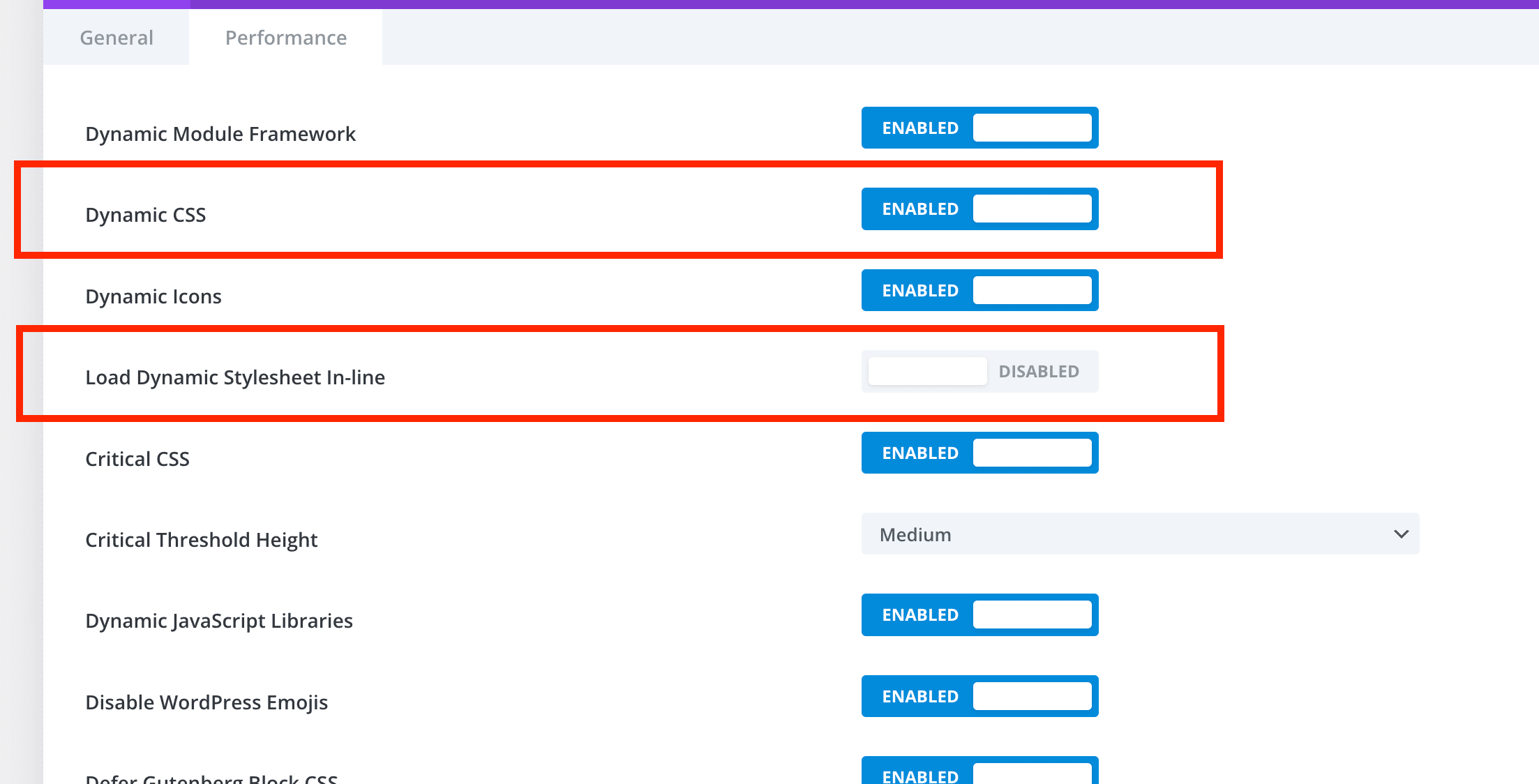
Divi’s dynamic CSS can add styles to the checkout that cause problems, particularly on mobile. In Divi’s theme options, turn off Dynamic CSS and Load Dynamic Stylesheet In-line. Then clear Divi’s static CSS cache and any page cache.
CheckoutWC already stops Divi hiding the sections it opens with links like #cfw-payment-method. Divi’s Theme Builder header and footer don’t show on the checkout.
Porto
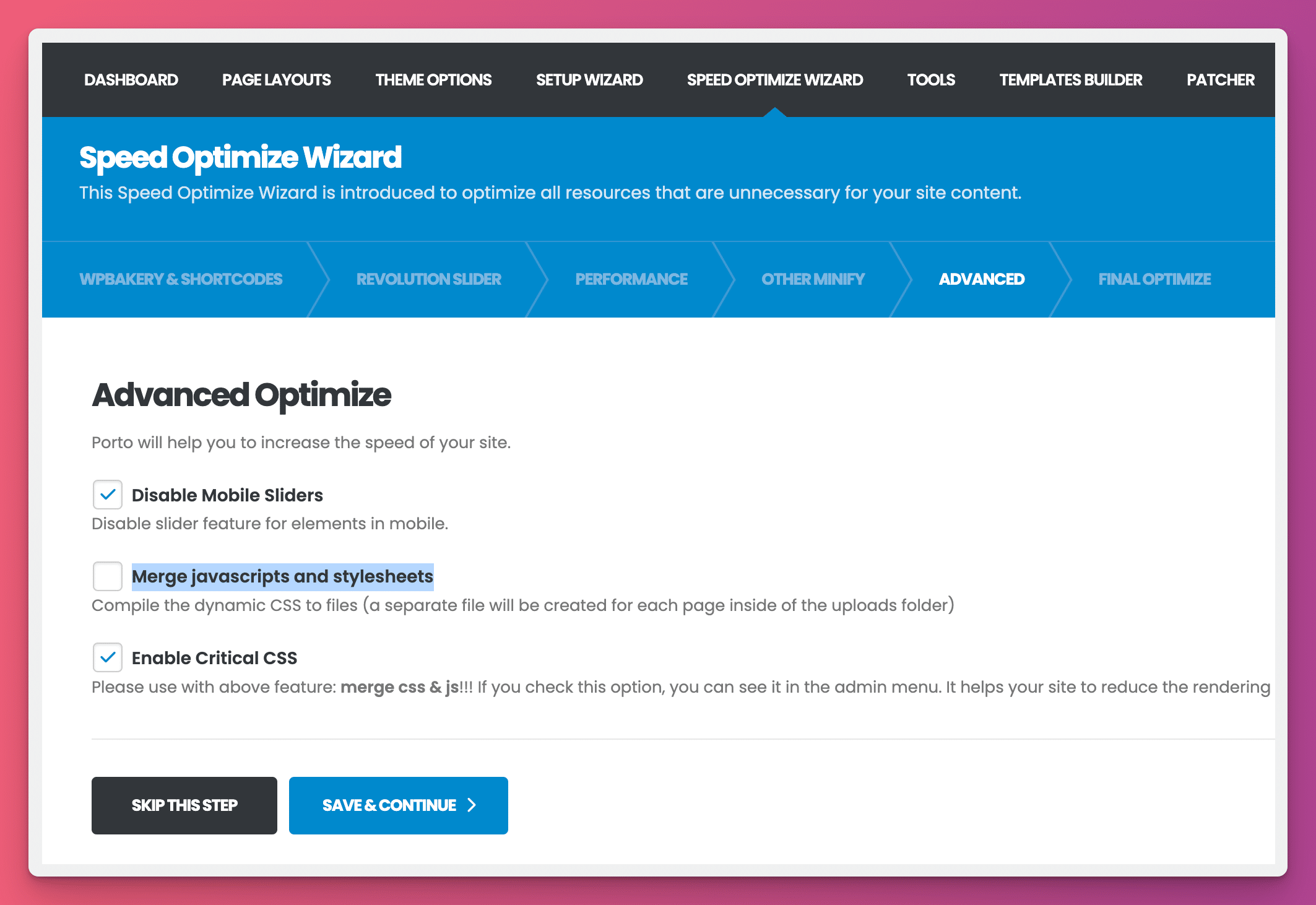
Porto’s Merge javascripts and stylesheets option combines files that the checkout needs into one bundle, which can stop the checkout loading. Go to Porto » Speed Optimization Wizard » Advanced, turn off Merge javascripts and stylesheets and click Save & Continue.
Rey
Rey adds a cart progress bar above the checkout. To remove it, add this code under CheckoutWC » Advanced » Scripts » PHP Snippets, without an opening <?php tag:
add_action( 'wp', function() {
    remove_action( 'woocommerce_before_checkout_form', 'reycore_wc__cart_progress', 5 );
} );
The function name and priority come from Rey, so check them against your Rey version if the bar stays.
Side cart conflicts
The side cart opens when a product is added with AJAX, without a page reload. If your theme also has its own AJAX add to cart, the two can clash and the side cart may open empty. Use one or the other: turn on Enable AJAX Add to Cart under CheckoutWC » Side Cart » Options, and turn off your theme’s version.
OceanWP
OceanWP’s AJAX add to cart doesn’t pass on the cart contents the side cart needs, so the side cart opens blank.
- Under CheckoutWC » Side Cart, check Enable AJAX Add to Cart in the Options section.
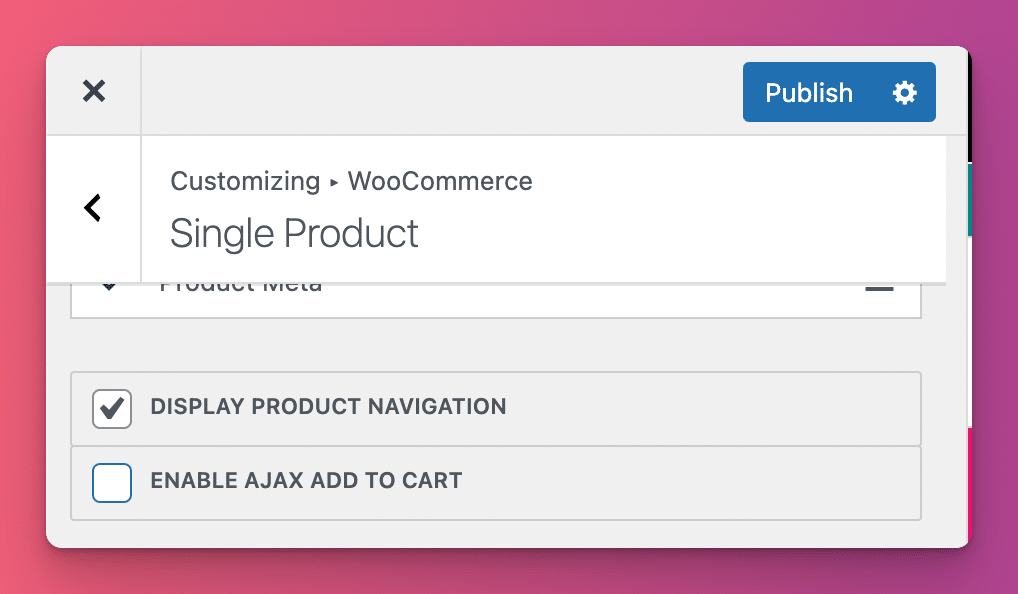
- Under Appearance » Customize » WooCommerce » Single Product, turn off Enable AJAX Add To Cart and click Publish.

CheckoutWC also turns off OceanWP’s multi-step checkout on its pages.
Woostify
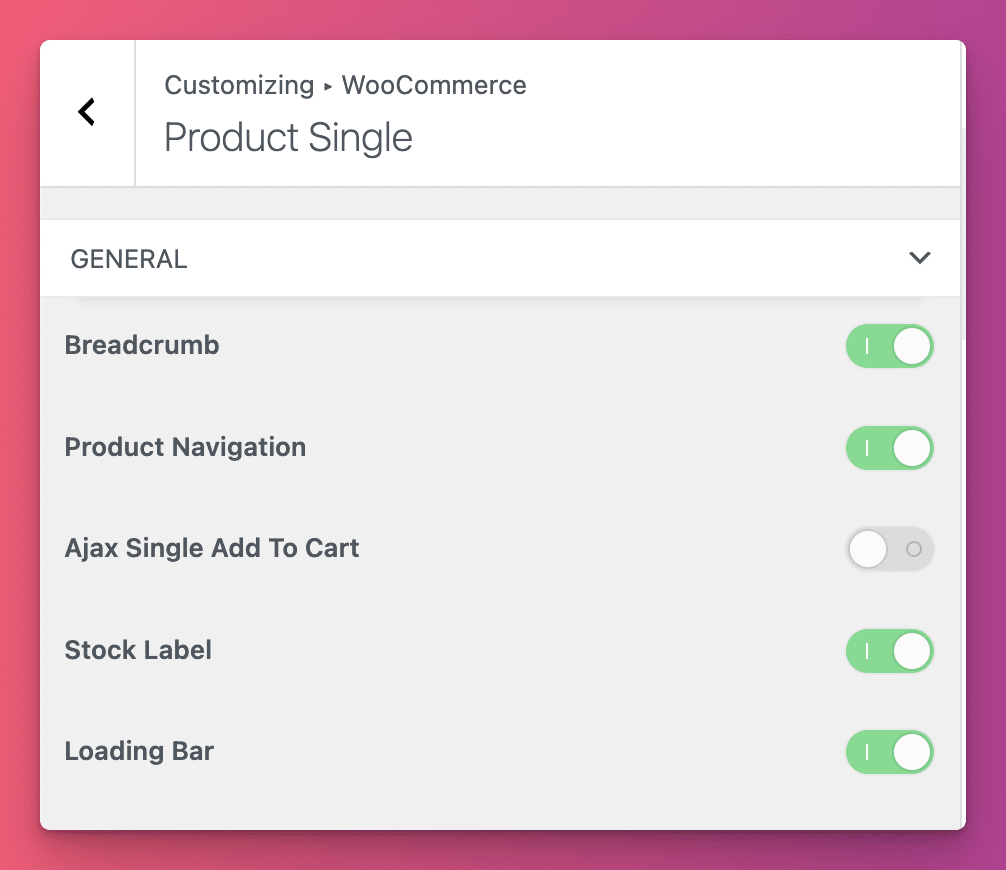
Woostify’s AJAX add to cart on product pages conflicts with the side cart. CheckoutWC shows a notice while both are on. Under Appearance » Customize » WooCommerce » Product Single » General, turn off Ajax Single Add to Cart. If you don’t use the side cart, you can ignore this.
Elementor and other page builders
Elementor
Elementor’s styles and scripts come from the Elementor plugin, so CheckoutWC doesn’t remove them, and there’s nothing to allow. A checkout page built with Elementor is replaced by CheckoutWC’s template. Store policy pages built with Elementor show correctly in the checkout’s policy pop-up.
Older articles told you to rebuild the checkout page with the [woocommerce_checkout] shortcode to fix layout and store policy problems. That applied to CheckoutWC 8 and earlier and isn’t needed now.
To use an Elementor Pro Theme Builder header and footer on the checkout, turn on Enable Elementor Pro support. under CheckoutWC » Integrations in the Themes and Plugins section. The setting only appears when Elementor Pro is active. The header and footer show when their display conditions in Theme Builder include the checkout. See Use your theme’s header and footer.
Beaver Builder and Beaver Themer
To use a Beaver Themer header and footer, turn on Enable Beaver Themer Support under CheckoutWC » Integrations. They show on the checkout and order pay pages, but not on the thank you page.
Other builders
Divi, Avada and other builder themes don’t have a header and footer option. A developer can add one with the cfw_custom_header and cfw_custom_footer actions. Anything added there replaces CheckoutWC’s own header or footer.
Load a theme stylesheet or script on the checkout
If you need a stylesheet or script from your theme on the checkout, remove its handle from the list CheckoutWC blocks. Add this to PHP Snippets and replace my-theme-style with the handle:
add_filter( 'cfw_blocked_style_handles', function( $handles ) {
    return array_diff( $handles, array( 'my-theme-style' ) );
}, 100 );
Use cfw_blocked_script_handles the same way for a script. Files in a checkout-wc folder in your theme, where template overrides live, are never blocked.
To change how the checkout looks without your theme’s CSS, use Custom CSS under CheckoutWC » Appearance » Design.
Themes CheckoutWC adjusts automatically
CheckoutWC detects these themes and removes their checkout additions that would clash with its templates, such as duplicate payment sections, coupon forms or wrappers. You don’t need to do anything for them:
Acuva, Astra, Atelier, Atik, Avada, Barberry, Beaver Builder theme, BeTheme, Blaszok, Divi, Electro, Flatsome, Flevr, Fuel Themes, GeneratePress, Genesis, Greenmart, Jupiter, Jupiter X, Konte, Listable, Medizin, Metro, Minimog, Neve, OceanWP, Optimizer, Porto, Pro (Themeco), Savoy, Shoptimizer, Spa Salon Pro, Stockie, TM Organik, The7, TheBox, Thrive Theme Builder, Tokoo, Uncode, Verso, Woodmart and Zidane.
Some theme add-ons and builders are handled too, including Astra Pro, Blocksy Companion, Divi Ultimate Header and Footer, Oxygen, Salient WPBakery, Jupiter X Core, CSS Hero, UpSolution Core (Impreza and Zephyr), Martfury Addons, Woolentor and Strollik Core.
For plugins, see CheckoutWC plugin compatibility. For caching and optimization plugins, see Fix caching and hosting conflicts.