To remove or disable billing address fields on the WooCommerce checkout, clear them under CheckoutWC » Pages, Checkout tab, Address Options, or, without CheckoutWC, unset them with the short code snippet in Remove billing fields without CheckoutWC. You can also drop the billing address for free orders, or ship to the billing address so customers fill in one address form.
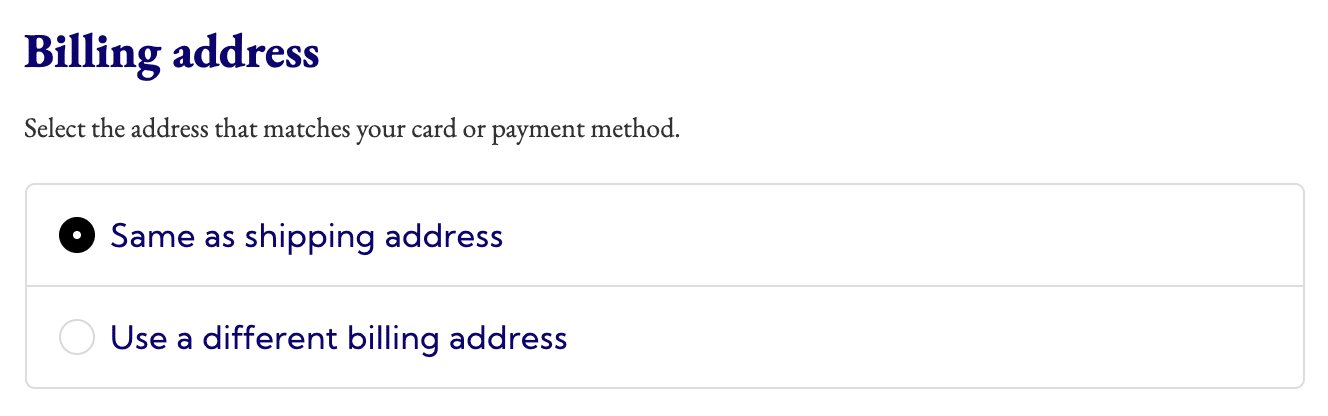
CheckoutWC collects the billing address on the payment step, with a Same as shipping address option so most customers don’t type it twice.
When you’d use this
- You sell digital products and only need the customer’s name and email.
- You give away free products and don’t want to ask for a billing address.
- Your business or payment provider needs a billing address that’s always entered separately.
- You only ship to the billing address and want one address form.
Choose which billing fields show
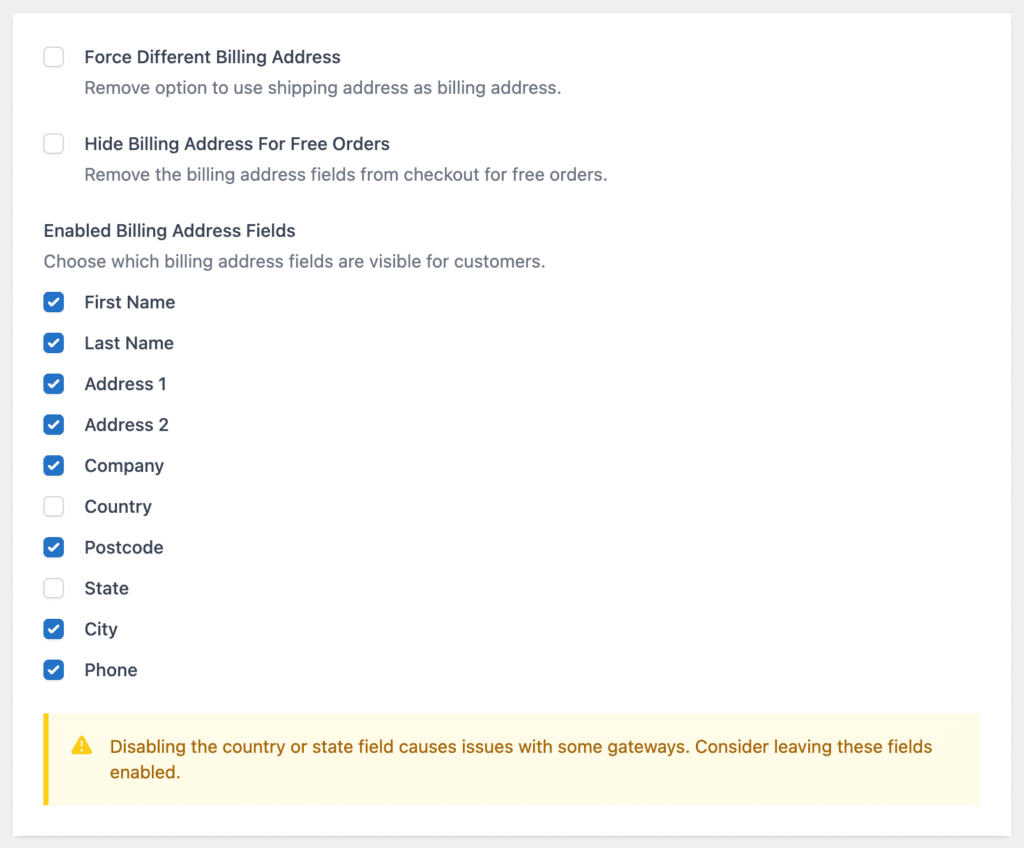
Under Enabled Billing Address Fields, clear any field you don’t need: First Name, Last Name, Address 1, Address 2, Company, Country, Postcode, State, City or Phone. All are selected by default. Cleared fields are removed from the billing address and aren’t checked when the order is placed. Click Save Changes.
The Checkout Editor’s Addresses section has the same choice, as Billing Address Fields, with a few differences:
- Company, Address 2 and Phone only appear there when WooCommerce’s own Company Field, Address 2 Field and Phone Field settings aren’t Hidden.
- A field removed there isn’t shown, isn’t validated and isn’t saved to the order. It shows a warning when you remove Address 1, Country or Postcode, and when you remove a field WooCommerce is set to require. Read info opens a note on what removing a field does.
- If the customer ships to their billing address, the shipping value is saved and the billing copy on the order is left empty. On orders with no shipping, billing is the only address, so the removed field isn’t recorded at all.
Keep Country and State together, and think twice before removing either. The settings screen warns: “Disabling the country or state field causes issues with some gateways. Consider leaving these fields enabled.” Payment gateways and tax calculations often use the billing address, so test a payment after removing fields.
Remove billing fields without CheckoutWC
On a store that doesn’t run CheckoutWC, or if you’d rather manage this in code, remove billing fields with WooCommerce’s own woocommerce_checkout_fields filter. A field that’s removed from the list isn’t shown and isn’t validated when the order is placed. Add this to your child theme’s functions.php or a code snippets plugin:
add_filter( 'woocommerce_checkout_fields', function ( $fields ) {
    unset(
        $fields['billing']['billing_company'],
        $fields['billing']['billing_address_1'],
        $fields['billing']['billing_address_2'],
        $fields['billing']['billing_city'],
        $fields['billing']['billing_postcode']
    );

    return $fields;
}, 100 );
Edit the list to match the fields you want gone. The snippet leaves Country and State in place on purpose: remove both or neither, because WooCommerce’s country and state handling produces errors when only one is present. It also works with CheckoutWC, which reads its billing fields from the same WooCommerce list.
Note: Postcode-based tax rates and some payment gateways read the billing address. Test a real payment and a taxed order after you remove fields.
Skip the billing address on free orders
Turn on Hide Billing Address For Free Orders. When the order total is zero, customers aren’t asked for a billing address. On free orders that don’t ship, CheckoutWC keeps only the first and last name.
Always ask for a separate billing address
Turn on Force Different Billing Address to remove the Same as shipping address option, so every customer enters a billing address.
Use one address for shipping and billing
To ship only to the billing address, go to WooCommerce » Settings » Shipping, open Shipping settings, and set Shipping destination to Force shipping to the customer billing address. CheckoutWC then shows a single address form, headed “Billing and Shipping address”.
To change that heading, developers can use this snippet:
add_filter( 'cfw_billing_shipping_address_heading', function () {
    return 'Your address';
} );
Move the billing address above the payment methods
On the payment step, CheckoutWC shows the payment methods first and the billing address below them. To swap them, a developer can add this snippet in the PHP Snippets box (CheckoutWC » Advanced, Scripts tab) or a code snippets plugin:
remove_action( 'cfw_checkout_payment_method_tab', 'cfw_payment_methods', 10 );
remove_action( 'cfw_checkout_payment_method_tab', 'cfw_payment_tab_content_billing_address', 20 );
add_action( 'cfw_checkout_payment_method_tab', 'cfw_payment_tab_content_billing_address', 10 );
add_action( 'cfw_checkout_payment_method_tab', 'cfw_payment_methods', 20 );
Common issues
Payments are declined after removing billing fields
Many gateways check the cardholder’s billing address, especially the postcode. Turn the removed fields back on, starting with Postcode, Country and State.
A removed field still appears in the shipping address
Enabled Billing Address Fields only changes the billing address. To hide company or address line 2 from both addresses, see Customize address fields.