Two CheckoutWC features use a Google API key: address autocomplete and the map on the thank you page. You create the key in your Google Cloud account and add it to CheckoutWC. Google may charge for use beyond its free allowance, so questions about billing are for Google.
When you’d use this
- You’re turning on Google address autocomplete or the thank you page map.
- Autocomplete has stopped working and you want to check your key.
Create your key in Google Cloud
Google’s own guide, Set up the Maps JavaScript API, walks through these steps with screenshots of the current console.
1. Choose or create a project
Sign in to the Google Cloud console and select a project, or create one for your store. Turn on billing for the project when Google asks.
2. Enable the APIs CheckoutWC uses
Enable these for the project:
- Maps JavaScript API, for both features.
- Places API (New), for address autocomplete. Projects created before 1 March 2025 may also have the legacy Places API; CheckoutWC can use either.
- Geocoding API, for the thank you page map.
3. Create the key
Create an API key under the project’s credentials.
Enable the APIs on the project itself, and then allow them on the key too (see step 4). Enabling them in only one of the two places is the most common reason a key doesn’t work.
4. Restrict the key
Restrict the key so only your store can use it, otherwise someone could copy it from your checkout and run up charges on your account:
- Under the key’s application restrictions, choose websites and add your store’s address, for example
https://www.example.com/*. Add your staging site too if you test there. - Under the API restrictions, allow the APIs from step 2.
Add the key to CheckoutWC
- Go to CheckoutWC » Integrations.
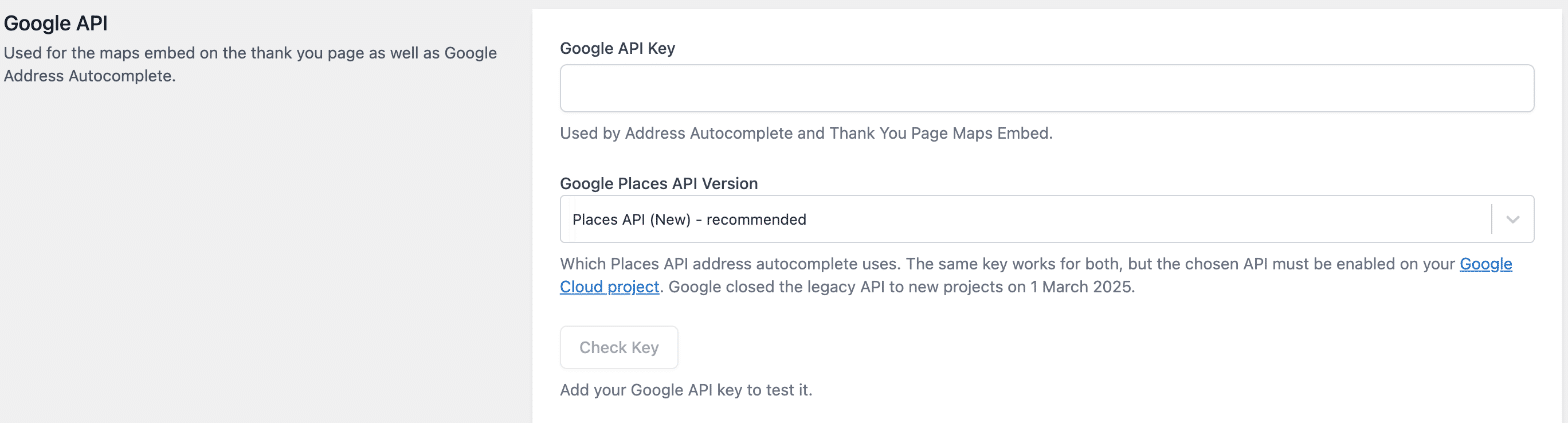
- Under Google API, paste the key into Google API Key.
- Under Google Places API Version, choose Places API (New) – recommended, or Places API (Legacy) if that’s the only one your project has. New installs default to Places API (New).
- Click Check Key. It tests the key from your browser, the same way the checkout uses it, and reports Working, Not Available or Error for Places API (New), Places API (Legacy) and Geocoding API – Thank You Page Map, with a summary of what to fix.
- Click Save Changes.
Common issues
Exclamation points show in the address field
With Places API (Legacy), a problem with the key can show as exclamation points in the address field. Open your browser’s developer tools on the checkout and look in the console. Google writes the reason there, such as the key not being allowed on your site or an API not being enabled. Set up address autocomplete lists each error and its fix.
An API is enabled on the project but the key still fails
Enabling an API on the project doesn’t allow the key to use it. If you restricted the key’s APIs, add the Maps JavaScript API, the Places API your store uses and, for the thank you page map, the Geocoding API to the key’s API restrictions as well.
“Google refused this key for this site. Check the key itself, and any website restrictions on it in the Google Cloud console.”
Google rejected the key on your site. Check the key itself, and that the key’s website restrictions include your store’s address exactly as customers reach it.
“Places API (New) is not enabled on this project, so address autocomplete is not working.”
Enable Places API (New) for the project in the Google Cloud console, or switch Google Places API Version to Places API (Legacy) if your project still has it.
“This project supports Places API (New) only, so address autocomplete is not working.”
Your project was created after Google closed the legacy API. Switch Google Places API Version to Places API (New) – recommended.
“Neither version answered for this key, so address autocomplete is not working.”
Check that a Places API is enabled on the project, that it’s on the key’s list of allowed APIs, and that billing is active.
“Address autocomplete is using Places API (Legacy), which Google froze in March 2025 and will retire once it gives 12 months notice.”
The key works, but Google plans to retire the legacy API. If Check Key says Places API (New) also works with your key, switch Google Places API Version to it.
“Refresh this page before testing a different key. Google Maps can only be loaded once per page.”
Reload CheckoutWC » Integrations, then click Check Key again.