WooCommerce mobile checkout: how to make it faster to finish

Table of Contents
- Start with a mobile-friendly theme and a real phone
- Keep popups off mobile pages
- Use a single-column, step-by-step checkout
- Collapse the order summary on phones
- Offer express checkout for phone shoppers
- Cut the typing
- Flag mistakes as they happen
- Speed up the page
- Test the whole mobile flow
- Give phone shoppers a checkout built for them
To optimize your WooCommerce mobile checkout, give phone shoppers a single-column checkout that works in steps, collapse the order summary, offer express payment buttons, cut the typing, flag form mistakes as they happen, and test the whole path on a real phone. Each fix removes a reason to leave, and they matter because roughly seven in ten carts are abandoned (Baymard Institute).
A phone screen turns every extra field, popup, and slow page into a bigger obstacle.
Start with a mobile-friendly theme and a real phone
Pick a theme built for small screens, and check it on your own phone before you rely on it. Look for menus you can tap without zooming, readable product images, and a search box that is easy to use. If you change themes, retest your cart and checkout afterward, because a new theme can change how both look.

Keep popups off mobile pages
Popups that work on a desktop can cover the whole screen on a phone and hide the button that closes them. If you use them, show them only on desktop, or keep them small and never over your main content or checkout. A shopper who can’t close a popup leaves.
Use a single-column, step-by-step checkout
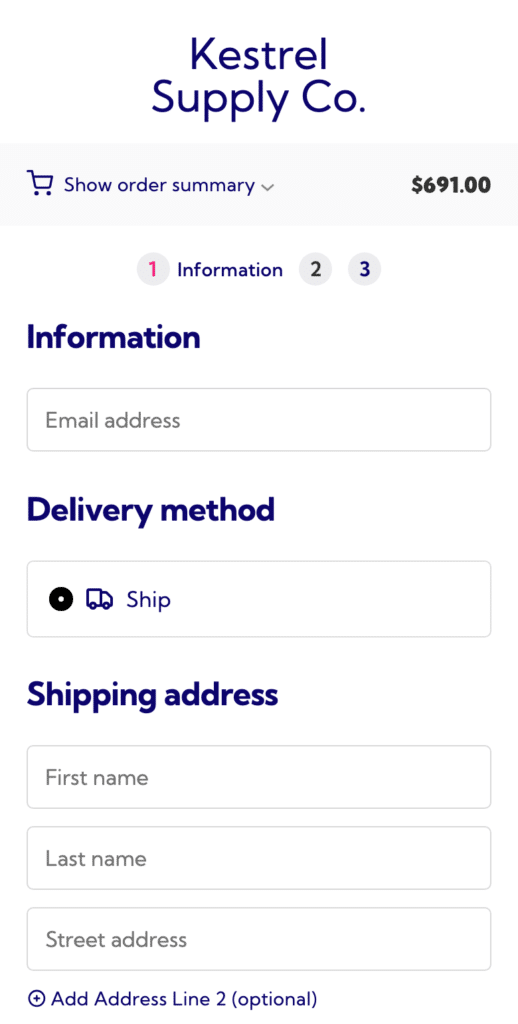
Multi-column forms are hard to read on a phone. A one-column checkout that splits the work into steps shows only a few fields at a time, so the form feels shorter. CheckoutWC replaces the default WooCommerce checkout with a multi-step layout of Information, Shipping, and Payment, with a breadcrumb so shoppers always know where they are. If you sell single-rate shipping, you can hide the shipping step too.
To change the look on phones, use the Checkout Editor under CheckoutWC » Checkout Editor, where you can preview the checkout at phone width as you change it.
Collapse the order summary on phones
A full cart summary pushes the form down the screen. On phones, CheckoutWC starts the summary collapsed under a “Show order summary” link, so the form comes first and customers can open the items, coupon field, and totals when they want to check them. You can change the link text and choose whether the totals appear above the place order button. The settings are under CheckoutWC » Pages » Checkout » Mobile Options, and the cart summary documentation lists each one.
Offer express checkout for phone shoppers
Apple Pay, Google Pay, and PayPal let a shopper pay with details their phone already holds, so they skip the form. CheckoutWC shows the buttons of supported payment gateways at the top of the first step, in equal-size buttons that are easy to tap. See our guide to WooCommerce express checkout for the options.
Cut the typing
Typing is the slowest part of a phone checkout. Three changes help most:
- Remove fields you don’t need. Hide the company name and second address line if you never use them, or ask only for the shipping address and reuse it for billing. See how to remove WooCommerce checkout fields.
- Use address autocomplete. Suggestions fill the address after a few characters. CheckoutWC supports it with your own Google or Fetchify key; our guide to Google address autocomplete covers the setup.
- Let phones autofill. Keep standard field types and labels so the phone’s saved name, email, and address can fill the form.
Flag mistakes as they happen
A form that waits until the end to report errors sends shoppers back up a long page. CheckoutWC checks email, name, address, and postcode fields when the customer leaves them and shows the message next to the field, so mistakes get fixed while the shopper is still looking at them.
Speed up the page
Slow pages lose phone shoppers before they see a single field. Use caching, a content delivery network, and images sized for phone screens, and check your hosting if pages are still slow. Google’s Core Web Vitals show what to measure, and our guide to speeding up the WooCommerce checkout goes further.
Test the whole mobile flow
Place a real test order on a phone, on both Wi-Fi and mobile data, and check each of these:
- Add a product to the cart and open the cart.
- Apply a coupon and confirm the total changes.
- Fill in every field, using the phone’s own keyboard.
- Pay with an express button, and again with a card.
- Read the confirmation page and the order email.
Repeat the test on both an iPhone and an Android phone, and again after theme, plugin, or checkout changes.
Give phone shoppers a checkout built for them
If most of your orders start on a phone, the checkout is the page that decides them. See CheckoutWC pricing for a mobile-ready multi-step checkout with express payment buttons, address autocomplete, and a collapsible order summary on one plan.

The simplicity of Shopify with the power of WooCommerce. Replace your WooCommerce checkout page with CheckoutWC to boost sales and reduce cart abandonment.