Turn your Free Shipping Bar into a WooCommerce Rewards Bar

Table of Contents
- Watch it in action
- What is a WooCommerce rewards bar?
- Three rewards you can stack
- Set up your reward tiers
- Free gifts that add and remove themselves
- Show it in the side cart and at checkout
- Why rewards bars work
- Get the rewards bar
- Frequently asked questions
- Does the rewards bar create free shipping automatically?
- How many reward tiers can I add?
- What kind of product can I use as a free gift?
- Can I show the rewards bar on the checkout page?
- Can I stop certain products counting toward the goal?
Most WooCommerce stores already use one version of this trick: show shoppers how close they are to free shipping, and they add another item to reach it. It works – but a single free shipping goal only takes you so far.
The CheckoutWC rewards bar takes that idea further. Instead of one finish line, you can stack up to three spend-to-unlock tiers in a single progress bar – free shipping, an automatic free gift, and your own custom reward – so customers always have a reason to add one more thing to the cart. It is one of the most direct ways to lift your average order value without discounting a single product.
Here is how it works, and how to set it up.
The rewards bar arrives in CheckoutWC 11.3.0 – update to the latest version and you will find it in your Side Cart settings.
Watch it in action
Before the details, here is a short walkthrough. In it, we set up the reward tiers in the admin, add a free gift and a custom reward message on top of an existing free shipping threshold, then show the bar working live in both the side cart and the checkout page.
What is a WooCommerce rewards bar?
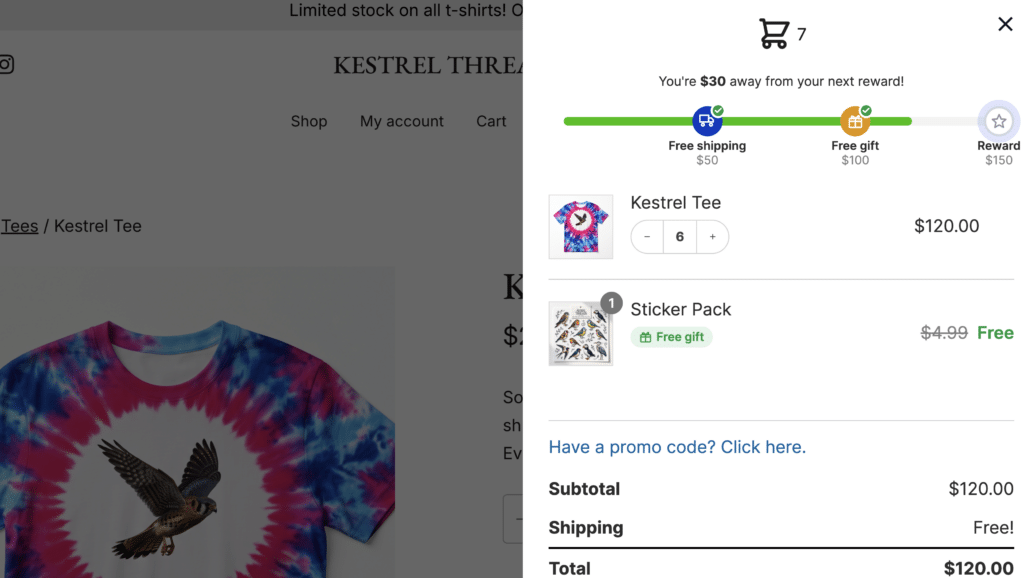
A rewards bar is a progress bar in your cart that shows customers how much more they need to spend to unlock a reward. The classic version is a free shipping bar – “You’re $12 away from free shipping!” – which nudges shoppers toward a bigger order.
The CheckoutWC rewards bar keeps that free shipping goal and lets you stack more rewards behind it. As the cart total climbs, the bar fills, milestone markers light up, and each reward unlocks in turn – with a confetti celebration each time a customer crosses a threshold.
Three rewards you can stack
Each tier has its own threshold, colour, and messaging, and offers one of three rewards:
- Free shipping – the familiar free shipping goal. The bar shows progress toward the amount that unlocks your WooCommerce Free Shipping method.
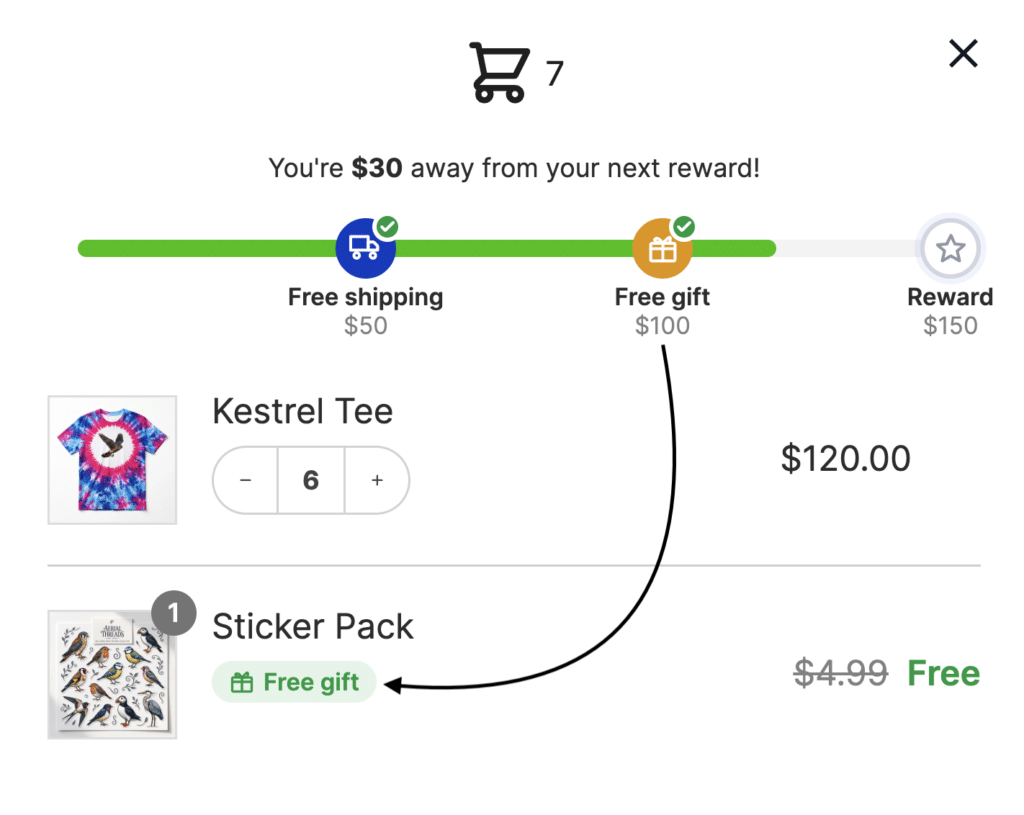
- Free gift – when the cart reaches the threshold, a product you have chosen is added to the cart automatically at no charge. Drop back below the threshold and the gift is removed just as automatically – no manual coupons, no fiddly rules. The gift’s quantity is locked and it cannot be removed on its own, so the offer stays exactly as you intended.
- Custom message – no shipping change and no product, just a reward message you write yourself. Good for “Spend $100 to unlock VIP perks” milestones, loyalty points, or a thank-you note at a higher spend tier.
Mix and match up to three tiers. A common setup is free shipping first, a free gift in the middle, and a custom reward at the top.
Set up your reward tiers
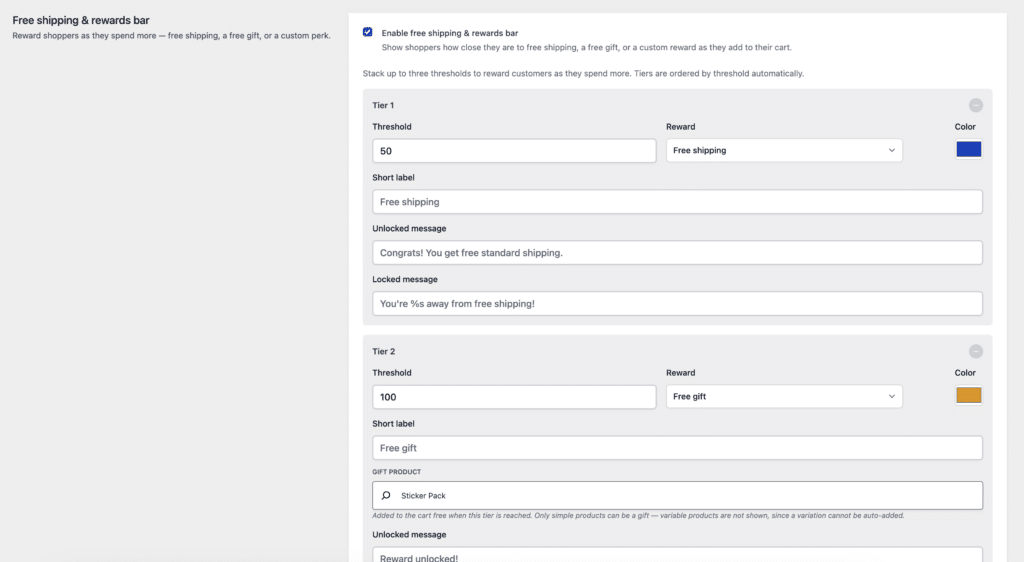
You will find the rewards bar under the Side Cart settings. For each tier you can set:
- Threshold – the cart subtotal that unlocks the tier
- Reward – free shipping, free gift, or a custom message
- Gift product – for free gift tiers, the simple product to add automatically
- Label and colour – a short label and a colour for the tier’s marker, so each reward stays visually distinct as the bar fills
- Messages – an “unlocked” message shown once the tier is reached, and a “remaining” message that counts down the amount left (use
%sto insert the remaining amount, e.g. “You’re %s away from a free gift!”)
One honest note the settings will remind you of: the rewards bar shows progress toward free shipping – it does not create free shipping on its own. For a free shipping tier to actually zero out shipping, you need a matching WooCommerce Free Shipping method with a minimum that lines up with your tier threshold. If they do not match, CheckoutWC warns you right in the settings, with a link to your shipping settings, so customers never see “unlocked” while still being charged.
Free gifts that add and remove themselves
The free gift tier is the one to watch. Pick any simple product as the gift, set the threshold, and CheckoutWC handles the rest:
- Reach the threshold, and the gift drops into the cart at 100% off
- Drop back below it, and the gift disappears again
- Its quantity is locked and it cannot be removed on its own, so shoppers cannot game the offer
Free gifts give customers a concrete reason to add more without eroding the margin on your core products. Use a simple product for the gift – CheckoutWC flags it in the admin if you pick something it cannot add automatically.
Show it in the side cart and at checkout
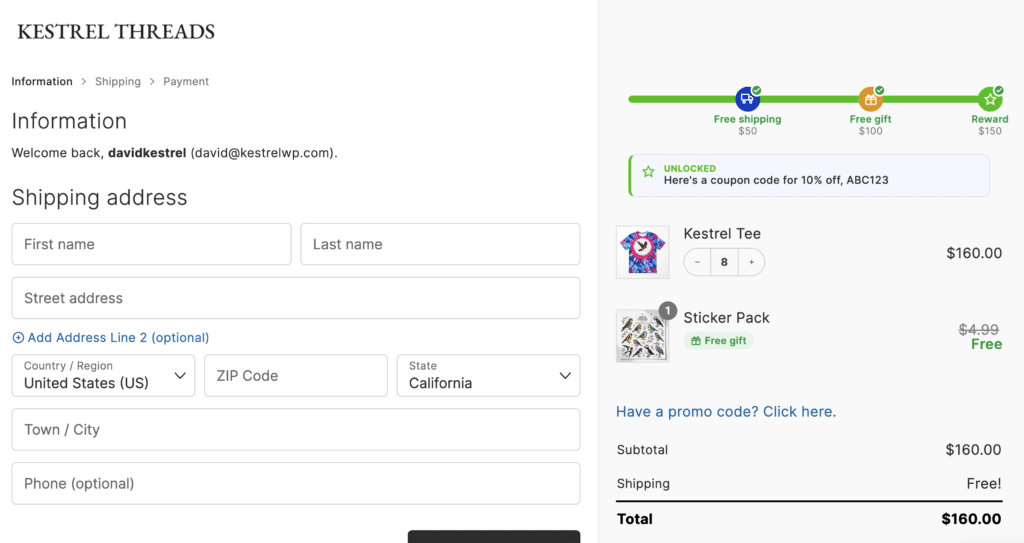
The rewards bar appears in the CheckoutWC side cart, and you can also show it in the order summary on the checkout page – so the incentive follows customers all the way to the finish line, not only while they browse. A single setting controls whether it appears at checkout.
Two extra touches round it out:
- Exclude by shipping class – keep products in selected shipping classes out of the qualifying total, handy when heavy or oversized items should not count toward a free shipping goal
- Custom empty-cart image – upload your own image to show in the empty side cart and keep it on brand
Why rewards bars work
Rewards bars tap into a simple bit of shopper psychology: a visible, achievable goal is a strong nudge. Stores that use free shipping goals tend to see larger carts, and adding free gifts on top can lift average order value further by giving customers another milestone to reach for – all without blanket discounts eating into your margins.
Stacking tiers keeps that momentum going. Once a shopper unlocks free shipping, the next reward is already in view, so the cart keeps growing.
Get the rewards bar
The multi-tier rewards bar is part of the CheckoutWC Side Cart, available on most paid CheckoutWC plans. If you are already on a paid plan, update to the latest version and you will find it in your Side Cart settings.
New to CheckoutWC? Compare plans and pricing. All paid plans include a 30-day money-back guarantee.

The simplicity of Shopify with the power of WooCommerce. Replace your WooCommerce checkout page with CheckoutWC to boost sales and reduce cart abandonment.
Frequently asked questions
Does the rewards bar create free shipping automatically?
No – it shows progress toward free shipping. You still set up a WooCommerce Free Shipping method, and the bar visualises how close customers are to it. CheckoutWC warns you in the settings if a free shipping tier has no matching method or minimum.
How many reward tiers can I add?
Up to three, each with its own threshold, reward, colour, and messages.
What kind of product can I use as a free gift?
Any simple product. The gift is added to the cart automatically at no charge when the threshold is met, and removed if the cart drops below it.
Can I show the rewards bar on the checkout page?
Yes. It appears in the side cart, and you can also enable it in the checkout order summary.
Can I stop certain products counting toward the goal?
Yes – exclude products in selected shipping classes from the qualifying cart total.