WooCommerce security: how to protect your store and checkout

Table of Contents
- What attackers want from a WooCommerce store
- How WooCommerce sites get hacked
- Use layers: how to secure WooCommerce
- Keep everything updated
- Use a reputable payment gateway
- Add a web application firewall
- Lock down logins
- Choose secure hosting and secure integrations
- Stop card testing and spam orders at checkout
- Set fraud and chargeback rules
- How to tell if your store has been hacked
- Make your checkout safer for customers too
To protect a WooCommerce store, keep WordPress, WooCommerce, your plugins, and your theme updated; put a web application firewall in front of the site; turn on two-factor authentication for every admin; use a reputable payment gateway so card data never touches your server; and add bot protection such as Cloudflare Turnstile at checkout to stop card testing and spam orders. The sections below explain why each layer matters and what to do about an attack that has already happened.
What attackers want from a WooCommerce store
- Card testing (carding). Bots use your checkout to check whether stolen card numbers work. It’s the main cause of spam orders. If it isn’t stopped quickly, your payment gateway may suspend your account, and the disputes that follow can be costly.
- Customer data. A breach damages trust, and you are responsible for keeping your customers’ data safe even when your payment provider handles the card itself.
- Your visitors. Injected malware can trigger browser and antivirus warnings, which cost you sales, search rankings, and reputation.
- Your server. Hacked sites are used to send spam, which can get your hosting or email accounts blocked, or to attack other sites.
How WooCommerce sites get hacked
Attacks start with access to the server. The usual routes are:
- A vulnerability in a plugin, theme, or WordPress core. Outdated plugins are the most common one.
- Nulled (pirated) plugins and themes, which often contain malicious code or a backdoor.
- A stolen admin password or session cookie, for example through cross-site scripting.
- Another site on the same server being hacked. Isolation between sites on shared hosting is good but never perfect, so don’t run a store on bargain shared hosting.
- Brute-force login attempts, where scripts try thousands of common username and password combinations. If your site is public, assume this is already happening.
Once inside, attackers upload scripts to different folders, attach malicious code to existing files, and sometimes create extra admin users to keep their access.
Use layers: how to secure WooCommerce
No single measure is enough. A secure store has several, so that when one fails the others still protect customer data.
Keep everything updated
Update WordPress core, WooCommerce, plugins, and themes regularly, and test updates on a staging site before you deploy them to the live store. Recent WordPress versions can roll back a plugin update that causes a fatal error, but that is no substitute for testing. Choose plugins that are actively maintained; a plugin that hasn’t been updated in years is a risk.
Use a reputable payment gateway
Stripe, PayPal, and similar gateways process the transaction on their own systems, so your site doesn’t store card details and an attacker would have to get through the gateway’s security as well. Stick to gateways with a strong reputation, and use their fraud controls such as card verification checks where they offer them.
Add a web application firewall
A firewall blocks suspicious requests before they reach WordPress. Cloudflare’s WAF works at the network edge, so it adds no load to your server. If you can’t use Cloudflare, a WordPress security plugin such as Wordfence adds a firewall, a malware scanner, and login protection, but runs on your server, so weigh the load. Check each plugin’s own page for its current features and pricing.
Lock down logins
- Turn on two-factor authentication for every administrator and shop manager account.
- Use a long, unique password for each account, and don’t use “admin” as a username.
- Turn off XML-RPC if you don’t use it, and limit login attempts.
- Remove admin accounts nobody uses.
Choose secure hosting and secure integrations
Pick a host that specializes in WordPress and WooCommerce and isolates sites from each other. Keep any connected services, such as your CRM or email tool, updated and protected with their own strong credentials.
Stop card testing and spam orders at checkout
A checkout form is what a card-testing bot needs, so it has to be able to tell a person from a script. A challenge on the checkout page is the standard defense, with a trade-off: any CAPTCHA can reduce conversions if it asks real customers to do work.
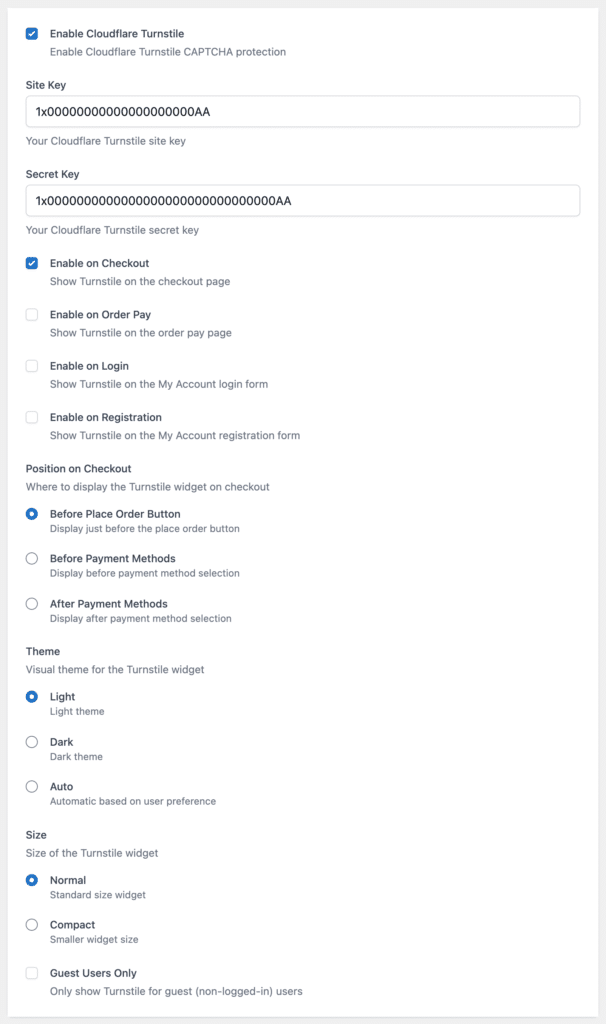
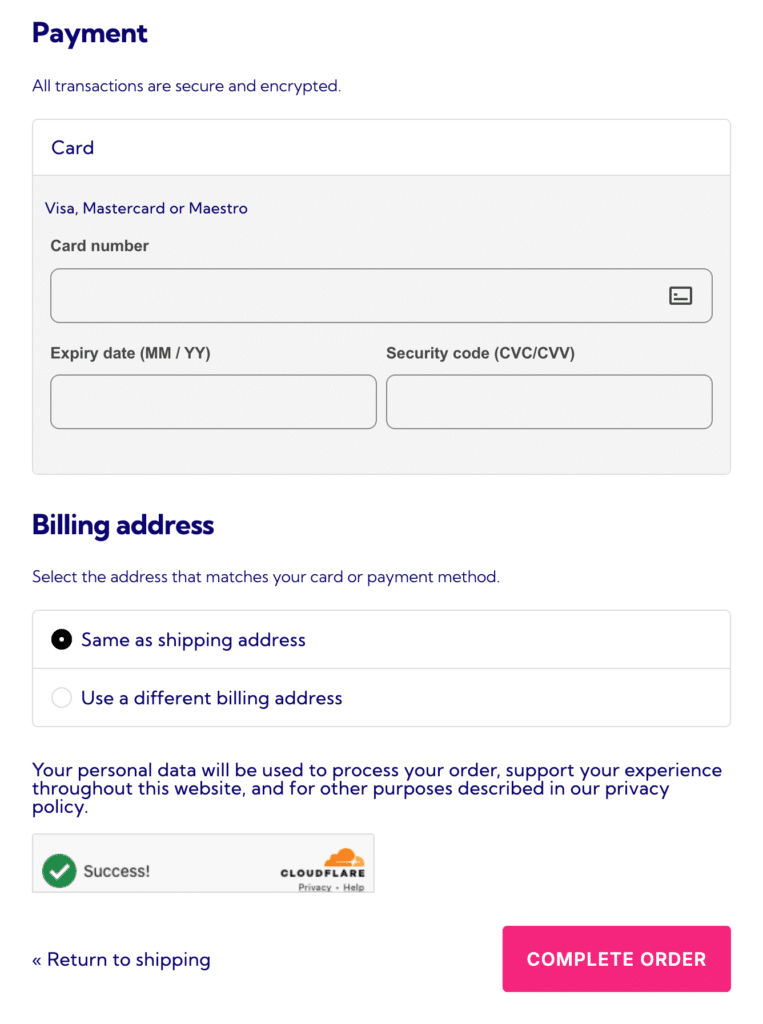
CheckoutWC includes Cloudflare Turnstile, a free check that usually confirms a visitor is real without a puzzle. Create a Turnstile widget for your domain in Cloudflare, then go to CheckoutWC » Integrations, turn on Enable Cloudflare Turnstile and paste in your Site Key and Secret Key. It protects the checkout by default, and you can add the order pay page, login, and registration forms in the same settings. Your site doesn’t have to use Cloudflare for anything else.
Our articles on stopping WooCommerce spam orders with Turnstile and on preventing carding attacks go further.
Set fraud and chargeback rules
Fraud rules are yours to set. Depending on your business, you might block or review orders from certain countries, flag orders where the shipping and billing countries differ, or require extra checks above an order value. Many merchants hold flagged international orders for a manual look before shipping. Keep the card verification (CVV) check on, and don’t treat an approved payment as proof of a legitimate order.
Store owners can be held responsible for fraud losses. If a stolen card goes through and you ship the order, the real cardholder’s bank can issue a chargeback, and you lose the sale, the product, and a fee. Some customers also dispute genuine purchases, which is why chargeback tools from your processor are worth a look. If a data leak exposes customers’ details, you can face civil claims, so err on the side of over-protecting.
How to tell if your store has been hacked
A malware scanner is the quickest check. Wordfence’s scan, for example, flags modified WordPress core files and lets you compare them with the original and restore them, and it raises an alert for each outdated plugin. Treat those alerts seriously, because outdated plugins are the main way sites are compromised.
Scanners don’t see everything. They may not check widget content, posts, or plugin settings, so also review any custom CSS or JavaScript snippets by hand, since malicious code often looks like valid code. If you find a corrupted snippet, remove the bad code or delete the snippet, change all admin passwords, check for unknown admin users, and restore from a clean backup if needed.
Make your checkout safer for customers too
Security also has to be visible. Shoppers look for signs they can pay safely, and a checkout that shows recognized payment logos and a clear guarantee near the card fields reassures them. In CheckoutWC you can place trust badges and badge collections in the checkout; see the trust badges guide and our article on building a safe checkout.
See CheckoutWC pricing for Turnstile bot protection, trust badges, express checkout, and every other feature in one plan.

The simplicity of Shopify with the power of WooCommerce. Replace your WooCommerce checkout page with CheckoutWC to boost sales and reduce cart abandonment.