Trust badges are a great way to build last-minute buyer confidence on your WooCommerce checkout page. At the moment a shopper is about to enter their card details, they are asking themselves a few quiet questions: Is this store legitimate? Is my payment safe? What happens if the order goes wrong? A good trust badge answers that question right where it comes up, which matters most for first-time customers who don’t know your store yet.
With CheckoutWC you can add trust badges anywhere on your checkout: a secure checkout badge next to the payment form, payment trust badges showing the cards and wallets you accept, or a money-back guarantee badge beside the Complete Order button.
Two kinds of trust badges in CheckoutWC
- A custom badge: your own image and your own words. Use it for anything specific to your store, such as “Hand-packed in Vermont” or “Free returns for 60 days.”
- A badge collection (Plus plan or higher): a row of ready-made payment, security and guarantee icons, shown as one badge. There’s no artwork to source or license. See Badge collections below.
How to add trust badges to your WooCommerce checkout page
Trust badges are created and placed from the Checkout Editor, so you see exactly what your customers will see while you set them up:
- Open WP Admin > CheckoutWC > Checkout Editor and go to Slots.
- On the slot where you want the badge to appear, open Add item.
- Choose + New trust badge.
- Pick Custom badge or Badge collection.
- Fill in the badge and save. It appears in that slot right away.
Each badge is placed one slot at a time. To show the same badge in more than one place, add it to each slot from that slot’s Add item menu.
Where to place checkout trust badges
Put each badge next to the doubt it answers. A badge the customer sees at the moment they hesitate does more work than the same badge at the bottom of the page. A few placements that work well:
- After Payment Methods: a secure checkout badge or a row of payment icons, right where the customer enters their card details.
- Before Terms & Conditions or After Complete Order: a money-back guarantee or satisfaction guaranteed badge, the last reassurance before they place the order.
- After Shipping Methods: a free shipping or free returns badge, while the customer is weighing up delivery costs.
- After Cart Summary Totals: a guarantee or review badge beside the order total, where customers on every checkout step can see it.
You can also show a badge only to some customers with Display conditions. For example, show a free shipping badge only on carts that qualify for it.
Custom badge fields
- Title: the badge’s headline. Keep it short, 1–3 words that reinforce trust, such as “30-Day Guarantee.”
- Subtitle: supporting text (not shown on the Guarantee template).
- Template: Guarantee or Review.
- Image: the badge icon. Use a simple, clear graphic (transparent PNG or SVG is ideal).
- Description: a sentence or two explaining the promise, such as what your guarantee covers.
- Margin: spacing around the badge in this slot.
- Display conditions: rules for which carts or customers see this badge.
The Trust Badges settings page
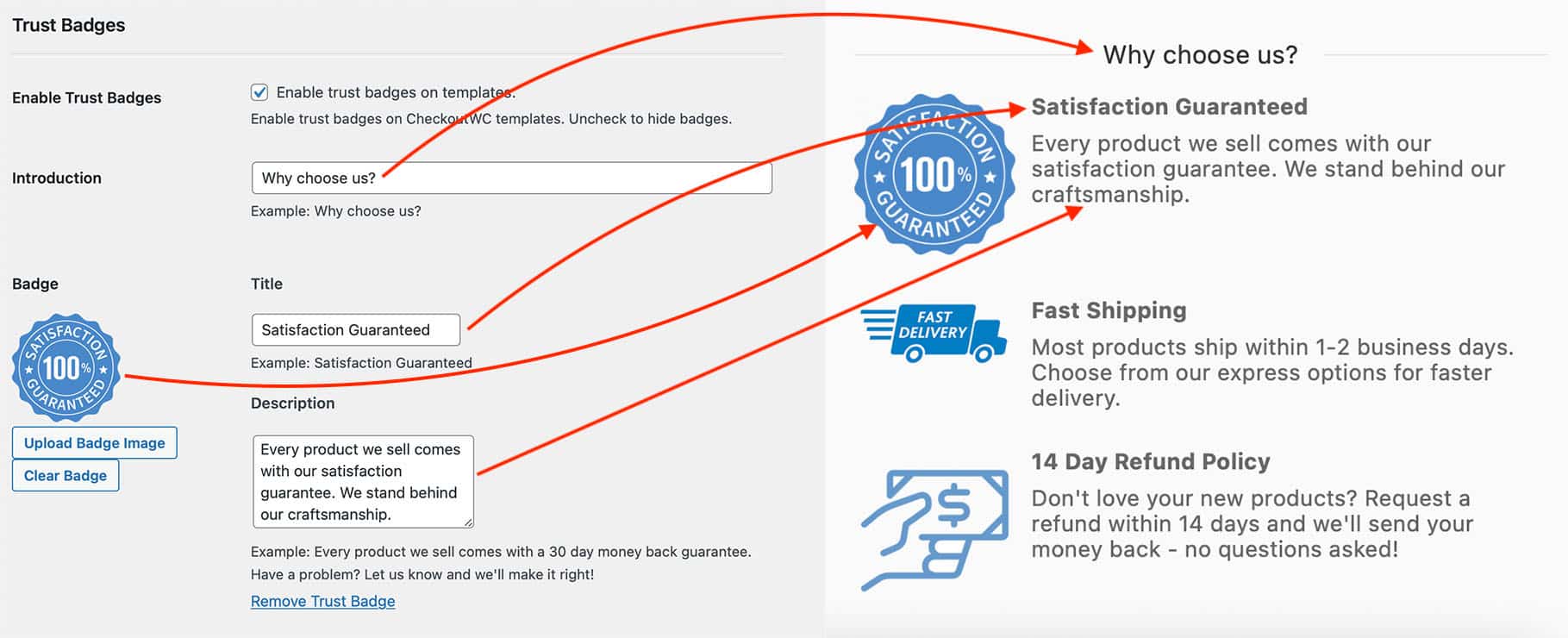
WP Admin > CheckoutWC > Trust Badges still exists. Use it to manage your existing custom badges: edit their title, subtitle, template, image, description, slot and display conditions, or add a new custom badge. Badge collections don’t appear on this page; they are created and edited only in the Checkout Editor.
Here’s how the fields map to the badge display on your checkout page:
Note: The images we used in our example were found using Google Image Search and may or may not be licensed for reuse. We recommend finding your own images, or using a badge collection.
Badge collections: ready-made secure checkout and payment badges
Badge collections need a Plus plan or higher.
A badge collection is a single trust badge that shows a row of icons from a built-in set, so you can add a secure checkout badge, payment badges and a guarantee in a couple of clicks, with nothing to design, source or upload. Pick the icons, arrange them, and the collection sizes and wraps to fit whatever slot you place it in, or follows your Badges column settings instead.
Icon sets
- Payment methods: Visa, Mastercard, American Express, Discover, Diners Club, JCB, UnionPay, PayPal, Apple Pay, Google Pay, Amazon Pay, Samsung Pay, Klarna, Skrill.
- Security: Secure checkout, 256-bit encryption, Privacy protected.
- Guarantees: 30-day money back guarantee, 60-day money back guarantee, 90-day money back guarantee, Free shipping, Free returns, Satisfaction guaranteed.
Collection settings
- Title: a label for your own reference in the editor. Customers never see it.
- Icons: every available icon. Click an icon to add it to the collection or remove it.
- Selected icons: drag to reorder, or use the arrow buttons. Remove an icon with the × button.
- Wrap icons automatically: on by default, so icons fit as many to a row as the space allows. Turn it off to use the column counts set in the Badges section instead.
- Icon size: the height icons render at, in pixels. With automatic wrapping off, icons may render smaller so they fit their column.
- Icon color: appears once you’ve selected a Security or Guarantee icon. Leave it unset to match your checkout text, or pick your brand color. Payment logos always keep their own brand colors, so customers recognize them instantly.
- Margin and Display conditions: the same as for a custom badge.
Which trust badges should your WooCommerce store use?
Start from your customers’ biggest hesitation, not from the badges you like the look of:
- New or unknown store? A secure checkout badge (“Secure checkout”, “256-bit encryption”) tells first-time buyers their payment is protected.
- Higher-priced or niche products? A money-back guarantee badge takes the risk out of trying you. Only offer the guarantee period you actually honor.
- Shipping costs a common complaint? Free shipping or free returns badges answer it before the customer reaches the total.
- International or mobile shoppers? Payment trust badges showing the wallets they already use, like Apple Pay, Google Pay or PayPal, tell them checkout will be quick. Show only the payment methods you accept, so the badge never promises an option that isn’t there.
Best practices for trust badges
- Use short, clear messages (e.g., “30-Day Guarantee” or “SSL Secured Checkout”)
- Choose icons that are simple and recognizable
- Stick to a consistent visual style (line icons, color palette, etc.)
- Avoid clutter, stick to 2 to 4 key trust signals
- Only show promises your store keeps: a guarantee, a free returns policy, or a payment method you don’t actually offer costs more trust than it earns
But most importantly, match your trust signals to your audience. If your customers care most about fast shipping, highlight that. If your products are expensive or niche, lead with a money-back guarantee or “Secure Checkout.” Choose the badges that address your buyer’s biggest hesitation. Not sure what would work best? Reach out to us and we’ll help you!
Want to go deeper on WooCommerce trust badges?
Check out these related resources: