Backordered? Buy this instead: turn WooCommerce out-of-stock items into instant upsells

Table of Contents
- Why backorders leak revenue
- The move: a just-in-time swap offer
- Why this is a CheckoutWC thing
- How to set it up
- 1. Let the backordered product stay purchasable
- 2. Create the order bump with an in-stock offer
- 3. Gate it to fire only when the cart has a backordered item
- 4. Write the copy as a swap, not a sell
- What the shopper sees
- A lighter-touch option: just say when it'll ship
- Frequently asked questions
- Turn your next backorder into a same-day sale
You land a deal on Shark Tank and your entire inventory sells out before the commercial break. Or a “TikTok made me buy it” video clears three million views overnight and the orders don’t stop. Or a holiday gift guide crowns you the thing to buy this year. This is the best problem in ecommerce: more demand than stock, all of it here right now, and cheaper to reach than it will ever be again.
And then your store greets that once-in-a-lifetime traffic with a grey “sold out” button.
Backorders fix the button so people can still buy, and that’s the right start. But most WooCommerce stores stop there and quietly leak money anyway. The shopper sees “available on backorder,” hesitates, and does one of two unprofitable things: leaves to buy it somewhere they can get it now, or places the order and waits, which parks your cash and their patience until restock.
There’s a third option almost nobody sets up: sell them something that’s in stock, right now, at the exact moment they’re looking at the backordered item. Not a generic “you might also like,” but a just-in-time offer that appears only when a backordered product is in the cart. CheckoutWC’s conditional order bumps make it a five-minute setup, no code. Here’s how.
Why backorders leak revenue
Backorders themselves are fine. Letting people buy an out-of-stock item beats a dead “sold out” button, and WooCommerce supports it natively. The leak is what happens next:
- The lost sale. Some shoppers won’t wait. They see “available on backorder,” and they go find it in stock elsewhere. That sale is gone, and it never shows up in your reports.
- The delayed sale. The ones who do order are now money you can’t fully count on yet and inventory you have to chase. You’ve made the sale, but you’re carrying the customer’s expectation (and often their impatience) until the restock lands.
Neither is a disaster. But both leave an easier, faster sale on the table, because the customer is already in a buying mood and already at checkout. The only question is whether you offer them something they can have today.
The move: a just-in-time swap offer
The play is a single conditional order bump. An order bump is a checkbox offer that appears at checkout, and CheckoutWC lets you control when it shows using display conditions. Point those conditions at cart stock status and you get a bump that only appears when the cart contains a backordered item, and disappears the moment it doesn’t.
So the flow becomes: a shopper adds the backordered Navy jacket, heads to checkout, and sees a one-click offer, “The Navy is on backorder. Prefer not to wait? Add the Charcoal, same jacket, same price, ships today.” One checkbox, done. You captured the sale today instead of hoping they’d wait or watching them leave.
The offer can be a straight alternative (a different colour or variant that’s in stock) or a companion (“grab this while you wait for the Navy”). Either way it only shows to the people who need it, and stays invisible for everyone whose cart is fully in stock, so your normal checkout stays clean.
Why this is a CheckoutWC thing
Plenty of tutorials explain how to enable backorders. None of them can do the part that actually recovers the revenue, because the just-in-time trigger is conditional order-bump display keyed on cart stock status, and that’s a CheckoutWC feature. WooCommerce core will happily sell a backordered item and render its default “Available on backorder” label, but it has no concept of “show this specific offer only when something in the cart is on backorder.” That conditional logic, in the checkout, without code, is the whole trick.
How to set it up
1. Let the backordered product stay purchasable
First, make the out-of-stock item buyable. It’s quick:
- Edit the product and open Product data → Inventory.
- Tick Manage stock.
- Set Backorders to Allow, or Allow, but notify customer (that one shows the “available on backorder” note).
For variable products, that setting lives on each variation. There’s also a store-wide default under WooCommerce → Settings → Products → Inventory if you’d rather turn it on everywhere. For the finer points, see WooCommerce’s guide to managing backorders. If the item isn’t purchasable while out of stock, there’s no cart for the bump to react to.
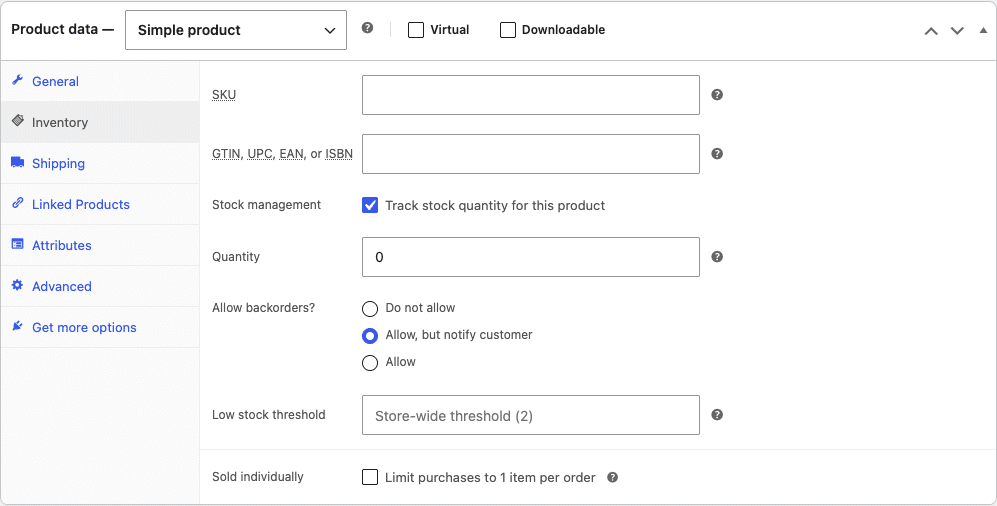
Enabling backorders on the product: the setting that keeps the item buyable while it’s out of stock.
2. Create the order bump with an in-stock offer
In CheckoutWC → Order Bumps, create a bump and set its offer product to the in-stock alternative or companion, the thing you actually want to sell today. Pick something that genuinely solves the “but I wanted the other one” problem, not a random add-on.
3. Gate it to fire only when the cart has a backordered item
This is the important part. In the bump’s Display Conditions, add a rule: Product Inventory → [your product] → Is on backorder. That tells CheckoutWC to show the bump only when that product is in the cart and currently on backorder. You can also use Cart Contents → Contains to key off specific products. It’s a dropdown, no code required.
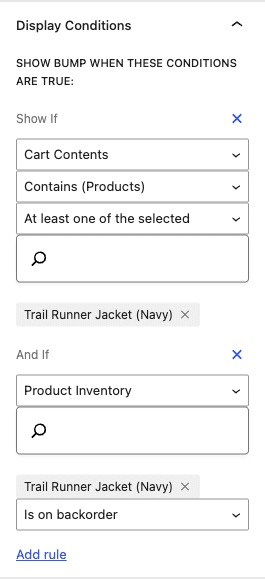
The display condition that makes it just-in-time: the bump only appears when the cart holds a backordered item.
4. Write the copy as a swap, not a sell
Lead with the shopper’s situation and give them an easy out. “On backorder, prefer not to wait? Add [the in-stock one], ships today” converts better than a generic upsell, because it solves the exact problem they’re looking at. Keep it to one clear choice.
What the shopper sees
With the rule in place, a customer who has the backordered item in their cart sees the bump at checkout, right alongside WooCommerce’s native “some items in your order are on backorder” notice, so the offer lands exactly when the concern is top of mind.
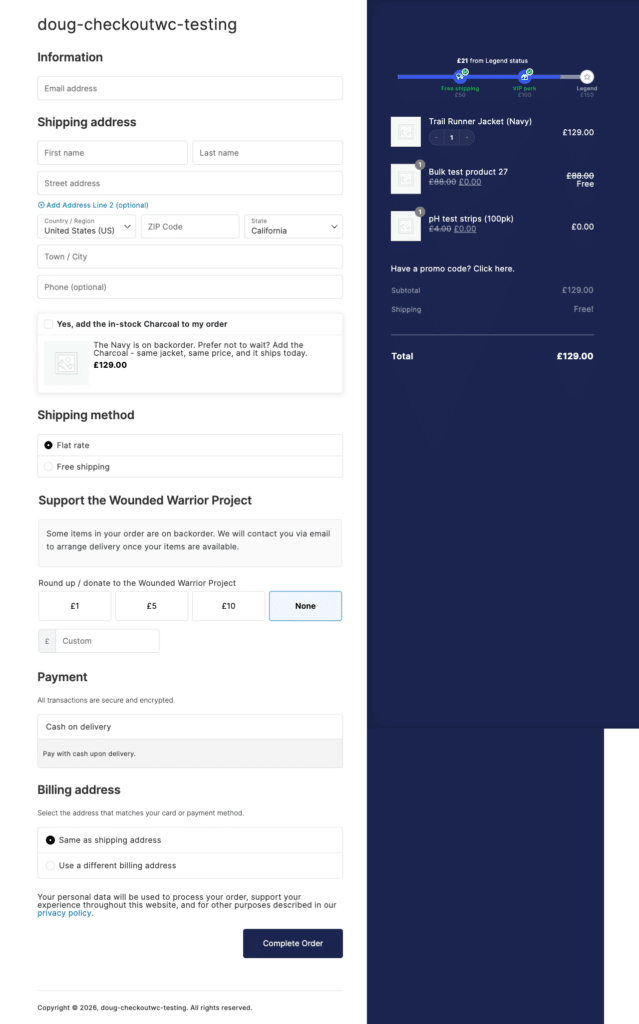
The bump at checkout: a one-click, in-stock alternative offered precisely when the shopper is looking at a backordered item.
The clever part is what happens when the item is back in stock. Because the bump is gated on stock status rather than just “cart contains product,” it turns itself off automatically the moment that product is available again. No calendar reminder, no stale “prefer not to wait?” offer showing to people who never had to wait. It manages itself.
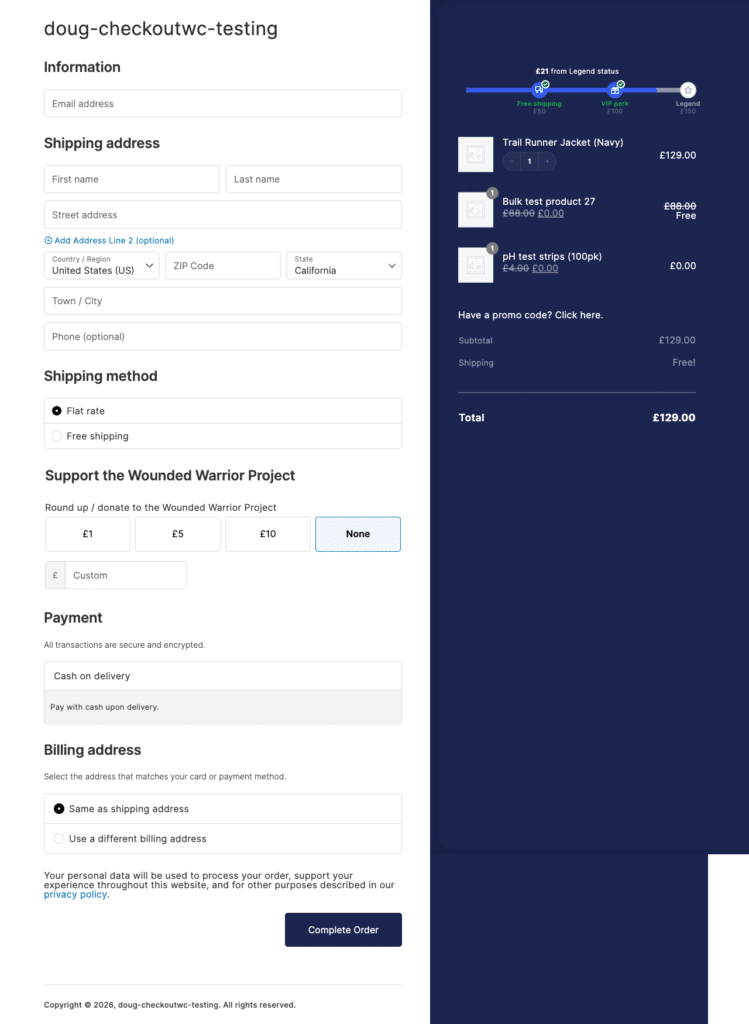
Same product, back in stock: the bump disappears on its own. The offer only exists while it’s useful.
A lighter-touch option: just say when it’ll ship
If you’d rather not upsell and simply want to reassure, you can add expected-availability messaging at checkout (“Back in stock around the 15th”) for carts that contain a backordered item, using conditional content or a small snippet. It’s the softer version of the same idea: meet the shopper’s hesitation at the moment it happens. Worth doing, but the order-bump swap is what actually moves revenue, so start there.
Frequently asked questions
Can you sell out-of-stock products in WooCommerce?
Yes. Set the product’s Inventory → Backorders option to allow backorders and the item stays purchasable while out of stock. WooCommerce shows an “Available on backorder” label automatically.
Can I show an offer only when a product is backordered?
Yes, with a CheckoutWC order bump. Set the bump’s Display Conditions to Product Inventory → Is on backorder, and it appears only when the cart contains that backordered item.
Will the offer disappear when the product is back in stock?
Yes. Because the bump is gated on stock status, it stops showing automatically once the product is available again. You don’t have to remember to turn it off.
Do I need custom code?
No. Enabling backorders is a built-in WooCommerce setting, and the conditional bump is built in the CheckoutWC order-bump editor with dropdown display conditions.

The simplicity of Shopify with the power of WooCommerce. Replace your WooCommerce checkout page with CheckoutWC to boost sales and reduce cart abandonment.
Turn your next backorder into a same-day sale
A backorder doesn’t have to be a lost sale or a loan you make to your own inventory. With one conditional order bump, the shopper looking at an out-of-stock item gets a one-click way to buy something in stock today, and the offer quietly retires itself when the stock returns.
Set up order bumps in CheckoutWC and turn your next backorder into revenue you keep.