The Checkout Editor is where you design and arrange your CheckoutWC checkout while watching a live preview. Open it from WP Admin > CheckoutWC > Checkout Editor. Use the Checkout Editor to customize your WooCommerce checkout page: template, logo, fonts, colors, steps and what appears where.
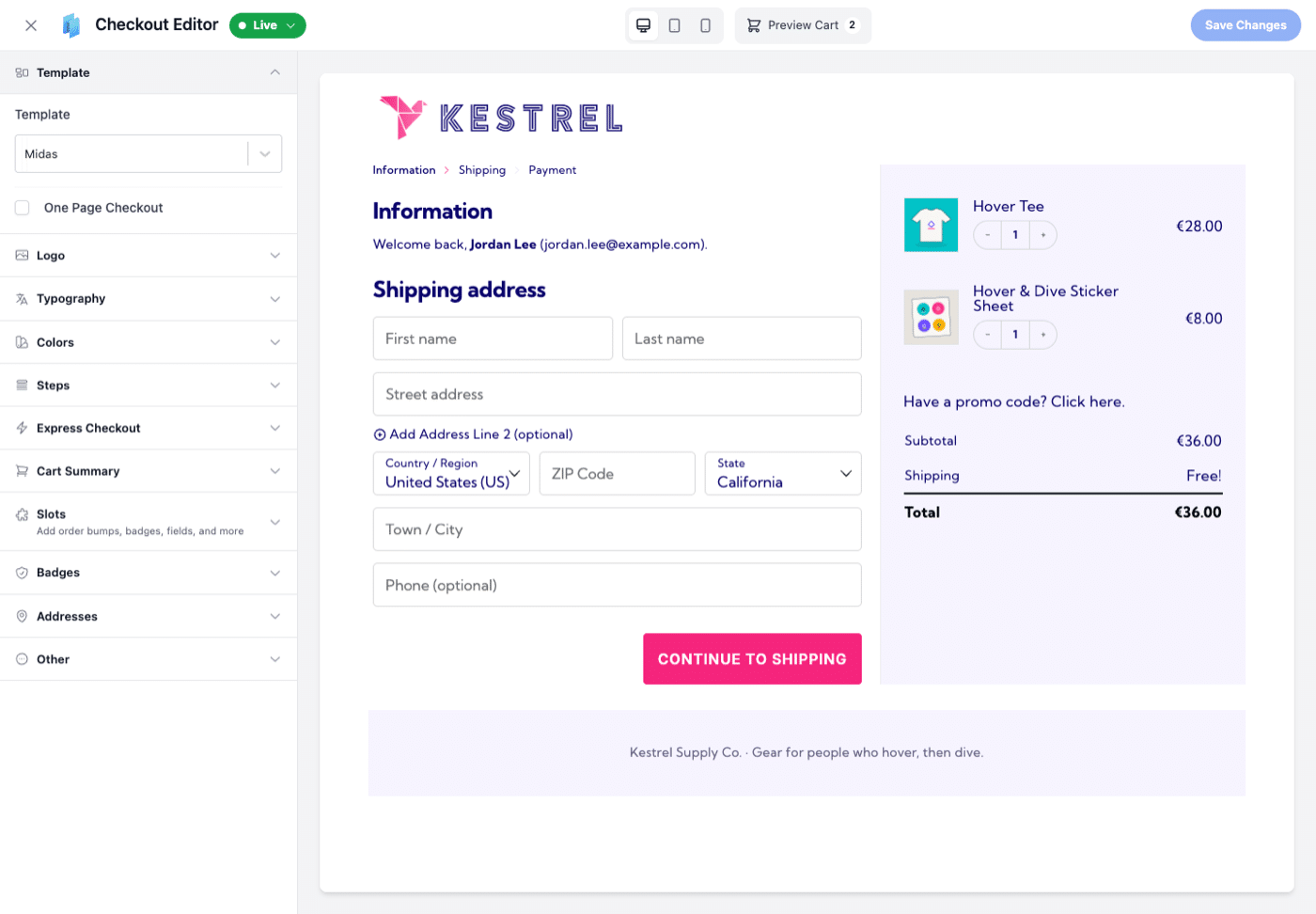
Across the top are the Live/Preview menu (in preview, your checkout is only shown to logged-in admins; going live needs a valid, active licence), desktop, tablet and mobile preview toggles, and Save Changes. Nothing is applied until you save.
Looking for the Fields, Footer or Advanced section? CheckoutWC 11.4.0 removed them and moved their settings into the sections below.
Template
- Template: the free version can use the default template; the others need a Basic plan or higher.
- One Page Checkout (Basic or higher): shows every step on one page. While it is on, Order Review Step is hidden and turned off.
Logo
- Logo: upload your logo. Without one, the header shows your site name.
- Size and Margin: appear once a logo is uploaded. Size runs from 24 to 200 pixels, and Reset returns it to the template default. Each template keeps its own values.
Typography
- Body Font and Heading Font.
- Field Label Style: Floating (recommended) or Normal.
Colors
Body, Buttons, Breadcrumbs, Cart Summary, Header, Footer, and Misc for colors your template adds. Colors are saved per template.
Steps
- Shipping Methods Step: untick to skip the shipping method step.
- Order Review Step (Basic or higher): adds a final review step. Hidden while One Page Checkout is on.
Express Checkout
- Express Checkout: show or hide the express payment buttons.
- Ignore Required Custom Fields: appears once a required custom field is on your checkout. It is on by default; see Custom checkout fields.
Cart Summary
- Cart Editing (Basic or higher), with Variation Edits and Item Remove once it is on.
- Coupon Code Link: hides the coupon field behind a link.
- Sale Prices, Sticky Cart on Scroll.
- Cart Item Links: Disabled or Enabled.
- Cart Item Data Display: Short or WooCommerce Default.
Slots
Add order bumps, trust badges, customer reviews, custom fields, headings and custom HTML to 16 positions on the checkout. See Order bump locations, Trust badges and Custom checkout fields.
Badges
- Trust Badges (Basic or higher): must be on for any trust badge or badge collection in a slot to show. Checkout Area Columns, Cart Summary Area Columns and Mobile Columns set the grid; badge collections with Wrap icons automatically ignore them.
- Customer Reviews (Pro or higher): column counts, Priority, Minimum Star Rating and Maximum Reviews to Show.
Addresses
- Full Name Field (Basic or higher).
- Address Fields Link: hides optional address fields behind links such as “Add Company (optional)”.
- Separate House Number/Street Name (Basic or higher), with its display order. Warns when Google or Fetchify autocomplete is on.
- Highlighted Countries (Basic or higher).
- Force Different Billing Address.
- Phone Field, Company Field and Address 2 Field: Hidden, Optional or Required. These are WooCommerce’s own settings and apply to billing and shipping.
- Billing Address Fields: eye toggles that remove individual billing fields. Read info explains what removing one does to the order; see How to remove billing address fields.
Other
- Order Notes.
- Footer Text: WYSIWYG or HTML, per template.