WooCommerce AOV: 6 tactics that raise it without hurting conversions

Table of Contents
- What AOV tells you, and what it doesn't
- 6 ways to boost WooCommerce AOV without losing conversions
- 1. Put upsells and cross-sells where shoppers are ready
- 2. Add an offer at checkout
- 3. Bundle related products
- 4. Show shoppers a free shipping goal
- 5. Sell paid add-ons at checkout
- 6. Reward repeat buyers with a loyalty program
- Check each change against conversion
- Raise AOV at the checkout
The quickest way to grow WooCommerce revenue without paying for more traffic is to raise average order value (AOV): add something to an order the shopper has already decided to place, instead of asking them to decide again. Six tactics do this well: upsells and cross-sells, an offer at checkout, bundles, a free shipping goal, paid add-ons, and loyalty rewards. Judge each one by AOV and conversion rate together, because a bigger basket that fewer people buy can leave you worse off.
For each tactic we say whether WooCommerce does it out of the box, CheckoutWC does it, or you need another tool.
What AOV tells you, and what it doesn’t
Total revenue ÷ number of orders = AOV. If you made $10,000 from 200 orders, your AOV is $50.
A higher AOV helps in a few concrete ways:
- Per-order costs shrink as a share of revenue. Packing time, shipping labels, and the fixed part of a card processing fee cost about the same on a larger order.
- Paid traffic goes further. Each visitor you pay for is worth more when the orders they place are bigger.
- Shipping thresholds get easier to afford. You can offer free shipping on orders big enough to carry it.
AOV alone can mislead you. What a visitor is worth to your store is their conversion rate multiplied by your AOV. Say 2.0 percent of visitors buy and your AOV is $50: each visitor is worth $1.00. If a tactic lifts AOV 10 percent to $55 but conversion slips to 1.8 percent, each visitor is worth $0.99, and you’ve done extra work to stand still. Those numbers are an example, not a benchmark.
Write down your AOV and conversion rate for the last 30 days before you change anything. WooCommerce Analytics reports average order value in its orders report. Everything later is measured against that baseline.
6 ways to boost WooCommerce AOV without losing conversions
1. Put upsells and cross-sells where shoppers are ready
An upsell encourages a higher-priced item or an upgrade of the one being considered. A cross-sell suggests something that goes with it, such as a case for the phone or batteries for the toy. Both work best when the offer matches the moment:
| Where | What to offer | Why it fits |
|---|---|---|
| Product page | A premium alternative | The shopper is still comparing options |
| Cart | Complementary items | They’ve committed to a purchase, so an add-on is a small step |
| Checkout | Low-commitment extras | One click adds it, with no new page to load |
| After payment | Something for later | The sale is already made |
WooCommerce covers the first two spots by itself. Upsells appear on the product page and cross-sells appear on the cart page; you choose them for each product in the Linked Products tab.


WooCommerce doesn’t offer anything at checkout, in a side cart, or after payment, so those spots need a plugin; tactic 2 covers them. Whatever you choose, relevance beats cleverness: pair accessories with main items, suggest refills for consumables, and use your own order history to find what’s bought together. Keep the offer small next to the main purchase, since an add-on that costs more than the original item reads as a second buying decision.
For the how-to on each placement, see our guides to cart upsells, cross-sells, and upsell popups.
2. Add an offer at checkout
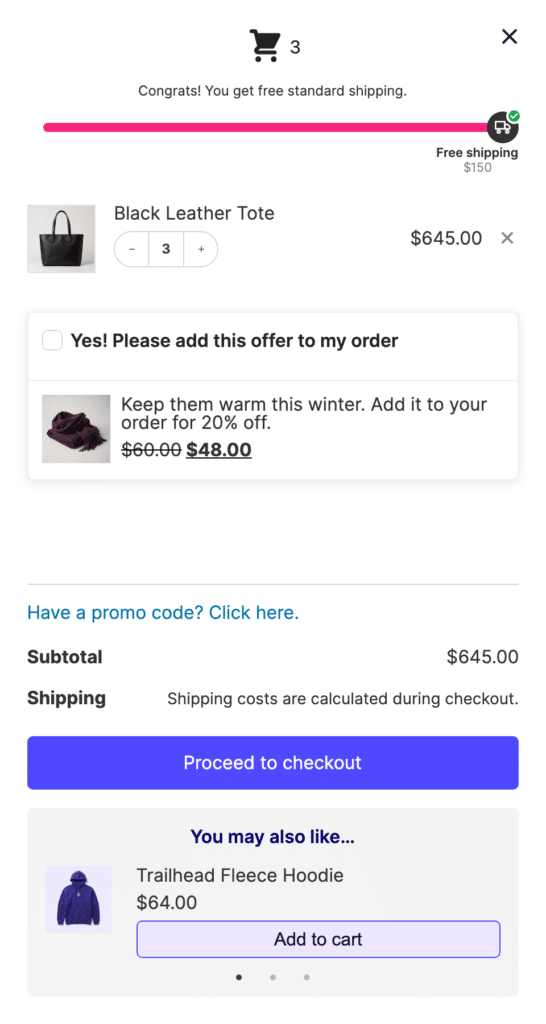
An order bump is a one-click offer shown on the checkout page itself. The shopper selects a checkbox, the product joins the order, and they keep going, so there is no extra page between them and paying. Our guide to WooCommerce order bumps walks through the setup; here is what CheckoutWC’s bumps can do:
- Discount the offer. A bump can take a percent or a fixed amount off the offered product, or sell it at full price.
- Swap instead of add. Set a bump up as an upsell and it replaces a product already in the cart with a better one.
- Target the offer. Display rules can look at what’s in the cart and at the customer’s purchase history, so the bump for a mattress can be sheets, and a repeat buyer can see a different one than a first-time buyer. For example, Customer History: Total Orders set to Is greater than 0 shows an offer to returning customers only, and Is equal to 0 shows it to first-time buyers.
- Choose where it appears. There are 16 positions on the checkout page, plus the side cart, a pop-up when the shopper clicks the place order button, and a post-purchase one-click offer on the thank you page. The placement guide covers which suits which offer.

The post-purchase offer is charged to the payment method the customer just used, so it needs a payment gateway that registers one-click support with CheckoutWC; Payment Plugins for Stripe and Payment Plugins for PayPal do. If yours doesn’t, the place order pop-up is the nearest alternative.
Start with one cheap, obviously related product and a plain description of why it’s worth adding. Add more only once the first has run long enough to read.

The simplicity of Shopify with the power of WooCommerce. Replace your WooCommerce checkout page with CheckoutWC to boost sales and reduce cart abandonment.
3. Bundle related products
A bundle sells several products together, so the shopper gets a complete solution and you get a larger order. A camera, a memory card, and a case is a better offer than three separate listings.
- Mixed bundling: products that are also sold separately, such as a skincare set where every item has its own listing.
- Pure bundling: products sold only in the bundle, such as a holiday gift set with an exclusive accessory.
- Multiples and mix-and-match: three of one product at a lower unit price, or a box the customer fills.
WooCommerce’s Grouped product type is the built-in starting point. Go to Products » Add New, set Product data to Grouped product and link the items. The product page then lists them together and the shopper picks a quantity for each.


A grouped product lists items at their own prices, so it gives you no bundle discount. For a discounted bundle you need a dedicated plugin such as Product Bundles or WPC Product Bundles, which also handle tiered prices such as “buy 3, save 10 percent”. CheckoutWC doesn’t create bundles or volume discounts. What it can do is offer a companion product at a percent or fixed amount off through an order bump, which suits a simple pairing but isn’t a bundle.
Name the bundle after its benefit (“glam night out” beats “set of 4”), and state the saving outright: “Buy 3 and save $10” asks less of the shopper than “bulk pricing available”. A bundle can also clear slow-moving stock when you pair that stock with a popular item. Test the discount depth against your margin rather than copying someone else’s number.
4. Show shoppers a free shipping goal
A free shipping threshold gives shoppers a reason to add one more item, and a progress bar makes the gap concrete: “You’re $12 away from free shipping” is easier to act on than a banner announcing a minimum. Set the threshold above your current AOV by an amount one more typical item can cover. If your AOV is $60 and most of your products sell for $15 to $25, a $75 threshold is one item away, while $150 is a different shopping trip. That is an example for working through your own numbers, so check your order data before you copy it.
In WooCommerce, create a Free shipping method with a minimum order amount under WooCommerce » Settings » Shipping. That handles the rule, and our guide to free shipping in WooCommerce goes deeper. It doesn’t show the shopper how close they are.
CheckoutWC’s side cart adds a free shipping and rewards bar for that. It supports up to three tiers, and each can unlock free shipping, a free gift that’s added to the cart automatically (gifts have to be simple products), or a custom message. The bar only shows progress: a matching WooCommerce Free shipping method must exist, or the bar can say “unlocked” while shipping is still charged. Settings are in the side cart documentation, and our article on the rewards bar shows it in use.

Suggest products that close the gap.
5. Sell paid add-ons at checkout
Some extras aren’t products: gift wrapping, a gift message, rush handling, a donation, or a tip. They add revenue with almost no effort from the shopper, because the choice sits in the form they’re already filling in.
Since CheckoutWC 11.4.0, a custom checkout field can carry a fee, either a fixed amount or a percentage of the order. A “Gift wrap” checkbox that adds $5 to the order is the classic case. The fee shows as its own line in the order summary and on the order. The 11.4.0 release notes show what else the fields do.
6. Reward repeat buyers with a loyalty program
A loyalty program works on AOV indirectly: it gives customers a reason to come back, and a good one gives them a reason to spend a bit more each time. The structures that tie rewards to order size are:
- Points with a multiplier on orders above a set amount.
- Tiers that unlock perks as lifetime spend grows.
- Paid memberships with member pricing or early access (see our guide to recurring orders).
- Bonus rewards for buying a bundle or a particular collection.
CheckoutWC has no loyalty program, so this one needs a separate rewards or membership plugin; WooCommerce Subscriptions can handle the recurring payment for a paid membership. Choose by the structure you want, then compare repeat purchase rate and AOV for customers in the program against those outside it. The spend tiers in the side cart bar from tactic 4 reward a single order, which is different from a program that remembers customers between visits.
Check each change against conversion
Add one tactic at a time and give it a couple of weeks of ordinary traffic before you judge it, comparing AOV and conversion rate against the baseline you wrote down. If you add three things at once and conversion dips, you won’t know which one did it.
CheckoutWC can A/B test order bumps, which lets you run two versions of the same offer against each other instead of guessing at the wording or the discount. If a tactic raises AOV and conversion falls by about as much, take it down or soften it: move a bump to a later slot, shrink the offer, or drop a pop-up.
You don’t need all six. Pick the one that fits your catalog (an add-on for a gift shop, a free shipping goal for a store whose orders sit just under your shipping minimum), measure it, and then add the next.
Raise AOV at the checkout
CheckoutWC covers the tactics that happen at or near checkout: order bumps in 16 positions, a side cart with a rewards bar, and custom checkout fields that can add a fee. It doesn’t create bundles, volume discounts, or a loyalty program, so pair it with a dedicated plugin for those. See CheckoutWC pricing to get started.