Post Purchase One-Click Order Bumps let you display offers on the thank you page immediately after checkout. Customers who saved a payment method during checkout can accept these offers with a single click—no re-entering payment details required. The product gets added to their existing order instantly.
This feature is perfect for complementary products, warranties, or add-ons that make sense after a customer has committed to their purchase.
Requirements
Post Purchase One-Click Order Bumps require:
- CheckoutWC Plus plan or higher
- A compatible payment gateway with saved payment methods enabled
- Customers must have a saved payment method (or save one during checkout)
Compatible payment gateways
The following gateways support one-click order bumps:
We’re actively adding support for more gateways. See our Supported gateways for one-click order bumps page for setup instructions and how to request support for your gateway.
How to set up a post purchase one-click order bump
Creating a post purchase one-click order bump follows the same process as creating any order bump. The only difference is selecting Post Purchase One-Click (Thank You) as the display location.
- Go to WP Admin > CheckoutWC > Order Bumps
- Click Add New
- Configure your offer product, discount, and description (see Creating your first order bump for complete setup details)
- Under Display Location, select Post Purchase One-Click (Thank You)
- Configure any targeting rules (see Rules Engine reference)
- Publish your bump

Selecting the Post Purchase One-Click location in the order bump editor
How it works
Here’s what the customer experience looks like:
- Customer completes checkout using a saved payment method (or saves one during checkout)
- The thank you page displays your post purchase offer
- Customer clicks to accept—their saved payment method is charged automatically
- The product is added to their order instantly
- If they decline or dismiss the offer, nothing happens
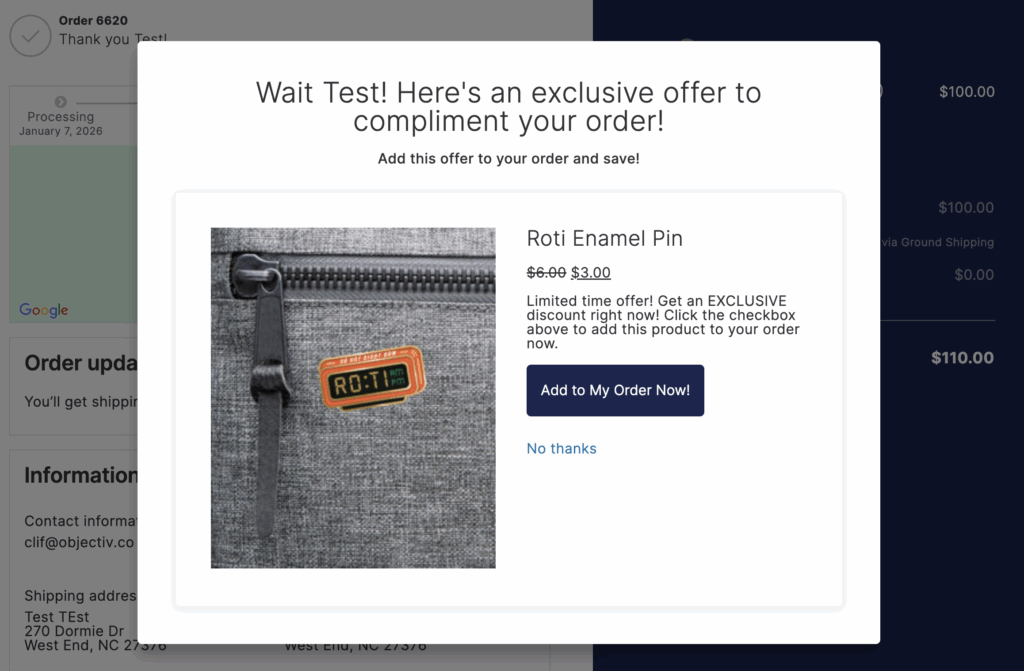
One-click order bump displayed on the thank you page
Smart eligibility
Post purchase one-click order bumps only appear to customers who can actually use the feature. If a customer isn’t using a compatible gateway or doesn’t have a saved payment method, they simply won’t see the offer.
Supported product types
Post purchase one-click order bumps work with:
- Simple products
- Variable products
- Subscription products
Viewing order bump data
When a customer accepts a post purchase order bump, you’ll see the order bump line item in the order admin. For orders with one-click offers, you’ll also see a separate refund button for the bump:
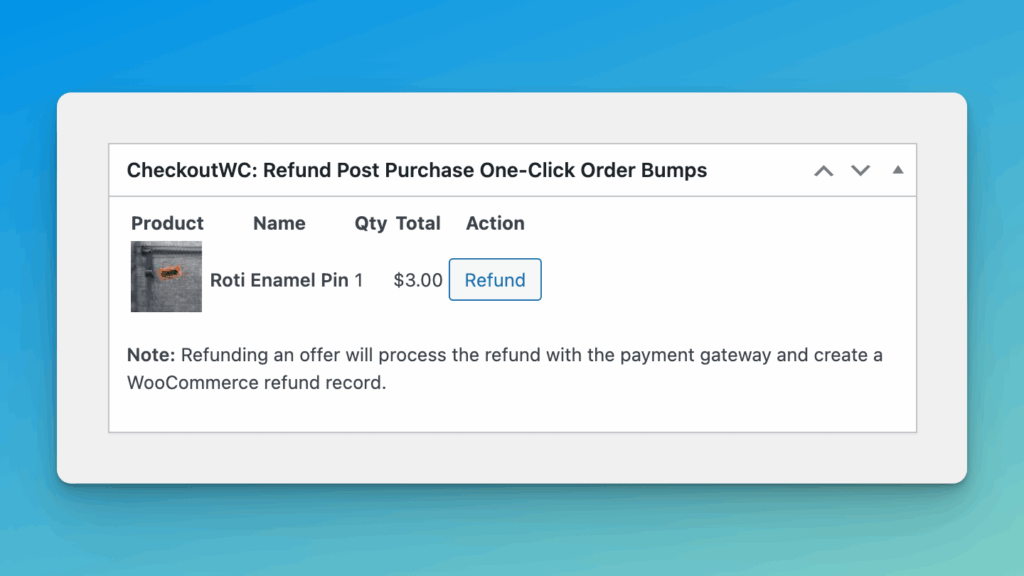
Order admin showing accepted order bump with separate refund option
Limitations
- Requires a compatible payment gateway (see list above)
- Only available on Plus plan and above
Related resources
- Creating your first order bump – Step-by-step setup guide
- Rules Engine reference – Target offers using conditions and rules
- Order Bumps overview – Complete settings reference
Have questions about post purchase one-click order bumps? Reach out to our support team—we’re happy to help you get set up.