WooCommerce side cart: turn your cart into an upsell engine
Table of Contents
- What a WooCommerce side cart is
- Why the side cart beats the cart page
- The three revenue levers inside the side cart
- 1. A free-shipping progress bar
- 2. One targeted order bump
- 3. Suggested products (cross-sells)
- The WooCommerce side cart setup I'd start with
- How order-bump targeting actually works
- How to set it up in CheckoutWC
- Where the Checkout Editor fits
- FAQ
- Try it with CheckoutWC
The cart page is one of the weirdest sacred cows in ecommerce.
A shopper clicks “add to cart” (the clearest buying signal you’re going to get) and most stores answer it by shipping them off to a separate page that makes them stop, review, reconsider, and maybe wander off. The cart page is where buying momentum goes to die.
A side cart fixes that. But the real value isn’t that it slides out from the side. Nobody is getting rich because a panel moved left. The value is that a side cart gives you a high-intent merchandising surface between “add to cart” and “checkout” – the last meaningful place to grow the order before the shopper commits.
This one’s for WooCommerce stores that already get add-to-cart activity and want to lift average order value without piling more friction in front of checkout.
What a WooCommerce side cart is
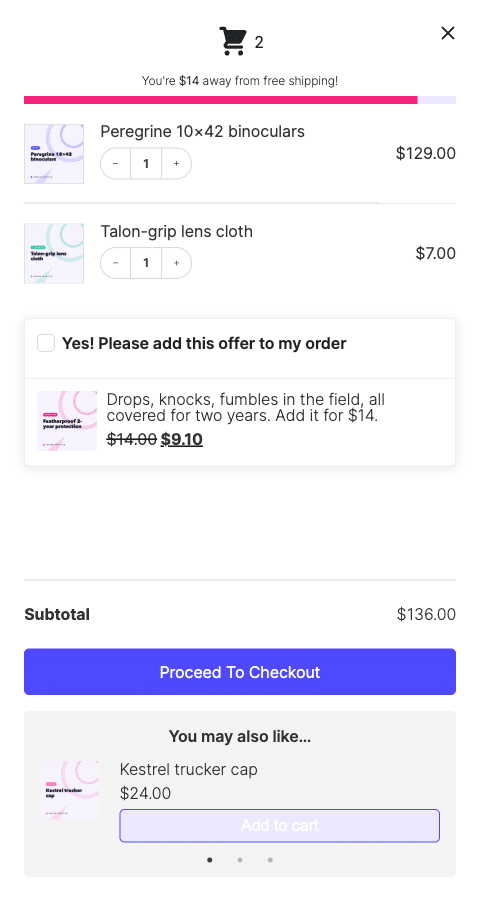
A side cart, also called a slide-out cart or cart drawer, slides in from the edge of the screen when someone adds an item or clicks the cart icon. They see what they’ve got, change quantities, and head to checkout, with no page reload and no trip to /cart/.
That’s the mechanic. The interesting part is what you do with it.
Why the side cart beats the cart page
Every time you bounce someone to a full page, you’re handing them a reason to pause, and a pause is where second thoughts live. (For what it’s worth, the Baymard Institute puts average cart abandonment near 70% across 50 studies, with a long or clunky checkout among the reasons people actually give. But you don’t really need the stat, you’ve abandoned plenty of carts yourself.)
A side cart keeps the customer moving instead. They stay on the product they were already looking at, the cart quietly confirms what they did, and checkout is one click away. No detour, no reload, no little tax on their momentum.
And because they’re still in motion and still interested, this is the best shot you’ll get to put one more thing in front of them. So stop treating the cart like a receipt. It’s the last real merchandising surface before checkout, and most stores leave it completely empty.
The three revenue levers inside the side cart
So treat the WooCommerce side cart as merchandising space, not just a cart viewer. You’ve really got three levers to play with in there, and in my experience they work best stacked in this order.
1. A free-shipping progress bar
“You’re $14 away from free shipping” turns a number into a goal. It frames the whole cart the moment it opens, and it’s the cleanest AOV nudge there is because the shopper does the math for you. CheckoutWC fills the bar automatically as the cart grows.
Put it at the top. It sets the tone for everything below it.

2. One targeted order bump
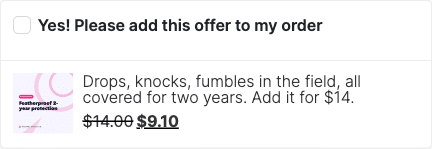
An order bump is a single “add this for $X” offer, shown right below the cart items while the shopper is still deciding. CheckoutWC renders it inside the side cart so it lands at peak intent, not after the sale is mentally done.
Note the word “one.” A side cart is small and the shopper is in motion. This is not the place to stack every promotion marketing has ever loved.
What works:
- Coffee grinder → beans or filters.
- Skincare product → a travel size, or a subscription refill.
- Phone case → screen protector.
- Expensive electronics → a protection plan.
- A gift → gift wrapping.
- Apparel → matching socks, a care kit, or “add a second for 20% off.”
What doesn’t:
- A random unrelated product. A candle next to a phone case is not an upsell. It is a cry for help.
- Five offers fighting for the same yes.
- A high-ticket upsell that makes the customer reopen the whole decision.
- Anything that needs a paragraph to explain.
The rule: if the customer has to stop and understand the offer, you probably picked the wrong offer. Relevant beats clever. Cheap beats complicated. One good offer beats six desperate ones.
How much does a bump actually add? Entirely down to the offer. Vendor benchmarks throw around take rates of 5–30% and AOV lifts of 10–30%, but treat those as weather, not forecast – your number comes down to whether the offer is relevant and cheap enough to be an easy yes.
3. Suggested products (cross-sells)
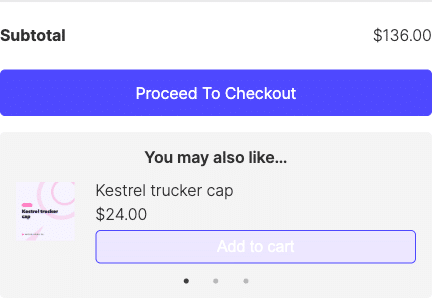
A short row of suggested products lets the shopper one-click-add a complementary item without leaving the panel – the checkout-aisle impulse buy, online. Keep it to two or three. A wall of “you might also like” is just noise that pushes the checkout button down the screen.
The WooCommerce side cart setup I’d start with
If you’re building one today, start here and don’t overthink it:
- Free-shipping progress bar at the top.
- Cart items right below it.
- One highly relevant order bump under the items.
- Two or three suggested products, max.
- A clear checkout button.
- Nothing else.
Your side cart is not a Times Square billboard. It’s a small, high-intent decision surface. Act accordingly. You can always test a second offer later, but a clean cart that converts beats a cluttered one that impresses nobody.
How order-bump targeting actually works
The line between an upsell that converts and one that annoys is relevance, and relevance is a targeting problem.
Broad upsells feel like ads. Precise upsells feel like help.
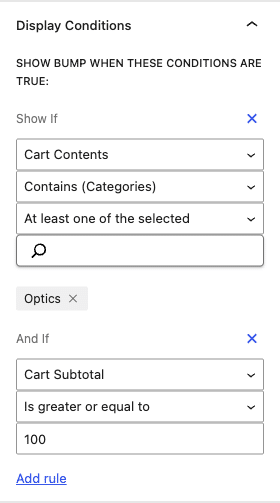
CheckoutWC order bumps run on a rules engine with 23 condition types, so a bump only shows when the cart and customer actually match. In practice:
- A warranty offer shows only for products a warranty makes sense on.
- A subscription upgrade shows only for replenishable products.
- A free-shipping nudge shows when the threshold is close enough to feel reachable.
- A “complete the bundle” bump depends on what’s already in the cart.
You can target on cart contents (specific products, categories, tags, attributes), cart value and quantity, customer history (total spent, average order value, past orders, time since last order), and shipping/billing country or user role.
Every condition you add is combined with AND – all of them have to be true for the bump to appear. That’s on purpose. Precise offers beat broad ones, and if you want a product to show in two different situations, you build two bumps instead of watering one down.
This is the part a “best WooCommerce side cart plugin” roundup can’t tell you, because it’s how the thing is actually built.
How to set it up in CheckoutWC
The side cart and order bumps live on CheckoutWC’s paid plans, starting with the Plus plan (side cart plus up to two order bumps); Pro lifts the cap to unlimited bumps. Once you’re on a plan that includes them:
- Enable the side cart under CheckoutWC → Side Cart, and switch on the free-shipping progress bar and suggested products while you’re there.
- Turn on order bumps, then enable the side-cart placement.
- Create a bump, set its location to below the side-cart items, and add your targeting rules.
The important part isn’t turning on every option. Start with the side cart, a free-shipping threshold that’s actually reachable, and one bump tied to the product already in the cart. Once that’s working, add suggested products. Don’t build the Las Vegas version first.
For the click-by-click version, see the side cart documentation and the order bumps guide.
Where the Checkout Editor fits
The side cart keeps the shopper moving; the checkout has to finish the job. CheckoutWC 11.1 added a visual Checkout Editor with live preview, so you can brand that checkout (template, colors, type, fields, trust badges) and watch it change as you go. It styles the checkout the side cart leads into. (The side cart and order bumps themselves are configured on their own settings pages, not in the editor.)
FAQ
What is a WooCommerce side cart?
A slide-out panel (also called a cart drawer) that shows the cart when a shopper adds an item or clicks the cart icon, instead of sending them to a separate cart page. CheckoutWC’s version can also show a free-shipping bar, an order bump, and suggested products.
Is a side cart better than a cart page?
For most stores, yes. A cart page adds a step that interrupts buying momentum. A side cart keeps the shopper moving toward checkout and gives you a place to merchandise while intent is still high.
Can I add order bumps to a WooCommerce side cart?
Yes. CheckoutWC shows order bumps directly below the cart items, targeted with rules so they only appear when they’re relevant.
What should I put in a side cart?
A free-shipping progress bar, the cart items, one relevant order bump, and two or three suggested products. Keep it clean.
How many upsells should I show?
One order bump and a small handful of suggestions. More than that competes with the checkout button and waters down every offer.
Does CheckoutWC’s side cart work with my theme?
It’s built to work across themes without theme-specific setup. If your theme uses a custom cart interaction, you may need to point its cart link at the side cart.
Is the side cart available in the free version of CheckoutWC?
No. The side cart starts on the Plus plan, which also includes up to two order bumps; Pro makes order bumps unlimited.
Try it with CheckoutWC
If your cart is just a place where shoppers review what they already picked, you’re leaving the last pre-checkout merchandising surface sitting there empty. That’s a shame, because the side cart is one of the simplest places to test AOV growth without redesigning the whole store.
So here’s what I’d do: get CheckoutWC, switch on the side cart, add one genuinely relevant order bump, set a free-shipping threshold that’s actually reachable, and run a few test orders through the whole thing. Then watch whether more shoppers clear your free-shipping threshold, accept the bump, and reach checkout without detouring through the cart page.

The simplicity of Shopify with the power of WooCommerce. Replace your WooCommerce checkout page with CheckoutWC to boost sales and reduce cart abandonment.