NOTE: Abandoned Cart Recovery requires a properly functioning WP cron. Read our guide on configuring WP cron correctly.
Most shoppers who start buying online leave without paying: Baymard Institute’s average across 50 studies of ecommerce cart abandonment is 70.22% (as of September 2025). Abandoned cart emails bring some of those shoppers back to the exact cart they left.
CheckoutWC includes a full-featured solution for recovering abandoned WooCommerce carts. Our Abandoned Cart Recovery feature saves a cart once the customer has entered an email address at checkout, marks it abandoned if they don’t finish, and sends the follow-up emails you create, each at the delay you choose. You can offer coupons or other incentives to improve the likelihood of conversion. And you can use our analytic dashboard to track your recovery performance.
This page is the setup reference for the feature. For strategy, see our guides to WooCommerce abandoned cart recovery: causes, fixes and best practices and how to measure and recover cart abandonment.
Required License
Requires a Plus or higher license. Plus plans are limited to 2 emails. Pro and Agency plans include unlimited emails. Only published emails count toward the limit; drafts do not.
How abandoned cart recovery works
- The cart is tracked. When a customer has entered an email address at checkout, CheckoutWC saves their cart and the billing and shipping details they have filled in so far, and keeps it up to date as they continue.
- The cart is marked abandoned. A check runs every 5 minutes. A tracked cart that is older than your abandonment time (15 minutes by default) and hasn’t turned into an order is marked abandoned, and your first email is scheduled.
- Your emails go out in sequence. Each email is sent at its Send After delay. Sending one schedules the next.
- The customer returns. The checkout link in the email refills their cart and the details they entered, then takes them to checkout.
- The cart is recovered or lost. If the order reaches one of your recovered statuses, the cart is marked recovered, the remaining emails are cancelled and a note is added to the order. If all your emails have been sent and the customer never buys, the cart is marked lost 30 days after the last email.
Carts are not tracked when the customer hasn’t entered an email address, when their user role is excluded (see Advanced Options below), or when you have no published emails and Disable Email Sending is off. With at least one published email, a tracked cart can be marked abandoned and emailed. With no published email, a tracked cart is never marked abandoned and nothing is sent, even with Disable Email Sending on.
Abandoned cart recovery settings
All of the Abandoned Cart Recovery configuration settings are found here: WP Admin » CheckoutWC » Cart Recovery » Settings
The settings
Enable Abandoned Cart Tracking
This is the master on/off switch for the Abandoned Cart Recovery feature. Leave this off until you have everything else configured. While it is on, CheckoutWC also asks WooCommerce to stand down its own abandoned cart recovery email, if your version of WooCommerce has one.
Cart Is Abandoned After X Minutes
This is the number of minutes CheckoutWC should wait before it considers a cart abandoned. (Carts are only tracked once the customer has entered an email address at checkout, and are only considered abandoned if they then don’t complete their order within this time span)
Default: 15
Email Sending Options
Disable Email Sending
Do not actually send any emails but allow carts to be tracked even if there are no emails configured. Useful for testing: with at least one published email, carts still move through the abandoned stage and show up in your reports, but nothing is sent to customers.
From Name
The from name on follow-up emails sent to customers.
From Address
The from email address on follow-up emails sent to customers.
Reply-To Address
To enhance delivery rates, we generally recommend this be the same email address as the From Address, but this can be useful to direct replies back to a certain inbox (such as your Customer Support inbox)
Advanced Options
Cart Recovered Order Statuses
By default orders that reach the status of Processing or Completed are considered recovered. Depending on your site’s specific fulfillment processes, you can choose one or more statuses that indicate a successful order.
Exclude From Abandoned Cart Recovery By Role
Allows you to exclude user roles from receiving abandoned cart emails. Useful if you use the same store for retail and wholesale sales, for example.
Abandoned cart emails
Create and manage your follow-up emails under WP Admin » CheckoutWC » Cart Recovery » Emails. Each email has a Subject, Preview Text, Send After delay (in minutes, hours or days), a Template option (Use WooCommerce Email Template) and a Send Preview button so you can test it. Only published emails are sent; draft emails are not. When the feature is first set up, CheckoutWC adds three draft sample emails (sent after 3 hours, 2 days and 4 days) that you can edit and publish.
You can publish as many follow-up emails as your plan allows (2 on Plus, no practical limit on Pro and Agency). We recommend 3-5 if your plan allows it. Here’s some ideas to get you started:
Email 1: Sent within 1-2 hours of cart abandonment
Subject Line: “Oops! Did you forget something in your cart?”
Email 2: Sent 24 hours after cart abandonment
Subject Line: “Still thinking it over? Your cart is waiting for you!”
Email 3: Sent 48-72 hours after cart abandonment
Subject Line: “Last chance: Don’t miss out on the items in your cart!”
If you decide to extend your email sequence to 4 or 5 emails, consider these subject lines:
Email 4: Sent 5 days after cart abandonment
Subject Line: “A special offer just for you: Get [discount]% off your abandoned items!”
Email 5: Sent 7 days after cart abandonment
Subject Line: “Final reminder: Your cart items will be gone soon!”
These are just examples! For the best success you will want to tailor your approach to your target audience and monitor what is working.
Replacements
Replacements allow you to personalize follow-up emails.
Here are the replacements you can insert:
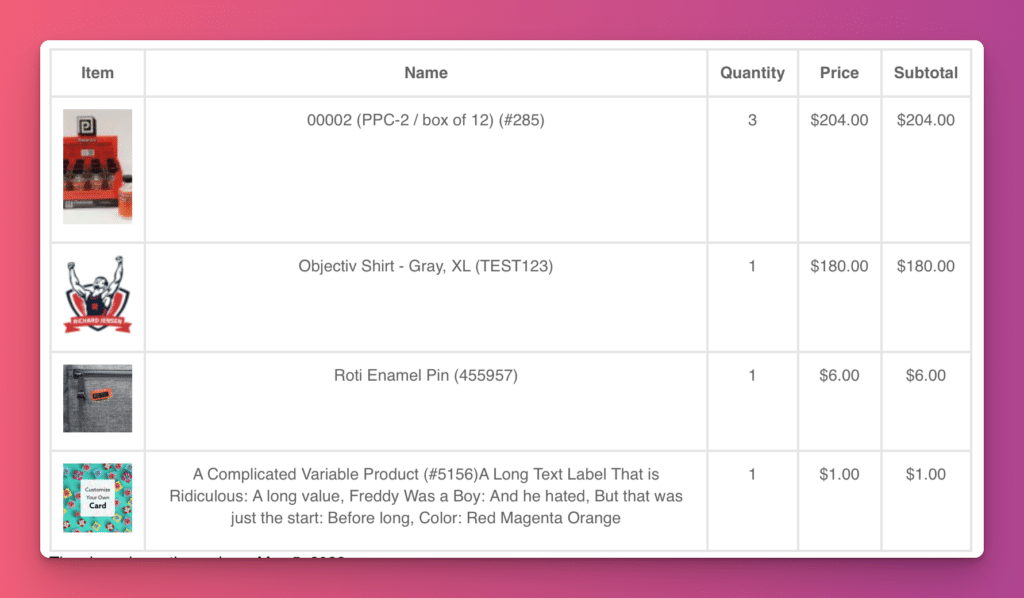
Abandoned Cart Details Table
Text: {{cart_products_table}}
An HTML table with the cart details:
Abandoned Date
Text: {{cart_abandoned_date}}
The date the cart was abandoned. Example:
July 4, 1776
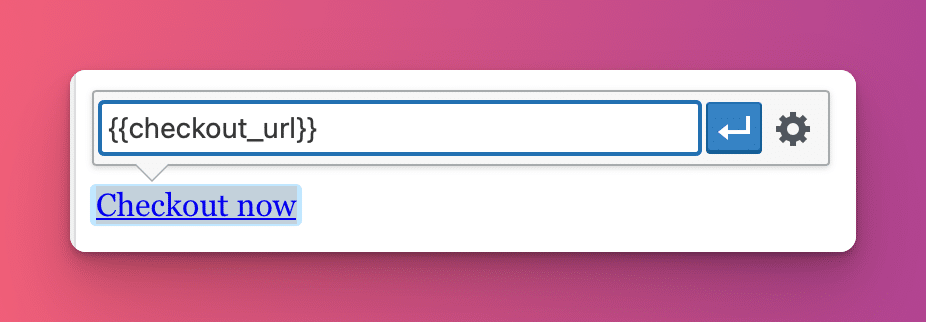
Checkout URL
Text: {{checkout_url}}
The URL to the checkout page that will restore the tracked cart. This is literally the text of the URL – to use it, you can use it as the link value:
Checkout Button
Text:
{{checkout_button}} OR {{checkout_button label="My Label"}}
Default Label: Complete Order
Renders a button in the style of the primary button on the checkout page, according to your Design settings. Uses the background and text colors.
Customer Email
Text:
{{customer_email}}
Value: The customer’s email address.
Customer First Name
Text:
{{customer_firstname}}
Value: The customer’s first name
Customer Full Name
Text:
{{customer_full_name}}
Value: The customer’s full name. Example: John Smith
Customer Last Name
Text:
{{customer_lastname}}
Value: The customer’s last name.
Site Name
Text:
{{site_name}}
Value: The name of your site as defined in WordPress general settings.
Site URL
Text:
{{site_url}}
Value: The URL to your site’s home page.
Unsubscribe Link
Text:
{{unsubscribe_url}}
Value: The URL to unsubscribe from future follow-up emails.
Note: This is automatically added to the footer of outgoing emails unless you manually add it to emails. Just like the checkout URL, this is the text of the URL only and needs to be used as the URL location for a link.
Coupons
To offer a discount in a follow-up email, create a regular WooCommerce coupon and type its code into the email. When configuring the coupon, you can restrict it to customers with an abandoned cart by checking CheckoutWC ACR only on the coupon’s Usage restriction tab. The coupon then works only for email addresses that match a tracked cart that has been marked abandoned; once the cart is recovered or lost, it stops working for that address.

It is not possible to generate coupon codes per email.
Scheduling
Emails are scheduled successively.
- When a cart is marked as abandoned, the first email is scheduled.
- When the first email is sent, the second email is scheduled.
- And so on…
This is useful to know when editing follow-up emails while customers are actively receiving them.
For the first email, the Send After value counts from the time the cart was marked as abandoned. For later emails, it counts from the time CheckoutWC started tracking the cart, which is the abandonment time (15 minutes by default) earlier. It never counts from the time the previous email was sent: an email set to 24 hours goes out 24 hours after the cart was first tracked, not 24 hours after the email before it.
Abandoned cart reporting
Open WP Admin » CheckoutWC » Cart Recovery » Report to see your recovery numbers and the list of tracked carts, which you can filter by status: New, Abandoned, Recovered, Lost or Unsubscribed. The statistics are fairly self-explanatory.
Recoverable Orders
The number of currently tracked, non-recovered orders.
Recovered Orders
The number of recovered orders.
Lost Orders
The number of orders considered lost/non-recovered.
Recoverable Revenue
The monetary value of all tracked, non-recovered carts.
Recovered Revenue
The monetary value of all successfully recovered carts.
Recovery Rate
What percentage of carts has been successfully recovered.
Abandoned cart recovery FAQ
How does CheckoutWC know a cart was abandoned?
It tracks a cart once the customer has entered an email address at checkout. A scheduled check runs every 5 minutes and marks any tracked cart abandoned if it is older than your abandonment time (15 minutes by default) and hasn’t become an order. A cart is never marked abandoned before that time has passed, but because the check runs every 5 minutes, it can be marked up to about 5 minutes after it.
When do abandoned cart emails send?
Each email sends at its own Send After delay, counted as described under Scheduling above. Sending one email schedules the next. Emails go out through WooCommerce’s scheduled actions, so they depend on WordPress cron running on time.
Why does Abandoned Cart Recovery need a working WP cron?
Both the 5-minute abandoned cart check and every email send are scheduled actions, and scheduled actions only run when WordPress cron runs. By default WordPress cron runs when someone visits your site, so on a low-traffic or heavily cached site it can run late or not at all, which looks like carts never being marked abandoned or emails never sending. If WP cron has not been replaced by a real scheduled job, CheckoutWC shows a “WP Cron Configured Incorrectly” warning on the Cart Recovery page. Our guide shows how to set it up correctly. If your host manages cron for you, ask them.
Can I include a coupon in an abandoned cart email?
Yes. Create a WooCommerce coupon and put its code in the email text. You can restrict it to customers with an abandoned cart using the CheckoutWC ACR only checkbox. CheckoutWC can’t generate a unique code for each email.
What happens if the customer buys before all the emails are sent?
When the order reaches one of your recovered order statuses (Processing or Completed by default), the cart is marked recovered and the remaining emails are cancelled. If the order is placed before the first email has gone out, the cart is simply removed and nothing is sent. If your order sits in a status you haven’t marked as recovered, such as On hold, the emails keep going until it reaches one.
Where does the email link take the customer?
To your checkout page, with the items from their abandoned cart added back and the details they had already entered filled in.
Do I need customer consent, and how do unsubscribes work?
CheckoutWC does not ask shoppers for separate consent to receive these emails, and this page can’t tell you whether you need it: that depends on where your customers are and your legal basis, so check with your own legal adviser. Every email includes an unsubscribe link (added to the footer automatically unless you place {{unsubscribe_url}} yourself). Clicking it stops the remaining emails for that cart. To keep certain carts from being tracked at all, you can exclude user roles in the settings, or developers can use the cfw_acr_exclude_cart filter.
How can I test it without emailing customers?
- Publish at least one email. Draft emails don’t count, and the sample emails are created as drafts. Without a published email, carts are never marked abandoned.
- Turn on Disable Email Sending and lower Cart Is Abandoned After X Minutes to a minute or two.
- At checkout, enter an email address you haven’t used for a test before. An address that already has a New or Abandoned cart doesn’t create a new one.
- Leave checkout and wait a few minutes. The cart should appear as Abandoned in the Report tab, and no email is sent.
- Turn Disable Email Sending off and restore your abandonment time when you are done.