Google Address Autocomplete lets customers fill in their address by typing a few characters of the street address and picking a suggestion, instead of typing every field by hand. CheckoutWC uses Google’s Places library and your own Google API key to power it, then fills in the street address, city, state or province, postcode and country for the customer. It is available on paid CheckoutWC plans, from Basic up.
This guide covers what you need before you start, how to turn it on, which Places API version to choose, how to limit suggestions to certain countries, and the questions we hear most often.
What Google address autocomplete does at checkout
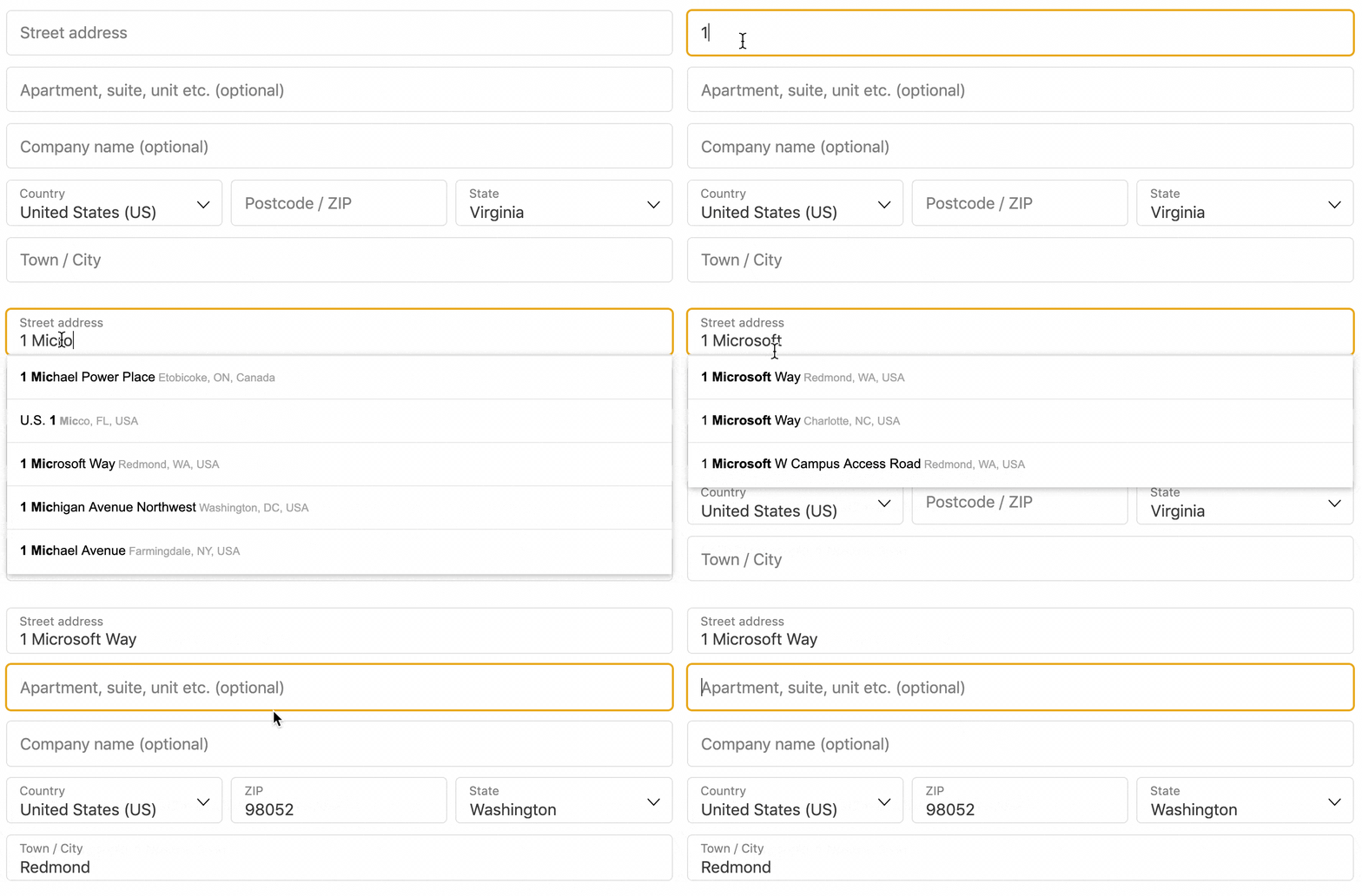
When a customer starts typing in the street address field, a short list of matching addresses appears. When they pick one, CheckoutWC fills in the rest of the address for them, so they do not have to type each field themselves.
For your store, the address fields are filled from Google’s address data rather than only from what the customer typed. Customers can still type their address by hand if they prefer, or if their address is not in the suggestions.
If you want the wider case for address autocomplete, including delivery errors and support workload, read our article How to reduce checkout errors with Google Address Autocomplete. This page is the setup guide.
What you need before you start
- A paid CheckoutWC plan, Basic or higher, with an active license. Google Address Autocomplete is not included in CheckoutWC Lite, the free version. See CheckoutWC plans if you are not sure which plan you are on.
- A Google API key from a Google Cloud project that has billing turned on. Getting the key is the fiddly part, so we wrote a separate guide: How To Get and Configure Your Google API Key.
- The right Google APIs enabled on that project: Maps JavaScript API, plus the Places API version you plan to use (see the section on Places API versions below).
How to enable Google address autocomplete
- Go to WP Admin > CheckoutWC > Pages > Checkout.
- In the Address Completion and Validation section, check the box for “Enable Google Address Autocomplete”.

- Click Save Changes.
- Go to WP Admin > CheckoutWC > Integrations. In the Google API section, paste your key into Google API Key.
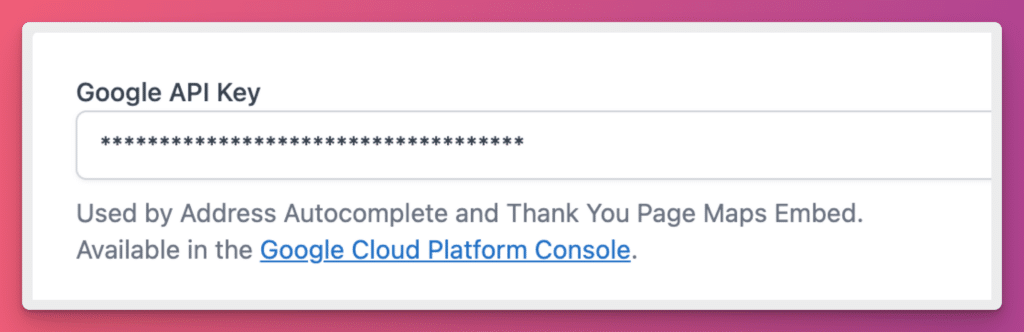
- Choose your Google Places API Version (explained in the next section).
- Click Check Key to test the key, then click Save Changes.
- Open your checkout page, start typing in the street address field and confirm suggestions appear.
The Google API key field is shared: the same key also powers the map on the thank you page.
Places API (New) or Places API (Legacy)?
Under Google Places API Version, you choose which Places API address autocomplete uses. The options are Places API (New) – recommended and Places API (Legacy).
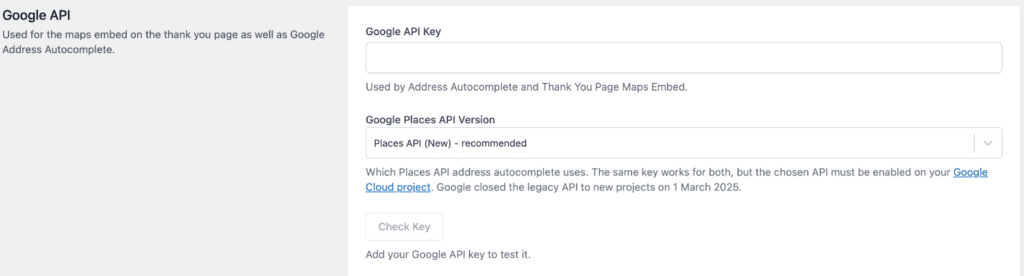
Choose Places API (New) unless your store already runs on the legacy API. Google closed Places API (Legacy) to new Google Cloud projects on 1 March 2025, so on a project created after that date only Places API (New) can be enabled. The same key works for either version, but the version you choose must be enabled on your Google Cloud project, and allowed on the key if you restricted its APIs.
New installs of CheckoutWC start on Places API (New). Stores that were already set up stay on Places API (Legacy) until you switch, so nothing changes for you unless you change it.
How suggestions look depends on the version. With Places API (Legacy), Google’s own suggestion dropdown appears under the field. With Places API (New), CheckoutWC draws the suggestion list itself, waits until the customer has typed at least three characters, and supports the arrow keys, Enter and Escape for keyboard users.
Test your setup with Check Key
Click Check Key on the Integrations page to test the key from your browser, before or after you save. It reports which of Places API (New), Places API (Legacy) and the Geocoding API (used by the thank you page map) the key can reach, whether the version you selected will work, and anything else that would stop autocomplete running, such as Google Address Autocomplete being switched off, Separate Address Fields being on, or Fetchify being on at the same time. If you change the key after a check, refresh the page before you test it again.
If the check fails or no suggestions appear on your checkout, see troubleshooting Google address autocomplete.
Address autocomplete in action
Which checkout fields does it fill?
Suggestions appear in the street address field. When the customer picks one, CheckoutWC fills in:
- Address (the street address field itself)
- City
- State or province
- Postcode
- Country
Address 2 (apartment, suite and so on) is cleared for most countries when a suggestion is accepted, so an old unit number is not left behind next to a new street address. For a few countries (the UK, New Zealand and Taiwan) CheckoutWC may fill Address 2 from the suggestion, using the locality or sublocality, and it then opens the Address 2 field so the customer can see it. Otherwise, if the customer needs a unit number, they type it after picking the suggestion.
Autocomplete is attached to the shipping address field when the order needs shipping, and to the billing address field. Both work the same way.
How to limit suggestions to certain countries
By default, suggestions are not limited to any country. If you only ship to a few countries, you can limit shipping suggestions and billing suggestions separately with two filters, each taking a list of two-letter country codes. Add this to a code snippets plugin or your child theme:
add_filter( 'cfw_address_autocomplete_shipping_countries', function () {
	return [ 'us', 'ca' ];
} );

add_filter( 'cfw_address_autocomplete_billing_countries', function () {
	return [ 'us', 'ca' ];
} );
With Places API (New), CheckoutWC passes up to 15 country codes to Google and ignores any beyond that. With Places API (Legacy), you can list up to 5 countries, and the list is passed to Google’s autocomplete as a country restriction. Limiting suggestions to the countries you ship to makes it less likely a customer picks a suggestion from a country you do not ship to.
Does it work on mobile?
Yes. Google Address Autocomplete has no separate mobile setting and no device check: it runs on whatever device loads your checkout, using the same settings, the same API key and the same suggestions on a phone as on a desktop.
What does it cost?
CheckoutWC does not charge extra for it: it is included in Basic and higher. Google, however, bills your Google Cloud project for the requests your checkout makes, which is why the project needs billing turned on. What you pay depends on how many customers use autocomplete and on Google’s current rates, so check Google Maps Platform pricing for the current numbers rather than relying on a figure here.
On Places API (New), CheckoutWC keeps the number of requests down by waiting until the customer has typed three characters and paused briefly before it asks Google for suggestions, and by grouping each search into a single Google session. Restricting your key to your website’s domain, as the key guide describes, also stops anyone else from running up requests on it.
Frequently asked questions
Which CheckoutWC plan do I need for Google address autocomplete?
Basic or higher, with an active license. It is not part of CheckoutWC Lite.
Do I need a Google API key?
Yes. Autocomplete will not work without one. The key goes in WP Admin > CheckoutWC > Integrations, and the same key is used for the thank you page map. See How To Get and Configure Your Google API Key.
Which Google Places API version should I choose?
Places API (New), unless your store was set up before the setting existed and already works on Places API (Legacy). Legacy is closed to Google Cloud projects created after 1 March 2025.
Can I use Google address autocomplete with Separate Address Fields?
No. Separate Address Fields (the separate house number and street name fields) and Google Address Autocomplete cannot be used together, and turning Separate Address Fields on stops autocomplete from working. See Google Address Autocomplete and discreet house number and street name address fields.
Can I use Google address autocomplete and Fetchify together?
No. CheckoutWC also supports Fetchify address autocomplete, but only one address autocomplete service can run at a time. Turn one of them off.
Does it work for both shipping and billing addresses?
Yes. Autocomplete is attached to the shipping address field when the order needs shipping, and to the billing address field.
Can customers still type their address manually?
Yes. Suggestions only appear as the customer types, and they can ignore them and fill in the fields themselves.
What happens to CheckoutWC’s zip code autocomplete when Google address autocomplete is on?
CheckoutWC’s own zip code autocomplete is switched off while Google Address Autocomplete is running. Picking a Google suggestion fills the postcode and city together.
Why are no suggestions appearing?
Most often the key is not allowed on your site, an API is not enabled on your Google Cloud project, billing is off, or the Places API version selected does not match your project. Click Check Key first, then see troubleshooting Google address autocomplete.
Is Google address autocomplete free?
It is included in CheckoutWC Basic and up at no extra charge. Google charges your Google Cloud project for the requests, so see Google Maps Platform pricing.