The CheckoutWC Side Cart for WooCommerce replaces your cart page with a slide-out cart that opens from the right whenever a shopper adds an item. Customers review their cart, apply a coupon, add a suggested product, and head to checkout without ever leaving the page they were on. It’s built to cut the drop-off that happens on the trip to a separate cart page, and to give you somewhere to put upsells, free shipping goals, and free gifts.
The side cart is available on the Plus, Pro, and Agency licenses. Enable it from your WordPress dashboard under CheckoutWC > Side Cart.
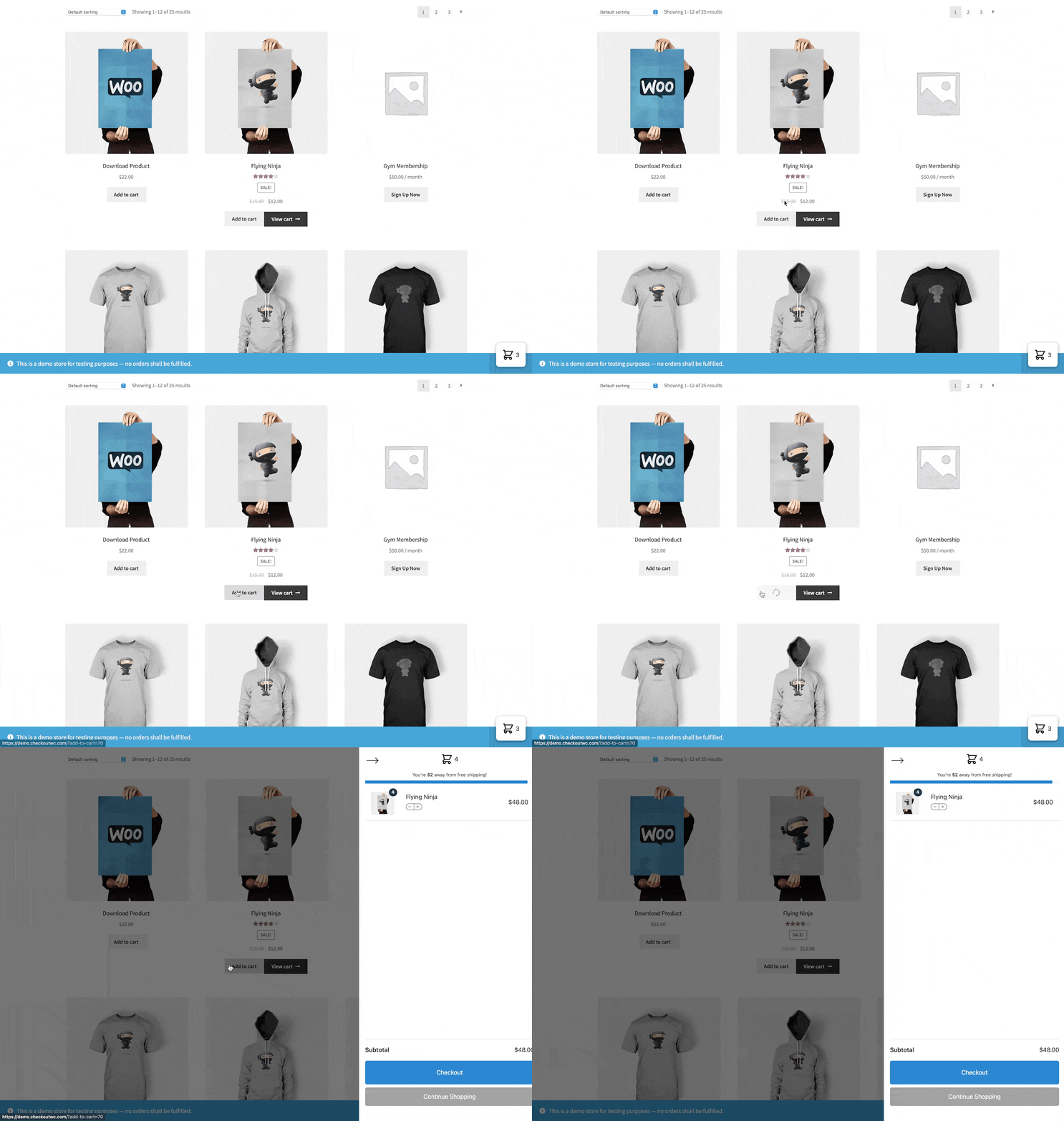
How to add a side cart to WooCommerce
- Install and activate CheckoutWC, then activate your license.
- Go to
CheckoutWC > Side Cart. - Turn on Enable Side Cart. The rest of the settings appear once it’s on.
- Add an item to your cart on the front end to confirm the slide-out cart opens.
That’s the whole setup. Everything below is optional configuration.
Why use a side cart plugin for WooCommerce?
A side cart removes a full page load between “add to cart” and “keep shopping.” The shopper stays on the product or shop page, sees the cart update in real time, and never lands on a dead-end cart page they have to navigate back out of.
It also gives you a place to sell. A slide-out cart is prime real estate for cross-sells, order bumps, and spend-to-unlock rewards, all of which lift average order value at the exact moment the shopper is already committed to buying something.
Side cart settings
The settings screen is grouped into sections. They’re covered below in the order you’ll see them.
Side cart icon
Used by both the side cart itself and the floating cart button.
- Icon – choose from the bundled cart icons.
- Custom Icon – upload your own to override the selection above. Must be an SVG.
- Width – icon width in pixels. Default: 34.
- Icon Color – default: #222.
Suggested products
Cross-sells displayed at the bottom of the side cart.
- Enable Suggested Products – display cross-sells at the bottom of the side cart.
- Heading – the heading above them. Leave blank for the default, “You may also like…”
- Enable Random Cross Sells Fallback – if none of the products in the cart have cross-sells defined, show random products instead.
- Link to Product Page – send shoppers to the product page instead of adding the item straight to the cart. Turn this on if your suggested products are variable products, which need a variation chosen before they can be added.
Floating side cart button
- Enable Floating Cart Button – a persistent cart icon in the bottom right of every page.
- Right Position – distance from the right edge in pixels. Default: 20.
- Bottom Position – distance from the bottom in pixels. Default: 20.
- Hide Button If Empty Cart – hide the floating button when there’s nothing in the cart.
Free shipping and rewards bar
Covered in full in its own section below.
Empty cart
- Empty cart image – shown above the empty cart message. Leave blank for text only.
Options
- Disable Cart Auto Open – instead of opening the side cart on add to cart, gently shake the floating cart button to signal the item was added.
- Enable AJAX Add to Cart – add items without a page reload on archive and single product pages. WooCommerce does a full form submit by default.
- Enable Express Payment Buttons – show express payment buttons from any gateway that supports the WooCommerce mini-cart at the bottom of the side cart.
- Enable Order Bumps – show Order Bumps that are set to display below cart items.
- Allow Variation Changes – add an edit link under cart items so customers can switch variation without leaving the cart.
- Enable Sale Prices – show the struck-through original price next to the sale price on cart items.
- Enable Coupons – let customers apply a coupon from the side cart.
- Hide Coupon Code Field Behind Link – keep the coupon field collapsed behind a “Have a coupon code?” link. Available when coupons are enabled.
- Show Shipping and Totals – show shipping and the order total, not just the subtotal.
- Enable Continue Shopping Button – add a Continue Shopping button at the bottom. Off by default.
The WooCommerce free shipping bar and rewards bar
The progress bar at the top of the side cart shows shoppers how close they are to a reward. In CheckoutWC 11.3.0 it stacks: you can set up to three tiers, each with its own threshold, reward, colour, and messages. This is the “spend $20 more for free shipping, $50 more for a free gift” ladder, built in.
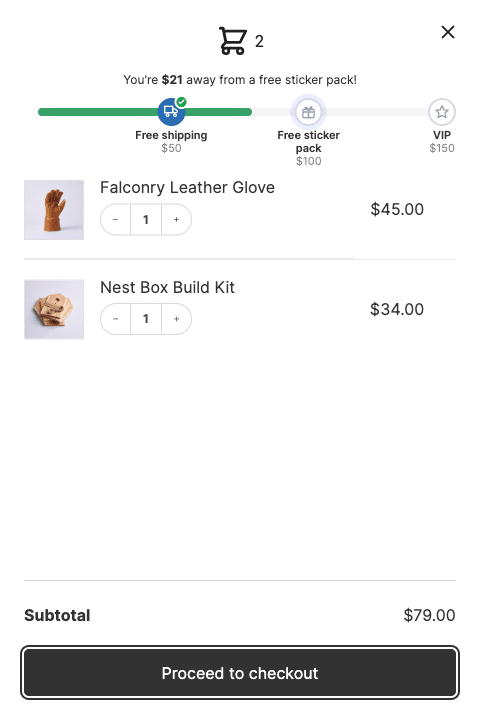
Turn it on with Enable free shipping & rewards bar, then add your tiers.
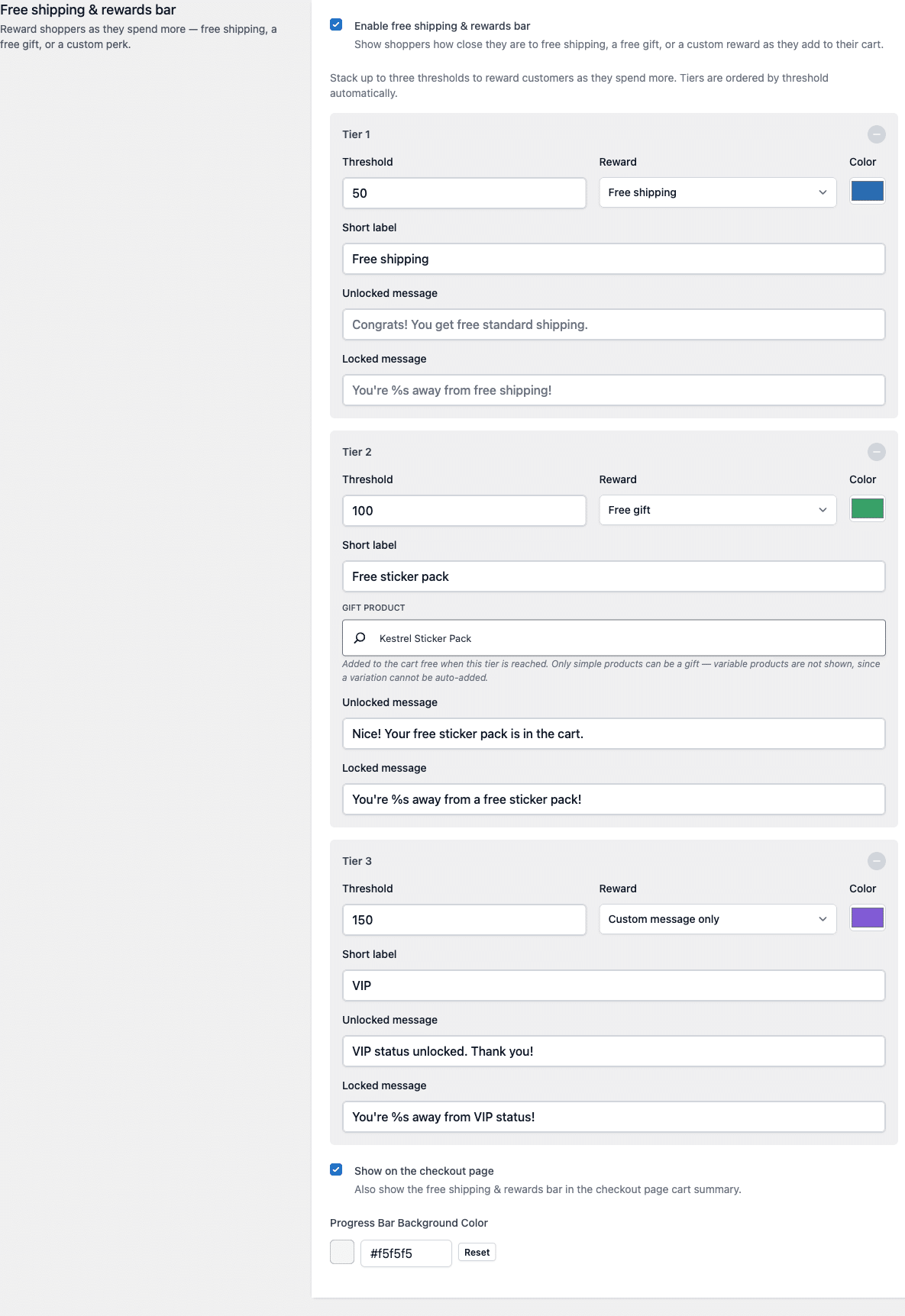
What each tier controls
- Threshold – the cart subtotal that unlocks this tier. It has to be above 0; a tier with no threshold never unlocks and is hidden from the bar.
- Reward – Free shipping, Free gift, or Custom message only.
- Color – the colour of this tier’s segment of the bar.
- Short label – the tier’s name on the bar. Defaults to “Free shipping”, “Free gift”, or “Reward”.
- Gift product – which product to give away. Free gift tiers only.
- Unlocked message – shown once the shopper crosses the threshold. Defaults to “Congrats! You get free standard shipping.” or “Reward unlocked!”
- Locked message – shown while they’re still short. Include
%sand it’s replaced with the amount remaining. Defaults to “You’re %s away from free shipping!”
Free gifts that add and remove themselves
When a shopper’s cart crosses a free gift tier’s threshold, the gift product is added to their cart at no charge. If they then remove items and the cart drops back below the threshold, the gift is taken out again automatically.
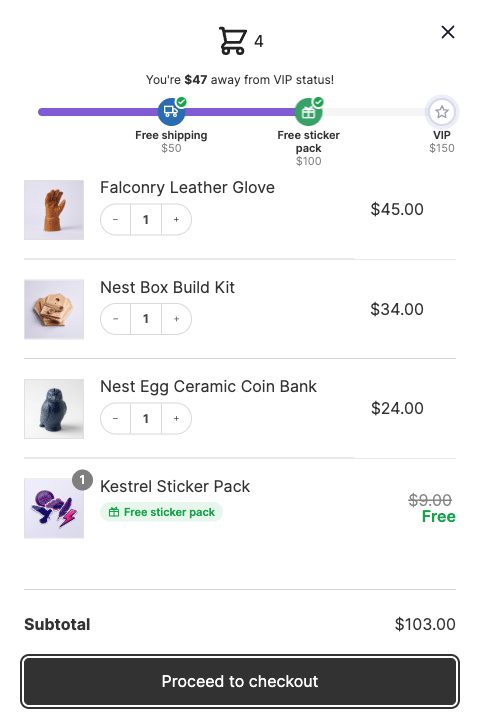
Two things follow from that, and both are deliberate:
- The gift has no remove link in the cart. Removing it would only add it straight back on the next cart update, so the link is hidden.
- If the gift product goes out of stock, it’s removed from the cart automatically. Backordered products stay, since they’re still purchasable.
Only simple products can be used as a gift. Variable products aren’t offered in the picker, because there’s no way to know which variation to add.
A free shipping tier reflects free shipping, it doesn’t create it
This is the single most common point of confusion, so it’s worth being blunt about: setting a free shipping tier at $75 does not make shipping free at $75. It only displays progress toward it. You still need a matching WooCommerce Free Shipping method configured under WooCommerce > Settings > Shipping.
CheckoutWC checks this for you. If your tier threshold doesn’t line up with a real free shipping method, the settings screen warns you inline:
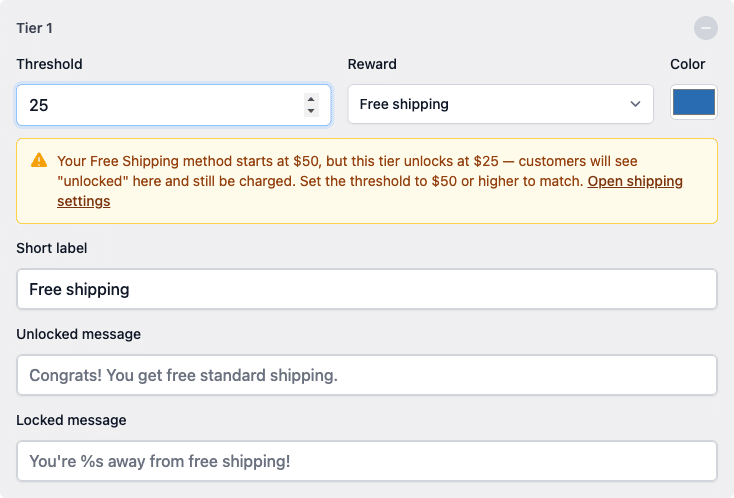
You’ll get a separate warning if your free shipping method requires a coupon, since reaching the spend tier won’t make shipping free on its own in that case.
Excluding products from the progress bar
Exclude shipping classes lets you pick shipping classes whose items don’t count toward the thresholds. Useful for oversized or freight items that you don’t want pulling a shopper over a free shipping line you can’t honour.
For table-rate or custom shipping setups that need finer control, use the cfw_side_cart_qualifying_subtotal filter to adjust the amount counted toward the bar.
Showing the bar at checkout
Turn on Show on the checkout page to display the same rewards bar in the checkout page’s cart summary, not only in the side cart.
Styling
Each tier has its own colour. Progress Bar Background Color sets the unfilled track behind the indicator, globally. Default: #f5f5f5.
For a walkthrough with video, see Turn your free shipping bar into a WooCommerce rewards bar.
Opening the side cart from your own link or button
Any link, button, or HTML element on your site can open the side cart. Add this class to it:
cfw-side-cart-open-triggerFor example, on a menu item:
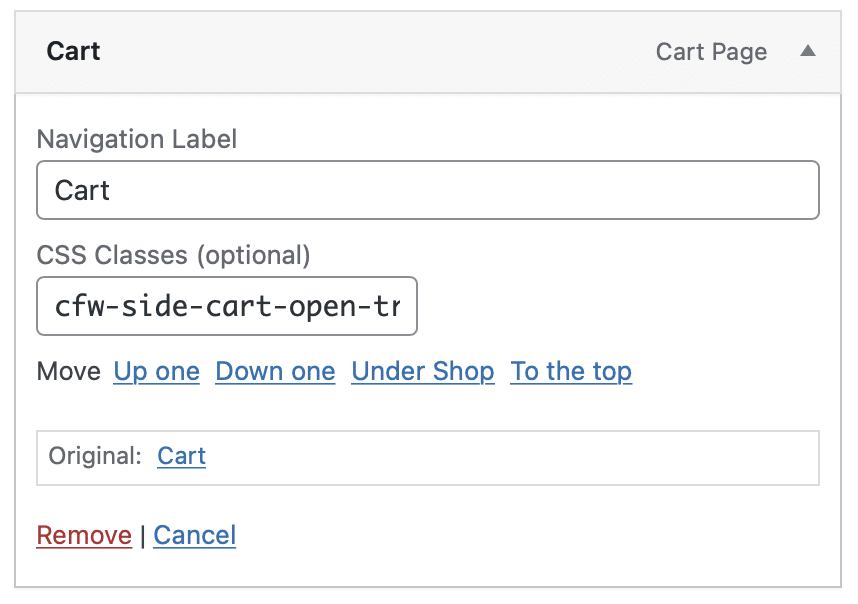
If you don’t see CSS Classes as an option, click Screen Options in the top right and enable it:
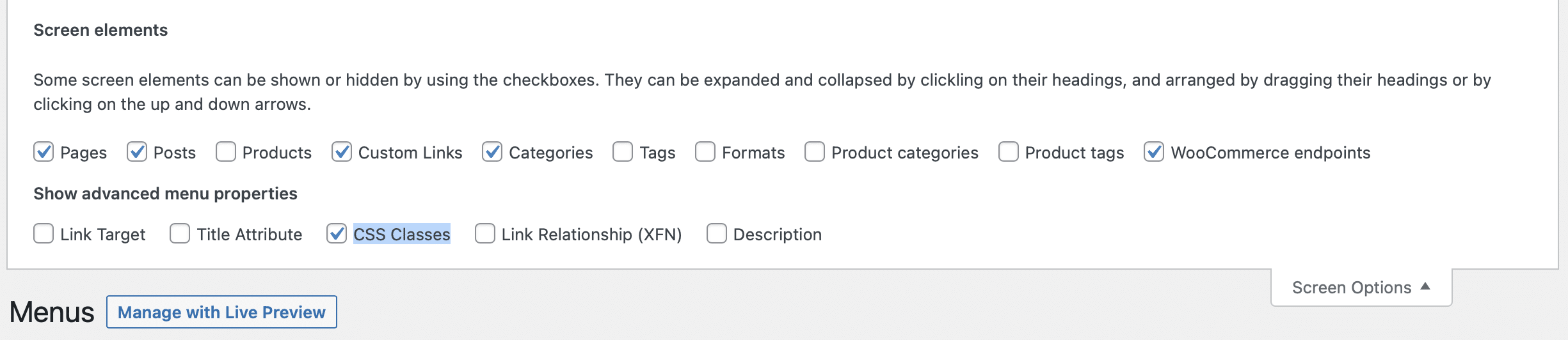
If you can’t add a class to the element, register additional trigger selectors with the cfw_additional_side_cart_trigger_selectors filter. It receives a CSS selector string that’s passed to jQuery, so you can target anything on the page. See the FAQ below for a full example.
Side cart launcher shortcode
A shortcode that outputs a cart icon with a quantity badge anywhere you want one:
[checkoutwc_cart]Shortcode options
- color – the icon colour. Example:
#222222 - width – the icon width. Example:
30px - text_color – the quantity badge colour. Example:
#333333
Full example
[checkoutwc_cart color="#222222" width="30px" text_color="#222222"]Using it in a WordPress menu item
Shortcodes don’t run in menu items by default. This plugin adds support for them: Shortcode in Menus.
Opening the side cart with a URL
Add this hash to any URL to open the side cart on page load:
#cfw-cartExamples:
https://yoursite.com/#cfw-cart
https://yoursite.com/shop/?parameter=value#cfw-cart
Opening the side cart with JavaScript
Trigger this event on the body to open the cart:
jQuery( document.body ).trigger( 'cfw_open_side_cart' );Developer reference
cfw_additional_side_cart_trigger_selectors– register extra CSS selectors that open the side cart. Return a CSS selector string (or a comma-separated list for multiple elements); defaults tofalse. Any falsy return value silently disables the extra trigger, with no error. Registering a selector here does not stop your theme’s own cart drawer from opening on the same click; you also need CSS to hide the theme’s drawer. See the FAQ entry above for a full example.cfw_side_cart_qualifying_subtotal– adjust the subtotal counted toward the rewards bar thresholds.cfw_open_side_cart– JavaScript event that opens the cart.
Frequently asked questions
Does the side cart replace the WooCommerce cart page?
Yes. When the side cart is enabled it takes over the add-to-cart interaction, so shoppers review their cart in the slide-out panel instead of being sent to the cart page.
Which CheckoutWC plan includes the side cart?
Plus, Pro, and Agency. It isn’t included on Basic. Compare plans.
How many reward tiers can I add?
Up to three.
Does the free shipping bar create free shipping automatically?
No. It shows progress toward free shipping you’ve already configured. You need a WooCommerce Free Shipping method with a matching minimum order amount, and CheckoutWC will warn you in the settings if the two don’t match.
What kind of product can I use as a free gift?
Simple products only. A variable product can’t be auto-added because there’s no way to know which variation to pick.
What happens if a customer removes the free gift?
They can’t. The remove link is hidden on gift items, because removing one would only re-add it on the next cart update. The gift comes out on its own if the cart drops below the tier threshold.
Can I show the rewards bar on the checkout page?
Yes, with the Show on the checkout page option.
Can I stop certain products counting toward the goal?
Yes, with Exclude shipping classes, or with the cfw_side_cart_qualifying_subtotal filter for more complex rules.
Can I open the side cart from my theme’s own cart icon?
Yes, but registering the trigger is only half the fix. Your theme’s own cart icon almost always opens its own cart drawer or mini-cart panel too, and CheckoutWC has no way to know that panel exists or to stop it opening. Unless you also hide it with CSS, a shopper who clicks that icon will see both drawers open at once.
Step 1: register the trigger. Either add the cfw-side-cart-open-trigger class to your theme’s cart icon, or return its CSS selector from the cfw_additional_side_cart_trigger_selectors filter:
add_filter( 'cfw_additional_side_cart_trigger_selectors', function() {
    return '.your-theme-cart-icon, #your-theme-cart-link';
} );
The filter defaults to false and must return a CSS selector as a string (a comma-separated list is fine for multiple elements). If it returns anything falsy, such as an empty string or null, the click handler is never bound and the icon does nothing extra; there is no error or warning, so if the filter appears to have no effect, check what it is actually returning first.
To find your theme’s actual selector: open your site in a browser, right-click your theme’s cart icon, choose Inspect, and read the class or id on the clicked element (or its nearest link/button ancestor). Use that value in the filter above; every theme names its cart icon differently, so there is no universal selector to copy.
Step 2: hide your theme’s own cart drawer. This step is required, not optional. Registering the selector adds CheckoutWC’s side cart as a second thing that opens on that click; it does not remove or disable your theme’s own drawer, so both will open together unless you hide the theme’s drawer with CSS:
/* Replace .your-theme-cart-drawer with your theme's actual drawer/panel selector */
.your-theme-cart-drawer {
    display: none !important;
}
Without this second step, the side cart is not misconfigured, it is only doing what it was told; the leftover drawer is your theme’s, and CSS is the only way to suppress it.
Does the side cart work with AJAX add to cart?
Yes. Turn on Enable AJAX Add to Cart to add items on archive and product pages without a page reload.